Extract unique distinct values from a multi-column cell range
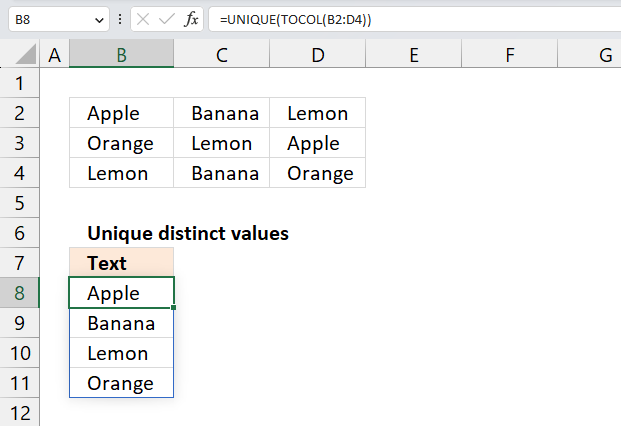
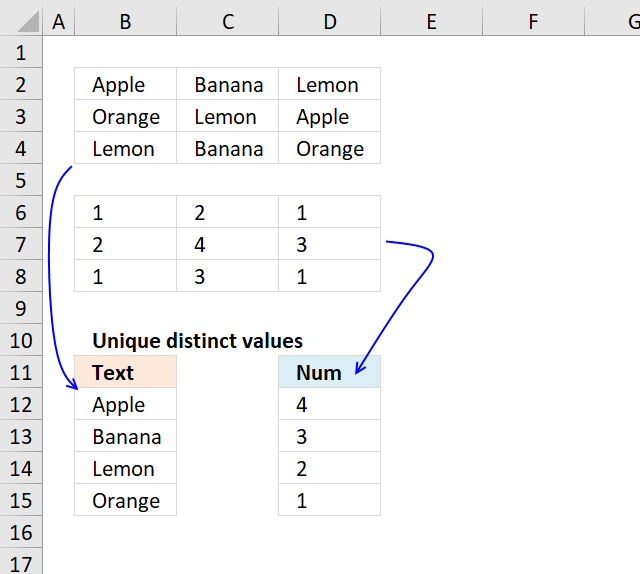
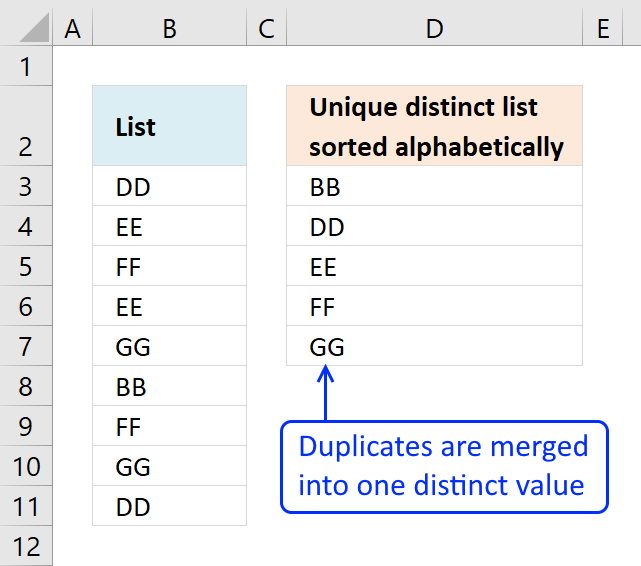
This article demonstrates ways to list unique distinct values in a cell range with multiple columns. The data is not arranged so values do not belong to each other row by row. In other words, this article demonstrates how to list unique distinct values not rows. The image above shows this.
If your souce cell range is only 1 column I recommend a smaller formula described here:
5 easy ways to extract Unique Distinct Values
Extract a unique distinct list sorted from A to Z
Table of Contents
- Extract unique distinct values from a multi-column cell range - Excel 365
- Extract unique distinct values A to Z from a range and ignore blanks - Excel 365
- Extract unique distinct text values containing string in a range - Excel 365
- Extract unique distinct values from cell range that begins with string - Excel 365
- Extract unique distinct values from a multi-column cell range - earlier Excel versions
- Extract unique distinct values A to Z from a range and ignore blanks
- Filter unique distinct values, sorted and blanks removed from a range
- Extract a unique distinct list sorted from A-Z from range
Earlier Excel versions
1. Extract unique distinct values from a multi-column cell range - Excel 365
Excel 365 formula in cell B8:
Explaining formula in cell B8
Step 1 - Rearrange data to a single column array
The TOCOL function rearranges values in 2D cell ranges to a single column.
Function syntax: TOCOL(array, [ignore], [scan_by_col])
TOCOL(B2:D4)
Step 2 - List unqiue distinct values
The UNIQUE function returns a unique or unique distinct list.
Function syntax: UNIQUE(array,[by_col],[exactly_once])
UNIQUE(B2:D4)
2. Extract unique distinct values A to Z from a range and ignore blanks - Excel 365
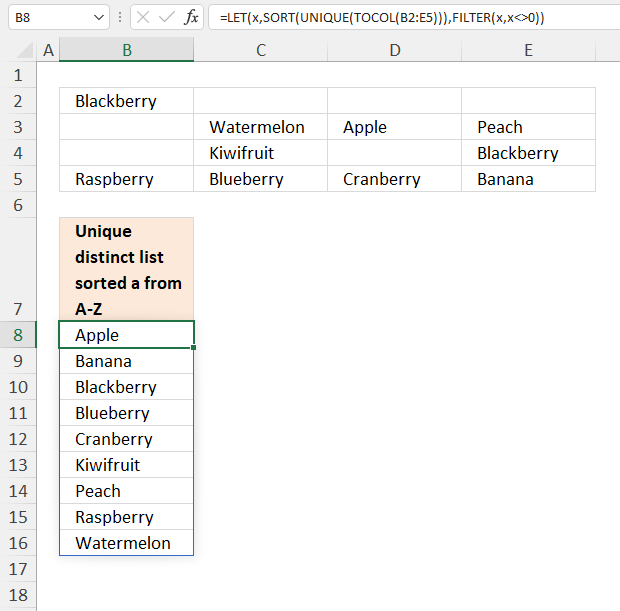
Excel 365 formula in cell B8:
Explaining formula
Step 1 - Rearrange values
The TOCOL function lets you rearrange values in a 2D cell range to a single column.
TOCOL(array, [ignore], [scan_by_col])
TOCOL(B2:E5)
becomes
TOCOL({"Blackberry", 0, 0, 0;0, "Watermelon", "Apple", "Peach";0, "Kiwifruit", 0, "Blackberry";"Raspberry", "Blueberry", "Cranberry", "Banana"})
and returns
{"Blackberry"; 0; 0; 0; 0; "Watermelon"; "Apple"; "Peach"; 0; "Kiwifruit"; 0; "Blackberry"; "Raspberry"; "Blueberry"; "Cranberry"; "Banana"}
Step 2 - Extract a unique distinct list
The UNIQUE function lets you extract both unique and unique distinct values and also compare columns to columns or rows to rows.
UNIQUE(array, [by_col], [exactly_once])
UNIQUE(TOCOL(B2:E5))
becomes
UNIQUE({"Blackberry"; 0; 0; 0; 0; "Watermelon"; "Apple"; "Peach"; 0; "Kiwifruit"; 0; "Blackberry"; "Raspberry"; "Blueberry"; "Cranberry"; "Banana"})
and returns
{"Blackberry"; 0; "Watermelon"; "Apple"; "Peach"; "Kiwifruit"; "Raspberry"; "Blueberry"; "Cranberry"; "Banana"}
Step 3 - Sort values
The SORT function sorts values from a cell range or array.
SORT(array, [sort_index], [sort_order], [by_col])
SORT(UNIQUE(TOCOL(B2:E5)))
becomes
SORT({"Blackberry"; 0; "Watermelon"; "Apple"; "Peach"; "Kiwifruit"; "Raspberry"; "Blueberry"; "Cranberry"; "Banana"})
and returns
{"Apple"; "Banana"; "Blackberry"; "Blueberry"; "Cranberry"; "Kiwifruit"; "Peach"; "Raspberry"; "Watermelon"; 0}
Step 4 - Logical test
To remove 0 (zeros) we need to identify values not equal to zero. The less than and larger than characters combined is the same as not equal to.
SORT(UNIQUE(TOCOL(B2:E5)))<>0
becomes
{"Apple"; "Banana"; "Blackberry"; "Blueberry"; "Cranberry"; "Kiwifruit"; "Peach"; "Raspberry"; "Watermelon"; 0}<>0
and returns
{TRUE; TRUE; TRUE; TRUE; TRUE; TRUE; TRUE; TRUE; TRUE; FALSE}.
Step 5 - Filter values not equal to 0 (zero)
The FILTER function extracts values/rows based on a condition or criteria.
FILTER(array, include, [if_empty])
FILTER(SORT(UNIQUE(TOCOL(B2:E5))),SORT(UNIQUE(TOCOL(B2:E5)))<>0)
becomes
FILTER({"Apple"; "Banana"; "Blackberry"; "Blueberry"; "Cranberry"; "Kiwifruit"; "Peach"; "Raspberry"; "Watermelon"; 0},{TRUE; TRUE; TRUE; TRUE; TRUE; TRUE; TRUE; TRUE; TRUE; FALSE})
and returns
{"Apple"; "Banana"; "Blackberry"; "Blueberry"; "Cranberry"; "Kiwifruit"; "Peach"; "Raspberry"; "Watermelon"}
Step 6 - Shorten formula
The LET function names intermediate calculation results which can shorten formulas considerably and improve performance.
LET(name1, name_value1, calculation_or_name2, [name_value2, calculation_or_name3...])
FILTER(SORT(UNIQUE(TOCOL(B2:E5))),SORT(UNIQUE(TOCOL(B2:E5)))<>0)
SORT(UNIQUE(TOCOL(B2:E5))) is repeated twice in the formula, I will name this intermediate calculation x.
LET(x,SORT(UNIQUE(TOCOL(B2:E5))),FILTER(x,x<>0))
3. Extract unique distinct text values containing string in a range
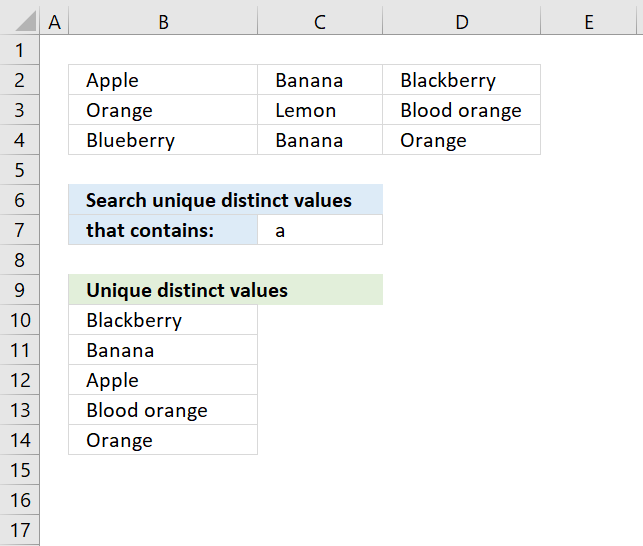
The formula in cell B10 extracts unique distinct values from cell range B2:d4 that contains the string specified in cell C7.
Excel 365 dynamic array formula in cell B10:
Array formula in B10:
To enter an array formula, type the formula in a cell then press and hold CTRL + SHIFT simultaneously, now press Enter once. Release all keys.
The formula bar now shows the formula with a beginning and ending curly bracket telling you that you entered the formula successfully. Don't enter the curly brackets yourself.
Explaining formula in cell B10
Step 1 - Identify values containing search string
The SEARCH function returns a number representing the location of a text string in another string.
ISNUMBER(SEARCH($C$7,$B$2:$D$4))
returns {TRUE,TRUE, TRUE;... , TRUE}
Step 2 - Keep track of previous values
The COUNTIF function counts values based on a condition or criteria, the first argument contains an expanding cell reference, it grows when the cell is copied to cells below. This makes the formula aware of values displayed in cells above. 0 (zero) indicates values that not yet have been displayed
COUNTIF(B9:$B$9,$B$2:$D$4)=0
returns {TRUE,TRUE,TRUE; ... ,TRUE}.
Step 3 - Multiply arrays
Both values must be true in order to get the value in a later step.
(COUNTIF(B9:$B$9,$B$2:$D$4)=0)*ISNUMBER(SEARCH($C$7,$B$2:$D$4))
returns {1,1,1;..., 1}
Step 4 - Replace TRUE with unique number
The IF function returns a unique number if boolean value is TRUE. FALSE returns "" (nothing). The unique number is needed to find the right value in a later step.
IF((COUNTIF(B9:$B$9,$B$2:$D$4)=0)*ISNUMBER(SEARCH($C$7,$B$2:$D$4)),(ROW($B$2:$D$4)+(1/(COLUMN($B$2:$D$4)+1)))*1,"")
returns {2.33333333333333, 2.25,2.2; .... , 4.2}
Step 5 - Find smallest value in array
The MIN function returns the smallest number in array ignoring blanks and text values.
MIN(IF((COUNTIF(B9:$B$9,$B$2:$D$4)=0)*ISNUMBER(SEARCH($C$7,$B$2:$D$4)),(ROW($B$2:$D$4)+(1/(COLUMN($B$2:$D$4)+1)))*1,""))
returns 2.2.
Step 6 - Find corresponding value
IF(MIN(IF((COUNTIF(B9:$B$9,$B$2:$D$4)=0)*ISNUMBER(SEARCH($C$7,$B$2:$D$4)),(ROW($B$2:$D$4)+(1/(COLUMN($B$2:$D$4)+1)))*1,""))=(ROW($B$2:$D$4)+(1/(COLUMN($B$2:$D$4)+1)))*1,$B$2:$D$4,"")
returns {"","","Blackberry";"","","";"","",""}
Step 7 - Concatenate strings in array
The TEXTJOIN function returns values concatenated ignoring blanks in array.
TEXTJOIN("",TRUE,IF(MIN(IF((COUNTIF(B9:$B$9,$B$2:$D$4)=0)*ISNUMBER(SEARCH($C$7,$B$2:$D$4)),(ROW($B$2:$D$4)+(1/(COLUMN($B$2:$D$4)+1)))*1,""))=(ROW($B$2:$D$4)+(1/(COLUMN($B$2:$D$4)+1)))*1,$B$2:$D$4,""))
returns "Blackberry" in cell B10.
Get Excel *.xlsx
Filter unique distinct text values containing string in a range.xlsx
4. Extract unique distinct values from cell range that begins with string
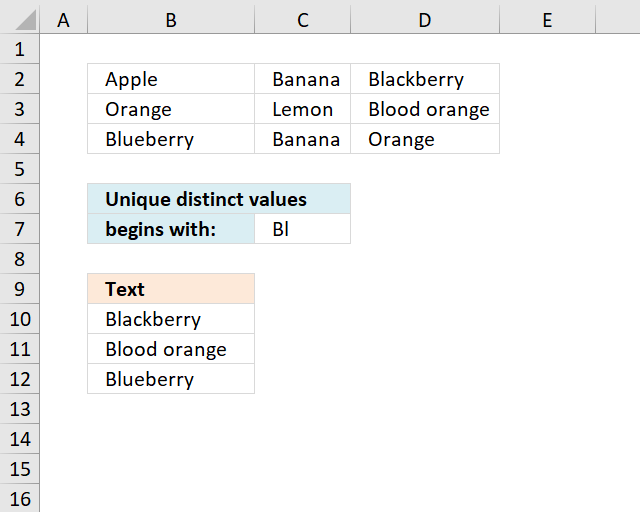
The array formula in cell B10 extracts unique distinct values from cell range B2:D4 that begins with a given condition specified in cell C7.
Excel 365 dynamic array formula in cell B10:
Array formula in B10:
Copy cell B10 and paste it down as far as needed.
Explaining formula in cell B10
Step 1 - Identify values beginning with search string
The LEFT function returns a given number of characters from the start of a text string.
LEFT($B$2:$D$4, LEN($C$7))=$C$7
returns {FALSE,FALSE,TRUE; ... ,FALSE}.
Step 2 - Keep track of previous values
The COUNTIF function counts values based on a condition or criteria, the first argument contains an expanding cell reference, it grows when the cell is copied to cells below. This makes the formula aware of values displayed in cells above.
COUNTIF(B9:$B$9, $B$2:$D$4)=0
returns {TRUE,TRUE,TRUE; ... ,TRUE}.
Step 3 - Multiply arrays
Both values must be true in order to get the value in a later step.
(LEFT($B$2:$D$4, LEN($C$7))=$C$7)*(COUNTIF(B9:$B$9, $B$2:$D$4)=0)
returns {0,0,1; ... ,0}
Step 4 - Replace TRUE with unique number
The IF function returns a unique number if boolean value is TRUE. FALSE returns "" (nothing). The unique number is needed to find the right value in a later step.
IF((LEFT($B$2:$D$4, LEN($C$7))=$C$7)*(COUNTIF(B9:$B$9, $B$2:$D$4)=0), (ROW($B$2:$D$4)+(1/(COLUMN($B$2:$D$4)+1)))*1, "")
returns {"","",2.2;... ,""}
Step 5 - Find smallest value in array
The MIN function returns the smallest number in array ignoring blanks and text values.
MIN(IF((LEFT($B$2:$D$4,LEN($C$7))=$C$7)*(COUNTIF(B9:$B$9, $B$2:$D$4)=0), (ROW($B$2:$D$4)+(1/(COLUMN($B$2:$D$4)+1)))*1, ""))
returns 2.2.
Step 6 - Find corresponding value
IF(MIN(IF((LEFT($B$2:$D$4, LEN($C$7))=$C$7)*(COUNTIF(B9:$B$9, $B$2:$D$4)=0), (ROW($B$2:$D$4)+(1/(COLUMN($B$2:$D$4)+1)))*1, ""))=(ROW($B$2:$D$4)+(1/(COLUMN($B$2:$D$4)+1)))*1, $B$2:$D$4, "")
returns {"","","Blackberry";"","","";"","",""}
Step 7 - Concatenate strings in array
The TEXTJOIN function returns values concatenated ignoring blanks in array.
TEXTJOIN("", TRUE, IF(MIN(IF((LEFT($B$2:$D$4, LEN($C$7))=$C$7)*(COUNTIF(B9:$B$9, $B$2:$D$4)=0), (ROW($B$2:$D$4)+(1/(COLUMN($B$2:$D$4)+1)))*1, ""))=(ROW($B$2:$D$4)+(1/(COLUMN($B$2:$D$4)+1)))*1, $B$2:$D$4, ""))
returns "Blackberry" in cell B10.
Get Excel *.xlsx file
Extract unique distinct values begins with A in a range using array formula in excel.xlsx
5. Extract unique distinct values from a multi-column cell range - earlier Excel versions
Question: I have cell values spanning over several columns and I want to create a unique list from that range. How?
Answer:
Thanks to Eero, who contributed the original array formula!
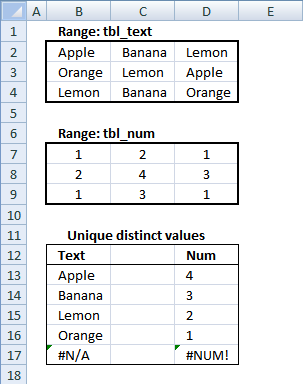
Unique distinct text values from range tbl_text, array formula in B13:
5.1 How to enter an array formula
- Double press with left mouse button on cell B13.
- Copy and paste above formula to cell B13.
- Press and hold CTRL + SHIFT simultaneously.
- Press Enter once.
- Release all keys.
Your formula now looks like this: {=array_formula}
Don't enter these characters yourself, they appear automatically when you do above steps.
5.2 How to copy array formula
Copy cell B13 and paste it down as far as necessary.
5.3 Explaining array formula in cell B13
The array formula has two parts. One part returns row numbers and the other part returns column numbers. Let us begin with the first part, returning row numbers.
Step 1 - Find new unique distinct text values
The COUNTIF function calculates the number of cells that is equal to a condition.
Function syntax: COUNTIF(range, criteria)
COUNTIF($B$12:B12, tbl_text)=0
returns {TRUE,TRUE,... ,TRUE}.
Step 2 - Convert boolean array to row numbers
The COUNTIF function calculates the number of cells that is equal to a condition.
Function syntax: COUNTIF(range, criteria)
IF(COUNTIF($B$12:B12, tbl_text)=0, ROW(tbl_text)-MIN(ROW(tbl_text))+1)
returns {1,1,1;... ,3}
Step 3 - Extract smallest value in array
The MIN function returns the smallest number in a cell range.
Function syntax: MIN(number1, [number2], ...)
MIN(IF(COUNTIF($B$12:B12, tbl_text)=0, ROW(tbl_text)-MIN(ROW(tbl_text))+1))
becomes MIN({1,1,1;2,2,2;3,3,3}) and returns 1.
Step 4 - Part two, identify array values in current row
The INDEX function returns a value or reference from a cell range or array, you specify which value based on a row and column number.
Function syntax: INDEX(array, [row_num], [column_num])
INDEX(tbl_text, MIN(IF(COUNTIF($B$12:B12, tbl_text)=0, ROW(tbl_text)-MIN(ROW(tbl_text))+1)), , 1))
returns array {"Apple", "Banana", "Lemon"}
Step 5 - Find new unique distinct text values in current row
The COUNTIF function calculates the number of cells that is equal to a condition.
Function syntax: COUNTIF(range, criteria)
COUNTIF($B$12:B12, INDEX(tbl_text, MIN(IF(COUNTIF($B$12:B12, tbl_text)=0, ROW(tbl_text)-MIN(ROW(tbl_text))+1)), , 1))
becomes COUNTIF("Text", {"Apple", "Banana", "Lemon"}) and returns {0,0,0}
Step 6 - Find a new unique distinct text value in current row
The MATCH function returns the relative position of an item in an array that matches a specified value in a specific order.
Function syntax: MATCH(lookup_value, lookup_array, [match_type])
MATCH(0, COUNTIF($B$12:B12, INDEX(tbl_text, MIN(IF(COUNTIF($B$12:B12, tbl_text)=0, ROW(tbl_text)-MIN(ROW(tbl_text))+1)), , 1)), 0)
becomes MATCH(0, {0,0,0}, 0) and returns 1.
Step 7 - Get value
The INDEX function returns a value or reference from a cell range or array, you specify which value based on a row and column number.
Function syntax: INDEX(array, [row_num], [column_num])
INDEX(tbl_text, MIN(IF(COUNTIF($B$12:B12, tbl_text)=0, ROW(tbl_text)-MIN(ROW(tbl_text))+1)), MATCH(0, COUNTIF($B$12:B12, INDEX(tbl_text, MIN(IF(COUNTIF($B$12:B12, tbl_text)=0, ROW(tbl_text)-MIN(ROW(tbl_text))+1)), , 1)), 0), 1)
becomes
INDEX(tbl_text, 1, 1)
and returns value "Apple" in cell B13.
Explaining array formula in cell D13
Step 1 - Remove previously extracted values above current cell with an array with boolean values
The COUNTIF function calculates the number of cells that is equal to a condition.
Function syntax: COUNTIF(range, criteria)
COUNTIF($D$12:D12, tbl_num)=0
becomes {0,0,... ,0}=0 and returns {TRUE,TRUE,... ,TRUE}
Step 2 - Convert boolean values to numeric values
The IF function returns one value if the logical test is TRUE and another value if the logical test is FALSE.
Function syntax: IF(logical_test, [value_if_true], [value_if_false])
IF(COUNTIF($D$12:D12, tbl_num)=0, tbl_num, "")
returns {1, 2, 1;2, 4, 3;1, 3, 1}
Step 3 - Convert boolean values to numeric values
The LARGE function calculates the k-th largest value from an array of numbers.
Function syntax: LARGE(array, k)
LARGE(IF(COUNTIF($D$12:D12, tbl_num)=0, tbl_num, ""), 1)
becomes
LARGE({1, 2, 1;2, 4, 3;1, 3, 1}, 1)
and returns 4 in cell D13.
Useful resources
UNIQUE function - Microsoft
TOCOL function - Microsoft
6. Extract unique distinct values A to Z from a range and ignore blanks
This is an answer to a question in this blog post: Extract a unique distinct list sorted from A-Z from range in excel
Question: This is exactly what I've been looking for... almost. It breaks if there are blank cells in the named range. Is there a way to get this to work if there are blanks in the range?
Answer: There are two things you can consider.
(1) Fill the blanks with some text
- Select the range
- Press F5
- Press with left mouse button on "Special..."
- Press with left mouse button on "Blanks"
- Press with left mouse button on OK!
- Type A
- Press Ctrl + Enter
All blanks are filled with the letter A. Remember that your new unique distinct list will contain A.
See this post: How to automatically fill all blanks with missing data or formula
or
(2)
Array formula in B8:
To enter an array formula, type the formula in a cell then press and hold CTRL + SHIFT simultaneously, now press Enter once. Release all keys.
The formula bar now shows the formula with a beginning and ending curly bracket telling you that you entered the formula successfully. Don't enter the curly brackets yourself.
Then copy cell B8 and paste it down as far as necessary.
How to implement array formula to your workbook
If your list starts at, for example, F3. Change $B$7:B7 in the above formulas to F2:$F$2.
Explaining array formula in cell B8
Step 1 - Count previous values that are ignored
The COUNTIF function counts cells based on a condition, however, in this case, I am using it to check that no duplicates are returned.
COUNTIF($B$7:B7,$B$2:$E$5)
returns {0,0,0,0;0,0,0,0;0,0,0,0;0,0,0,0}.
The array above contains only 0's (zeros), which means that no value has yet been shown. Cell range $B$7:B7 expands as the formula is copied to cells below, this makes sure that all previous values are checked.
Step 2 - Identify blank cells
The ISBLANK function returns TRUE if cell is empty and FALSE if it contains at least one character.
ISBLANK($B$2:$E$5)
returns {FALSE, TRUE, TRUE, TRUE; TRUE, FALSE, FALSE, FALSE; TRUE, FALSE, TRUE, FALSE; FALSE, FALSE, FALSE, FALSE}.
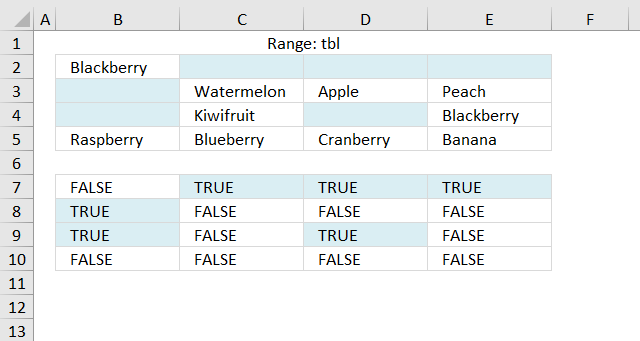
The image above shows the array entered in cell range B7:E10, boolean values TRUE corresponds to the empty values in cell range B2:E5.
Step 3 - Add arrays and compare to zero
COUNTIF($B$7:B9, $B$2:$E$5)+ISBLANK($B$2:$E$5)=0
becomes
{0,0,0,0;0,0,0,0;0,0,0,0;0,0,0,0}+{FALSE, TRUE, TRUE, TRUE; TRUE, FALSE, FALSE, FALSE; TRUE, FALSE, TRUE, FALSE; FALSE, FALSE, FALSE, FALSE}=0
becomes
{0,1,1,1;1,0,0,0;1,0,1,0;0,0,0,0}=0
and returns
{TRUE,FALSE,FALSE,FALSE;FALSE,TRUE,TRUE,TRUE;FALSE,TRUE,FALSE,TRUE;TRUE,TRUE,TRUE,TRUE}
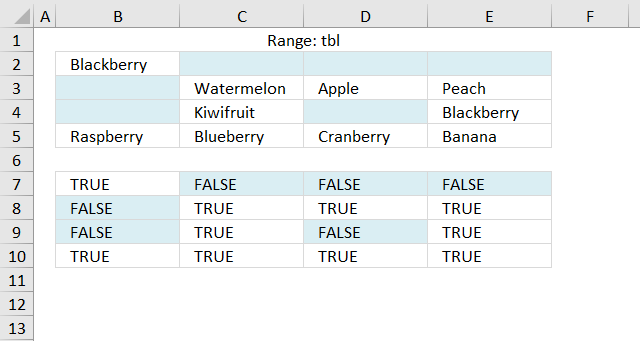
The array above keeps track of blank cells and prior values.
Step 4 - Replace boolean values with numbers based on their relative position if they were sorted
IF(COUNTIF($B$7:B7,$B$2:$E$5)+ISBLANK($B$2:$E$5)=0,COUNTIF($B$2:$E$5,"<"&$B$2:$E$5)+1,"")
becomes
IF({TRUE,FALSE, FALSE,FALSE;FALSE,TRUE, TRUE,TRUE;FALSE,TRUE, FALSE,TRUE;TRUE,TRUE, TRUE,TRUE},{3,1,1,1;1,10,1,8;1,7,1,3;9,5,6,2},"")
and returns
{3,"","","";"",10,1,8;"",7,"",3;9,5,6,2}
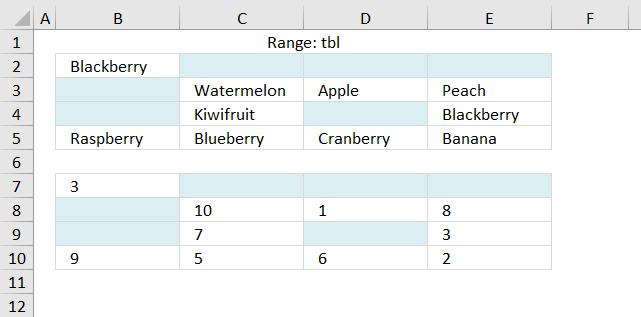
Step 5 - Get smallest value in array
SMALL(IF(SMALL(IF(COUNTIF($B$7:B9, $B$2:$E$5)+ISBLANK($B$2:$E$5)=0, COUNTIF($B$2:$E$5, "<"&$B$2:$E$5)+1, ""), 1)
becomes
SMALL({3,"","","";"",10,1,8;"",7,"",3;9,5,6,2}, 1)
and returns 1.
Step 6 - Replace smallest value with row number
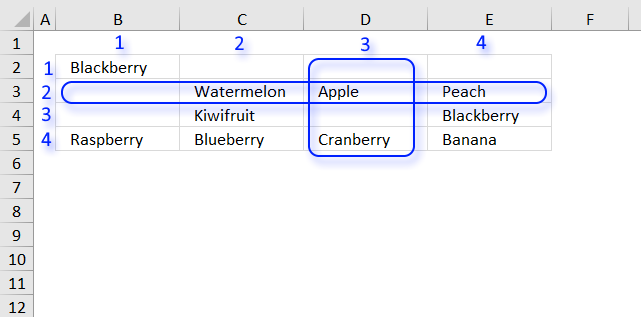
IF(SMALL(IF(COUNTIF($B$7:B7, $B$2:$E$5)+ISBLANK($B$2:$E$5)=0, COUNTIF($B$2:$E$5, "<"&$B$2:$E$5)+1, ""), 1)=IF(ISBLANK($B$2:$E$5), "", COUNTIF($B$2:$E$5, "<"&$B$2:$E$5)+1), ROW($B$2:$E$5)-MIN(ROW($B$2:$E$5))+1)
becomes
IF(1=IF(ISBLANK($B$2:$E$5), "", COUNTIF($B$2:$E$5, "<"&$B$2:$E$5)+1), ROW($B$2:$E$5)-MIN(ROW($B$2:$E$5))+1)
becomes
IF(1={3, "", "", "";"", 10, 1, 8;"", 7, "", 3;9, 5, 6, 2}, ROW($B$2:$E$5)-MIN(ROW($B$2:$E$5))+1)
becomes
IF({FALSE, FALSE, FALSE, FALSE;FALSE, FALSE, TRUE, FALSE;FALSE, FALSE, FALSE, FALSE;FALSE, FALSE, FALSE, FALSE}, ROW($B$2:$E$5)-MIN(ROW($B$2:$E$5))+1)
becomes
=IF({FALSE, FALSE, FALSE, FALSE;FALSE, FALSE, TRUE, FALSE;FALSE, FALSE, FALSE, FALSE;FALSE, FALSE, FALSE, FALSE}, {1;2;3;4})
and returns
{FALSE, FALSE, FALSE, FALSE;FALSE, FALSE, 2, FALSE;FALSE, FALSE, FALSE, FALSE;FALSE, FALSE, FALSE, FALSE}
Step 7 -Get smallest value
SMALL(IF(SMALL(IF(COUNTIF($B$7:B7,$B$2:$E$5)+ISBLANK($B$2:$E$5)=0,COUNTIF($B$2:$E$5,"<"&$B$2:$E$5)+1,""),1)=IF(ISBLANK($B$2:$E$5),"",COUNTIF($B$2:$E$5,"<"&$B$2:$E$5)+1),ROW($B$2:$E$5)-MIN(ROW($B$2:$E$5))+1),1)
becomes
SMALL({FALSE, FALSE, FALSE, FALSE;FALSE, FALSE, 2, FALSE;FALSE, FALSE, FALSE, FALSE;FALSE, FALSE, FALSE, FALSE},1)
and returns 2. This is the row number we need to get the correct value.
Step 8 - Extract smallest value
The following steps calculate the column number needed to get the correct value.
MIN(IF(COUNTIF($B$7:B7,$B$2:$E$5)+ISBLANK($B$2:$E$5)>0,"",COUNTIF($B$2:$E$5,"<"&$B$2:$E$5)+1))
becomes
MIN({3,"","","";"",10,1,8;"",7,"",3;9,5,6,2})
and returns 1.
Step 9 - Extract array from the correct row
Get array needed in the first argument in the INDEx function.
INDEX(IF(ISBLANK($B$2:$E$5),"",COUNTIF($B$2:$E$5,"<"&$B$2:$E$5)+1),SMALL(IF(SMALL(IF(COUNTIF($B$7:B7,$B$2:$E$5)+ISBLANK($B$2:$E$5)=0,COUNTIF($B$2:$E$5,"<"&$B$2:$E$5)+1,""),1)=IF(ISBLANK($B$2:$E$5),"",COUNTIF($B$2:$E$5,"<"&$B$2:$E$5)+1),ROW($B$2:$E$5)-MIN(ROW($B$2:$E$5))+1),1),,1)
becomes
INDEX({3, "", "", "";"", 10, 1, 8;"", 7, "", 3;9, 5, 6, 2},SMALL(IF(SMALL(IF(COUNTIF($B$7:B7,$B$2:$E$5)+ISBLANK($B$2:$E$5)=0,COUNTIF($B$2:$E$5,"<"&$B$2:$E$5)+1,""),1)=IF(ISBLANK($B$2:$E$5),"",COUNTIF($B$2:$E$5,"<"&$B$2:$E$5)+1),ROW($B$2:$E$5)-MIN(ROW($B$2:$E$5))+1),1),,1)
The following calculation returns the row number, I have already shown that calculation in steps 1 to 7.
INDEX({3, "", "", "";"", 10, 1, 8;"", 7, "", 3;9, 5, 6, 2},SMALL(IF(SMALL(IF(COUNTIF($B$7:B7,$B$2:$E$5)+ISBLANK($B$2:$E$5)=0,COUNTIF($B$2:$E$5,"<"&$B$2:$E$5)+1,""),1)=IF(ISBLANK($B$2:$E$5),"",COUNTIF($B$2:$E$5,"<"&$B$2:$E$5)+1),ROW($B$2:$E$5)-MIN(ROW($B$2:$E$5))+1),1),,1)
becomes
INDEX({3, "", "", "";"", 10, 1, 8;"", 7, "", 3;9, 5, 6, 2},2,,1)
and returns {"", 10, 1, 8}
Step 10 - Calculate relative column number
MATCH(MIN(IF(COUNTIF($B$7:B7,$B$2:$E$5)+ISBLANK($B$2:$E$5)>0,"",COUNTIF($B$2:$E$5,"<"&$B$2:$E$5)+1)),INDEX(IF(ISBLANK($B$2:$E$5),"",COUNTIF($B$2:$E$5,"<"&$B$2:$E$5)+1),SMALL(IF(SMALL(IF(COUNTIF($B$7:B7,$B$2:$E$5)+ISBLANK($B$2:$E$5)=0,COUNTIF($B$2:$E$5,"<"&$B$2:$E$5)+1,""),1)=IF(ISBLANK($B$2:$E$5),"",COUNTIF($B$2:$E$5,"<"&$B$2:$E$5)+1),ROW($B$2:$E$5)-MIN(ROW($B$2:$E$5))+1),1),,1),0)
becomes
MATCH(1,{"", 10, 1, 8},0)
and returns 3. This is the column number needed to get the correct value.
Step 11 - Get value
=INDEX($B$2:$E$5,SMALL(IF(SMALL(IF(COUNTIF($B$7:B7,$B$2:$E$5)+ISBLANK($B$2:$E$5)=0,COUNTIF($B$2:$E$5,"<"&$B$2:$E$5)+1,""),1)=IF(ISBLANK($B$2:$E$5),"",COUNTIF($B$2:$E$5,"<"&$B$2:$E$5)+1),ROW($B$2:$E$5)-MIN(ROW($B$2:$E$5))+1),1),MATCH(MIN(IF(COUNTIF($B$7:B7,$B$2:$E$5)+ISBLANK($B$2:$E$5)>0,"",COUNTIF($B$2:$E$5,"<"&$B$2:$E$5)+1)),INDEX(IF(ISBLANK($B$2:$E$5),"",COUNTIF($B$2:$E$5,"<"&$B$2:$E$5)+1),SMALL(IF(SMALL(IF(COUNTIF($B$7:B7,$B$2:$E$5)+ISBLANK($B$2:$E$5)=0,COUNTIF($B$2:$E$5,"<"&$B$2:$E$5)+1,""),1)=IF(ISBLANK($B$2:$E$5),"",COUNTIF($B$2:$E$5,"<"&$B$2:$E$5)+1),ROW($B$2:$E$5)-MIN(ROW($B$2:$E$5))+1),1),,1),0),1)
becomes
=INDEX($B$2:$E$5,2,3)
and returns "Apple" in cell B8.
Get excel *.xls file
extract-a-unique-distinct-list-sorted-alphabetically-removing-blanks-from-a-range-4.xls
7. Filter unique distinct values, sorted and blanks removed from a range
I am looking for the same formula on this page, but targeting a range of MxN (spanning multiple columns) not just a list in one column.
I see where you have formulas which act on MxN but not with all the features of this one:
1. Unique and distinct
2. Remove blanks
3. Sort
4. Properly handle numbers and text
And just to ask for the 'frosting on top' remove errors.
Answer:
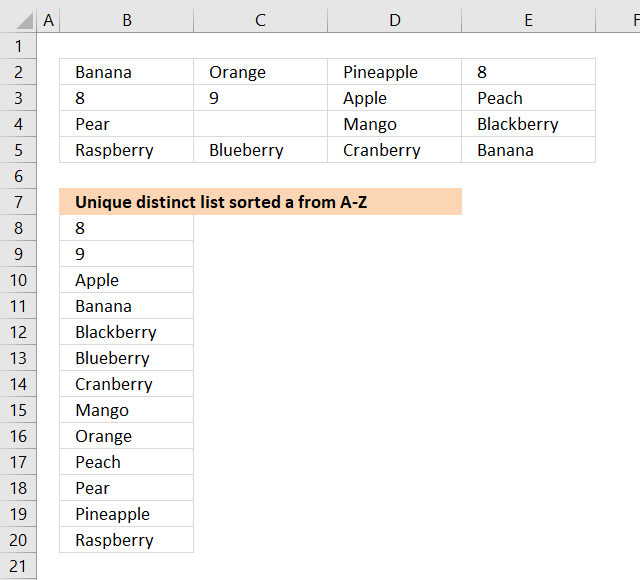
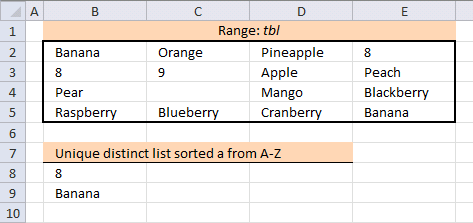
The image above demonstrates an array formula in cell B8 that extracts numbers and text in sorted order, numbers first and then text from A to Z based on cell range. If you want to use a faster way than an array formula then check out Extract unique distinct sorted values from a cell range [UDF].
New shorter array formula in cell B8:
To enter an array formula, type the formula in a cell then press and hold CTRL + SHIFT simultaneously, now press Enter once. Release all keys.
The formula bar now shows the formula with a beginning and ending curly bracket telling you that you entered the formula successfully. Don't enter the curly brackets yourself.
You need to customize the formula so it suits your worksheet. It is easy, simply replace all instances of $B$7:B7 in the formula above with a cell reference to the cell right above the cell you enter the formula in in your worksheet.
Example, you are about to enter the formula in cell F7 in your worksheet, you now need to replace $B$7:B7 with a reference to the cell right above cell F7 and that is F6, however, it must look like this: $F$6:F6. It is a growing cell reference that will expand automatically when you copy cell F7 and paste to cells below, I will explain it in greater detail below.
Named range
The formula above contains a named range tbl, it is simply a reference to a cell range and they are easily and quickly created.
- Select cell range B2:E5.
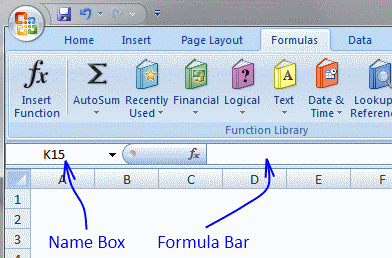
- Type tbl in Name Box.
Explaining new formula in cell B8
There are two parts in the new array formula above, the first part extracts numbers from the cell range and the second part extracts text values.
The IFERROR function moves from the first part of the formula to the second part as soon as an error is detected in the first part. An error is created in the first part when there are no more numbers to extract.
IFERROR( formula_part1, formula_part2)
Step 1 - Identify previous values
The COUNTIF function counts values based on a condition or criteria, the first argument contains an expanding cell reference, it grows when the cell is copied to the cells below. This makes the formula aware of values displayed in cells above. 0 (zero) indicates values that not yet have been displayed
COUNTIF($B$7:B7, tbl)=0
becomes
COUNTIF($B$7:B7, B2:E5)=0
becomes
{0,0,0,0;0,0,0,0;0,0,0,0;0,0,0,0}=0
and returns
{TRUE, TRUE, TRUE, TRUE;TRUE, TRUE, TRUE, TRUE;TRUE, TRUE, TRUE, TRUE;TRUE, TRUE, TRUE, TRUE}
Step 2 - Find not empty cells
The less than and larger than sign combined is interpreted as not equal to by Excel. B2:E5<>"" means
tbl<>""
becomes
B2:E5<>""
and returns
{TRUE, TRUE, TRUE, TRUE;TRUE, TRUE, TRUE, TRUE;TRUE, FALSE, TRUE, TRUE;TRUE, TRUE, TRUE, TRUE}
This array contains boolean values indicating if cell is empty (FALSE) or not empty (TRUE).
Step 3 - Divide numbers with array
tbl/((COUNTIF($B$7:B7, tbl)=0)*(tbl<>""))
becomes
{"Banana", "Orange", "Pineapple", 8;8, 9, "Apple", "Peach";"Pear", 0, "Mango", "Blackberry";"Raspberry", "Blueberry", "Cranberry", "Banana"}/((COUNTIF($B$7:B7, tbl)=0)*(tbl<>""))
becomes
{"Banana", "Orange", "Pineapple", 8;8, 9, "Apple", "Peach";"Pear", 0, "Mango", "Blackberry";"Raspberry", "Blueberry", "Cranberry", "Banana"}/({TRUE, TRUE, TRUE, TRUE;TRUE, TRUE, TRUE, TRUE;TRUE, TRUE, TRUE, TRUE;TRUE, TRUE, TRUE, TRUE}*{TRUE, TRUE, TRUE, TRUE;TRUE, TRUE, TRUE, TRUE;TRUE, FALSE, TRUE, TRUE;TRUE, TRUE, TRUE, TRUE})
becomes
{"Banana", "Orange", "Pineapple", 8;8, 9, "Apple", "Peach";"Pear", 0, "Mango", "Blackberry";"Raspberry", "Blueberry", "Cranberry", "Banana"}/{1,1,1,1;1,1,1,1;1,0,1,1;1,1,1,1}
and returns
{#VALUE!, #VALUE!, #VALUE!, 8; 8, 9, #VALUE!, #VALUE!; #VALUE!, #DIV/0!, #VALUE!, #VALUE!; #VALUE!, #VALUE!, #VALUE!, #VALUE!}
Step 4 - Extract k-th smallest number in array
The AGGREGATE function lets you extract the k-th smallest number ignoring error values.
AGGREGATE(15, 6, tbl/((COUNTIF($B$7:B7, tbl)=0)*(tbl<>"")), 1)
becomes
AGGREGATE(15, 6, {#VALUE!, #VALUE!, #VALUE!, 8; 8, 9, #VALUE!, #VALUE!; #VALUE!, #DIV/0!, #VALUE!, #VALUE!; #VALUE!, #VALUE!, #VALUE!, #VALUE!}, 1)
and returns 8 in cell B8.
Step 1 - Explaining second part of formula in cell B10
The following steps explain how to extract text values sorted from A to Z ignoring blanks. This step extracts a number indicating the alphabetical sort order of each text value.
Note that it is the formula in cell B10 I am explaining now. The ISTEXT function returns TRUE if the cell contains a text value.
COUNTIF(tbl, "<"&tbl) returns an array containing numbers representing the alphabetical sort order of each text value.
COUNTIF($B$7:B7, tbl&"") makes sure that values displayed above current cell is ignored, we don't want to extract duplicate values.
IF(ISTEXT(tbl)*(COUNTIF($B$7:B7, tbl&"")=0), COUNTIF(tbl, "<"&tbl), "")
becomes
IF({TRUE, TRUE, TRUE, FALSE; FALSE, FALSE, TRUE, TRUE; TRUE, FALSE, TRUE, TRUE; TRUE, TRUE, TRUE, TRUE}*(COUNTIF($B$7:B7, tbl&"")=0), COUNTIF(tbl, "<"&tbl), "")
becomes
IF({TRUE, TRUE, TRUE, FALSE; FALSE, FALSE, TRUE, TRUE; TRUE, FALSE, TRUE, TRUE; TRUE, TRUE, TRUE, TRUE}*{TRUE, TRUE, TRUE, FALSE;FALSE, FALSE, TRUE, TRUE;TRUE, TRUE, TRUE, TRUE;TRUE, TRUE, TRUE, TRUE}, COUNTIF(tbl, "<"&tbl), "")
becomes
IF({1,1,1,0;0,0,1,1;1,0,1,1;1,1,1,1}, {1, 7, 10, 0;0, 2, 0, 8;9, 0, 6, 3;11, 4, 5, 1}, "")
and returns
{1, 7, 10, "";"", "", 0, 8;9, "", 6, 3;11, 4, 5, 1}
Step 2 - Find smallest number and return a unique number based on row and column
The SMALL function extracts the smallest value in the array. The IF function compares the smallest number to the array in order to identify where the value is located.
COUNTIF(tbl, "<"&tbl)/ISTEXT(tbl) returns !DIV/0 errors for all numbers in the cell range, we want to compare text values only.
(ROW(tbl)+(1/(COLUMN(tbl)+1)))*1 returns unique numbers for each value in cell range, we must avoid duplicate values in the array.
IF(SMALL(IF(ISTEXT(tbl)*(COUNTIF($B$7:B7, tbl&"")=0), COUNTIF(tbl, "<"&tbl), ""), 1)=IFERROR(COUNTIF(tbl, "<"&tbl)/ISTEXT(tbl), ""), (ROW(tbl)+(1/(COLUMN(tbl)+1)))*1, "")
becomes
IF(SMALL({1, 7, 10, "";"", "", 0, 8;9, "", 6, 3;11, 4, 5, 1}, 1)=IFERROR(COUNTIF(tbl, "<"&tbl)/ISTEXT(tbl), ""), (ROW(tbl)+(1/(COLUMN(tbl)+1)))*1, "")
becomes
IF(0=IFERROR(COUNTIF(tbl, "<"&tbl)/ISTEXT(tbl), ""), (ROW(tbl)+(1/(COLUMN(tbl)+1)))*1, "")
becomes
IF(0=IFERROR({1,7,10,0;0,2,0,8;9,0,6,3;11,4,5,1}/ISTEXT(tbl), ""), (ROW(tbl)+(1/(COLUMN(tbl)+1)))*1, "")
becomes
IF(0=IFERROR({1,7,10,0;0,2,0,8;9,0,6,3;11,4,5,1}/{TRUE, TRUE, TRUE, FALSE; FALSE, FALSE, TRUE, TRUE; TRUE, FALSE, TRUE, TRUE; TRUE, TRUE, TRUE, TRUE}, ""), (ROW(tbl)+(1/(COLUMN(tbl)+1)))*1, "")
becomes
IF(0=IFERROR({1,7,10,0;0,2,0,8;9,0,6,3;11,4,5,1}/{TRUE, TRUE, TRUE, FALSE; FALSE, FALSE, TRUE, TRUE; TRUE, FALSE, TRUE, TRUE; TRUE, TRUE, TRUE, TRUE}, ""), (ROW(tbl)+(1/(COLUMN(tbl)+1)))*1, "")
becomes
IF(0=IFERROR({1,7,10,#DIV/0!;#DIV/0!,#DIV/0!,0,8;9,#DIV/0!,6,3;11,4,5,1}, ""), (ROW(tbl)+(1/(COLUMN(tbl)+1)))*1, "")
becomes
IF(0={1,7,10,"";"","",0,8;9,"",6,3;11,4,5,1}, (ROW(tbl)+(1/(COLUMN(tbl)+1)))*1, "")
becomes
IF({FALSE, FALSE, FALSE, FALSE;FALSE, FALSE, TRUE, FALSE;FALSE, FALSE, FALSE, FALSE;FALSE, FALSE, FALSE, FALSE}, (ROW(tbl)+(1/(COLUMN(tbl)+1)))*1, "")
becomes
IF({FALSE, FALSE, FALSE, FALSE;FALSE, FALSE, TRUE, FALSE;FALSE, FALSE, FALSE, FALSE;FALSE, FALSE, FALSE, FALSE}, {2.33333333333333, 2.25, 2.2, 2.16666666666667;3.33333333333333, 3.25, 3.2, 3.16666666666667;4.33333333333333, 4.25, 4.2, 4.16666666666667;5.33333333333333, 5.25, 5.2, 5.16666666666667}, "")
and returns
{"","","","";"","",3.2,"";"","","","";"","","",""}
Step 3 - Extract value based on unique number
IF(MIN(IF(SMALL(IF(ISTEXT(tbl)*(COUNTIF($B$7:B7, tbl&"")=0), COUNTIF(tbl, "<"&tbl), ""), 1)=IFERROR(COUNTIF(tbl, "<"&tbl)/ISTEXT(tbl), ""), (ROW(tbl)+(1/(COLUMN(tbl)+1)))*1, ""))=(ROW(tbl)+(1/(COLUMN(tbl)+1)))*1, tbl, "")
becomes
IF(MIN({"","","","";"","",3.2,"";"","","","";"","","",""})=(ROW(tbl)+(1/(COLUMN(tbl)+1)))*1, tbl, "")
becomes
IF(3.2=(ROW(tbl)+(1/(COLUMN(tbl)+1)))*1, tbl, "")
becomes
IF(3.2={2.33333333333333, 2.25, 2.2, 2.16666666666667;3.33333333333333, 3.25, 3.2, 3.16666666666667;4.33333333333333, 4.25, 4.2, 4.16666666666667;5.33333333333333, 5.25, 5.2, 5.16666666666667}, tbl, "")
becomes
IF({FALSE, FALSE, FALSE, FALSE;FALSE, FALSE, TRUE, FALSE;FALSE, FALSE, FALSE, FALSE;FALSE, FALSE, FALSE, FALSE}, tbl, "")
becomes
IF({FALSE, FALSE, FALSE, FALSE;FALSE, FALSE, TRUE, FALSE;FALSE, FALSE, FALSE, FALSE;FALSE, FALSE, FALSE, FALSE}, {"Banana", "Orange", "Pineapple", 8;8, 9, "Apple", "Peach";"Pear", 0, "Mango", "Blackberry";"Raspberry", "Blueberry", "Cranberry", "Banana"}, "")
and returns
{"","","","";"","","Apple","";"","","","";"","","",""}
Step 4 - Concatenate strings ignoring blanks
The TEXTJOIN function concatenates values ignoring blanks.
TEXTJOIN("", TRUE, IF(MIN(IF(SMALL(IF(ISTEXT(tbl)*(COUNTIF($B$7:B7, tbl&"")=0), COUNTIF(tbl, "<"&tbl), ""), 1)=IFERROR(COUNTIF(tbl, "<"&tbl)/ISTEXT(tbl), ""), (ROW(tbl)+(1/(COLUMN(tbl)+1)))*1, ""))=(ROW(tbl)+(1/(COLUMN(tbl)+1)))*1, tbl, ""))
becomes
TEXTJOIN("", TRUE, {"","","","";"","","Apple","";"","","","";"","","",""})
and returns "Apple" in cell B8.
Old Excel 2007/2010 array formula in cell B8:
Get the Excel file

extract-a-unique-distinct-list-sorted-alphabetically-from-a-range-removing-blanksv2.xlsx
Excel 2007/2010 array formula: Filter duplicate values, sorted and blanks removed
Array formula in cell B8:
Get the Excel file
extract-a-duplicates-list-sorted-alphabetically-from-a-range-removing-blanks.xlsx
8. Extract a unique distinct list sorted from A-Z from range
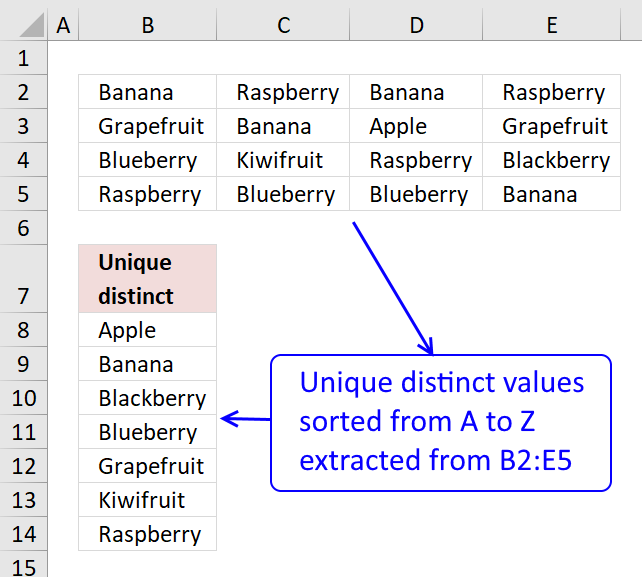
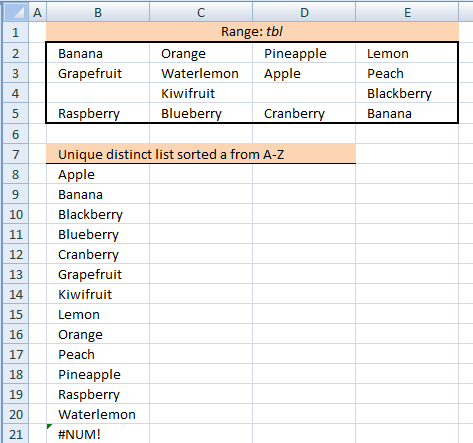
The image above shows an array formula in cell B8 that extracts unique distinct values sorted alphabetically from cell range B2:E5.
Array formula in B8:
Copy cell B8 and paste it to cells below as far as necessary.
To enter an array formula, type the formula in a cell then press and hold CTRL + SHIFT simultaneously, now press Enter once. Release all keys.
The formula bar now shows the formula with a beginning and ending curly bracket telling you that you entered the formula successfully. Don't enter the curly brackets yourself.
Explaining formula in cell B11
This formula consists of two parts, one extracts the row number and the other the column number needed to return the correct value.
INDEX(reference, row, col)
Step 1 to 6 shows how the row number is calculated, step 7 to 11 demonstrates how to calculate the column number.
Step 1 - Prevent duplicates
The COUNTIF function counts values based on a condition or criteria, in this case, we take into account previously displayed values in order to prevent duplicates in our output list.
COUNTIF($B$7:B7, $B$2:$E$5)=0
becomes
COUNTIF("Unique distinct", {"Banana", "Raspberry", "Banana", "Raspberry";"Grapefruit", "Banana", "Apple", "Grapefruit";"Blueberry", "Kiwifruit", "Raspberry", "Blackberry";"Raspberry", "Blueberry", "Blueberry", "Banana"})
becomes
{0,0,0,0;0,0,0,0;0,0,0,0;0,0,0,0}=0
and returns
{TRUE, TRUE, TRUE, TRUE;TRUE, TRUE, TRUE, TRUE;TRUE, TRUE, TRUE, TRUE;TRUE, TRUE, TRUE, TRUE}.
Step 2 - Replace TRUE with the corresponding rank order
The following IF function returns the corresponding sort order if the list had been sorted from A to Z based on the logical expression. FALSE returns "" (nothing).
IF(COUNTIF($B$7:B7,$B$2:$E$5)=0,COUNTIF($B$2:$E$5,"<"&$B$2:$E$5)+1,"")
becomes
IF({TRUE, TRUE, TRUE, TRUE;TRUE, TRUE, TRUE, TRUE;TRUE, TRUE, TRUE, TRUE;TRUE, TRUE, TRUE, TRUE}, {1,12,1,12;9,1,0,9;6,11,12,5;12,6,6,1}+1,"")
becomes
IF({TRUE, TRUE, TRUE, TRUE;TRUE, TRUE, TRUE, TRUE;TRUE, TRUE, TRUE, TRUE;TRUE, TRUE, TRUE, TRUE}, {1,12,1,12;9,1,0,9;6,11,12,5;12,6,6,1}+1,"")
becomes
IF({TRUE, TRUE, TRUE, TRUE;TRUE, TRUE, TRUE, TRUE;TRUE, TRUE, TRUE, TRUE;TRUE, TRUE, TRUE, TRUE}, {2,13,2,13;10,2,1,10;7,12,13,6;13,7,7,2},"")
and returns
{2,13,2,13;10,2,1,10;7,12,13,6;13,7,7,2}
Step 3 - Extract smallest value in array
The SMALL function extracts the k-th small number in array, in this case the second argument (k) is 1.
SMALL(IF(COUNTIF($B$7:B7, $B$2:$E$5)=0, COUNTIF($B$2:$E$5, "<"&$B$2:$E$5)+1, ""), 1)
becomes
SMALL({2,13,2,13;10,2,1,10;7,12,13,6;13,7,7,2}, 1)
and returns 1.
Step 4 - Replace TRUE with the corresponding row number
The IF function uses a logical expression to determine which value (argument) to return.
IF(SMALL(IF(COUNTIF($B$7:B7,$B$2:$E$5)=0,COUNTIF($B$2:$E$5,"<"&$B$2:$E$5)+1,""),1)=COUNTIF($B$2:$E$5,"<"&$B$2:$E$5)+1,ROW($B$2:$E$5)-MIN(ROW($B$2:$E$5))+1)
becomes
IF(1=COUNTIF($B$2:$E$5, "<"&$B$2:$E$5)+1, ROW($B$2:$E$5)-MIN(ROW($B$2:$E$5))+1)
becomes
IF(1={2,13,2,13;10,2,1,10;7,12,13,6;13,7,7,2}, ROW($B$2:$E$5)-MIN(ROW($B$2:$E$5))+1)
becomes
IF({FALSE,FALSE,FALSE,FALSE;FALSE,FALSE,TRUE,FALSE;FALSE,FALSE,FALSE,FALSE;FALSE,FALSE,FALSE,FALSE}, ROW($B$2:$E$5)-MIN(ROW($B$2:$E$5))+1)
becomes
IF({FALSE,FALSE,FALSE,FALSE;FALSE,FALSE,TRUE,FALSE;FALSE,FALSE,FALSE,FALSE;FALSE,FALSE,FALSE,FALSE}, {1;2;3;4})
and returns
{FALSE,FALSE,FALSE,FALSE;FALSE,FALSE,2,FALSE;FALSE,FALSE,FALSE,FALSE;FALSE,FALSE,FALSE,FALSE}
Step 5 - Find smallest value
The SMALL function finds the smallest value in the array ignoring the boolean values
SMALL(IF(SMALL(IF(COUNTIF($B$7:B7,$B$2:$E$5)=0,COUNTIF($B$2:$E$5,"<"&$B$2:$E$5)+1,""),1)=COUNTIF($B$2:$E$5,"<"&$B$2:$E$5)+1,ROW($B$2:$E$5)-MIN(ROW($B$2:$E$5))+1),1)
becomes
SMALL({FALSE,FALSE,FALSE,FALSE;FALSE,FALSE,2,FALSE;FALSE,FALSE,FALSE,FALSE;FALSE,FALSE,FALSE,FALSE},1)
and returns 2. This is the row number we need to extract the correct value from cell range B2:E5.
Step 6 - Return array
This step uses the INDEX function to return an array from a given row in cell range B2:E5.
INDEX(COUNTIF($B$2:$E$5, "<"&$B$2:$E$5)+1, SMALL(IF(SMALL(IF(COUNTIF($B$7:B7, $B$2:$E$5)=0, COUNTIF($B$2:$E$5, "<"&$B$2:$E$5)+1, ""), 1)=COUNTIF($B$2:$E$5, "<"&$B$2:$E$5)+1, ROW($B$2:$E$5)-MIN(ROW($B$2:$E$5))+1), 1), , 1)
becomes
INDEX(COUNTIF($B$2:$E$5, "<"&$B$2:$E$5)+1, 2, , 1)
becomes
INDEX({2,13,2,13;10,2,1,10;7,12,13,6;13,7,7,2}, 2, , 1)
and returns
{10,2,1,10}
Step 7 - Match value in array
This step uses the MATCH function to return the correct column number needed to extract the value we need from cell range B2:E5.
MATCH(MIN(IF(COUNTIF($B$7:B7, $B$2:$E$5)>0, "", COUNTIF($B$2:$E$5, "<"&$B$2:$E$5)+1)), INDEX(COUNTIF($B$2:$E$5, "<"&$B$2:$E$5)+1, SMALL(IF(SMALL(IF(COUNTIF($B$7:B7, $B$2:$E$5)=0, COUNTIF($B$2:$E$5, "<"&$B$2:$E$5)+1, ""), 1)=COUNTIF($B$2:$E$5, "<"&$B$2:$E$5)+1, ROW($B$2:$E$5)-MIN(ROW($B$2:$E$5))+1), 1), , 1), 0)
becomes
MATCH(MIN(IF(COUNTIF($B$7:B7, $B$2:$E$5)>0, "", COUNTIF($B$2:$E$5, "<"&$B$2:$E$5)+1)), {10,2,1,10}, 0)
becomes
MATCH(1, {10,2,1,10}, 0)
and returns 3. This is the column number we need.
Step 8 - Return value
INDEX($B$2:$E$5, SMALL(IF(SMALL(IF(COUNTIF($B$7:B7, $B$2:$E$5)=0, COUNTIF($B$2:$E$5, "<"&$B$2:$E$5)+1, ""), 1)=COUNTIF($B$2:$E$5, "<"&$B$2:$E$5)+1, ROW($B$2:$E$5)-MIN(ROW($B$2:$E$5))+1), 1), MATCH(MIN(IF(COUNTIF($B$7:B7, $B$2:$E$5)>0, "", COUNTIF($B$2:$E$5, "<"&$B$2:$E$5)+1)), INDEX(COUNTIF($B$2:$E$5, "<"&$B$2:$E$5)+1, SMALL(IF(SMALL(IF(COUNTIF($B$7:B7, $B$2:$E$5)=0, COUNTIF($B$2:$E$5, "<"&$B$2:$E$5)+1, ""), 1)=COUNTIF($B$2:$E$5, "<"&$B$2:$E$5)+1, ROW($B$2:$E$5)-MIN(ROW($B$2:$E$5))+1), 1), , 1), 0), 1)
becomes
=INDEX($B$2:$E$5, 3, 2)
and returns "Apple" in cell B8.
Get Excel *.xlsx file
Extract a unique distinct list sorted alphabetically from a range.xlsx
Unique distinct values category
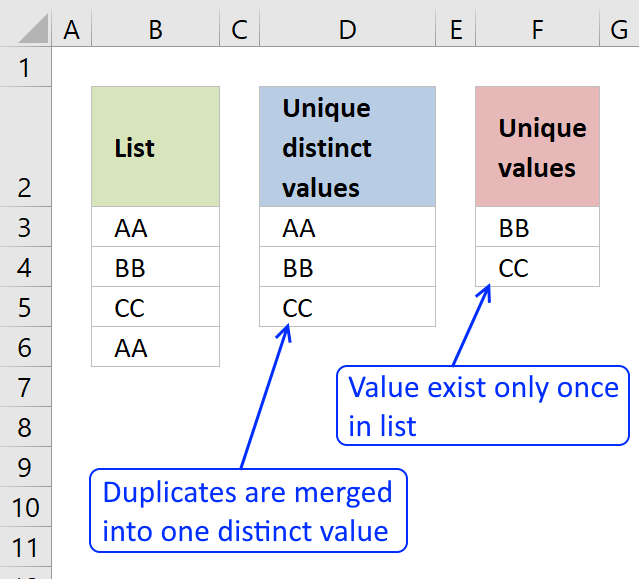
First, let me explain the difference between unique values and unique distinct values, it is important you know the difference […]
This article demonstrates Excel formulas that allows you to list unique distinct values from a single column and sort them […]
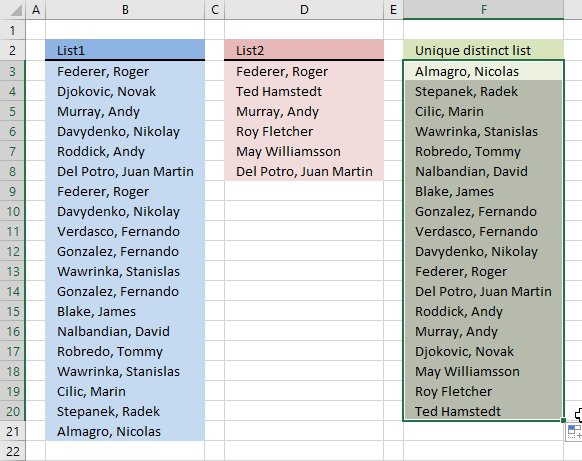
Question: I have two ranges or lists (List1 and List2) from where I would like to extract a unique distinct […]
Excel categories
61 Responses to “Extract unique distinct values from a multi-column cell range”
Leave a Reply
How to comment
How to add a formula to your comment
<code>Insert your formula here.</code>
Convert less than and larger than signs
Use html character entities instead of less than and larger than signs.
< becomes < and > becomes >
How to add VBA code to your comment
[vb 1="vbnet" language=","]
Put your VBA code here.
[/vb]
How to add a picture to your comment:
Upload picture to postimage.org or imgur
Paste image link to your comment.

A slightly different approach to extract unique items from a N*M table (named as "tbl" in the formula).
So type say "Unique items from the table" in A1 and enter the following formula as an array into A2 and copy it down as far as necessary.(it is supposed column A to be free)
=INDEX(tbl,MIN(IF(COUNTIF($A$1:A1,tbl)=0,ROW(tbl)-MIN(ROW(tbl))
+1)),MATCH(0,COUNTIF($A$1:A1,INDEX(tbl,MIN(IF(COUNTIF($A$1:A1,tbl)=0,ROW(tbl)-MIN
(ROW(tbl))+1)),,1)),0),1)
Thank you! Your formula is working perfectly! No need for a "helper" column!
Awesome resource! Using Excel 2003 SP3 if I blank out any of the first 6 values (left to right / top to bottom) it turns all the cells to ZERO. Any suggestions?
Thanks! I have updated the formula and the attached excel file.
Hi,
How I can extend "tbl_text" as reported in your example??
I need to enlarge that range for a bigger table.
Thanks,
Fabio,
Use "Name Manager" to change range.
https://office.microsoft.com/en-us/excel-help/define-and-use-names-in-formulas-HA010147120.aspx
It works now!
Many thanks,
Fabio
Awesome. Unbelievable. This has got to be one of the coolest formulas ever. Well, certainly that I've had the need to dream requirements for. Thank you so much!
And you might also want to add to your bullet list at the top of the Answer section that it handles numbers and text together. Some of your other formulas weren't for both. I'd have to guess that you won't get many more requests for enhancing this because it does everything I can imagine and is just outright awesome. You've just made my day.
BTW, I'm not a big fan of named ranges for my application, so I hard code the range. The way I set it up is with headers in row A, the formula in A2 and drag it down. I have my original data range in B2:D4. Here's all of that hard coded. It's nothing more than a search and replace of yours, so there's no functionality change, just a formatting change to avoid named ranges and rearrangement of where things are.
=IFERROR(SMALL(IF(($B$2:$D$4"")*(ISNUMBER($B$2:$D$4))*(COUNTIF($A$1:A1, $B$2:$D$4)=0), $B$2:$D$4, ""), 1), IFERROR(INDEX($B$2:$D$4, SMALL(IF(SMALL(IF((COUNTIF($A$1:A1, $B$2:$D$4)=0)*(ISTEXT($B$2:$D$4)), COUNTIF($B$2:$D$4, "<"&$B$2:$D$4)+1, ""), 1)=IF((COUNTIF($A$1:A1, $B$2:$D$4)=0)*(ISTEXT($B$2:$D$4)), COUNTIF($B$2:$D$4, "<"&$B$2:$D$4)+1, ""), ROW($B$2:$D$4)-MIN(ROW($B$2:$D$4))+1), 1), MATCH(SMALL(IF((COUNTIF($A$1:A1, $B$2:$D$4)=0)*(ISTEXT($B$2:$D$4)), COUNTIF($B$2:$D$4, "<"&$B$2:$D$4)+1, ""), 1), INDEX(IF((COUNTIF($A$1:A1, $B$2:$D$4)=0)*(ISTEXT($B$2:$D$4)), COUNTIF($B$2:$D$4, "<"&$B$2:$D$4)+1, ""), SMALL(IF(SMALL(IF((COUNTIF($A$1:A1, $B$2:$D$4)=0)*(ISTEXT($B$2:$D$4)), COUNTIF($B$2:$D$4, "<"&$B$2:$D$4)+1, ""), 1)=IF((COUNTIF($A$1:A1, $B$2:$D$4)=0)*(ISTEXT($B$2:$D$4)), COUNTIF($B$2:$D$4, "<"&$B$2:$D$4)+1, ""), ROW($B$2:$D$4)-MIN(ROW($B$2:$D$4))+1), 1), , 1), 0), 1), ""))
EEK,
You are welcome!
If a blank cell is located anywhere in the tbl, the formula returns the blank. I guess technically a blank is a unique value in the tbl but I'm trying to make sure only relevant numbers are returned. Any thoughts on how to correct this?
Curious,
Get the example file:
Unique-distinct-values-from-multiple-columns-using-array-formulas-without-blanks.xls
Hi Oscar,
at the end there is a #N/A in this file can you please suggest me how to get rid of it.
thanks for your help.
Sandeep,
=IFERROR(formula, "")
This is great. Do you have an example where the values are just on one column? Thanks!
JP,
I can´t find an example but I created a workbook. Check it out:
Unique-distinct-list-from-a-column-sorted-A-to-Z-blanks.xls
I have tried the formulas in this article and some from other articles and comments, but none have worked for my particular problem. I'd appreciate any help/insight.
I have several worksheets, each with a table inserted. I would like to create the list of uniques in the column of the summary worksheet's table. The methods on this site work for creating a list from a 1/2/3 columns, but fails for multiple columns (in my case). I have 4 and I'd rather understand the "general" approach than keep creating ever more convoluted formulas as columns increase.
I have created a named range that spans 4 worksheets (in the Name Manager - Name: MultiPC Refers To=A[PC],B[PC],C[PC],D[PC] -- references 4 table columns on separate worksheets).
The formulas create several errors. Stepping through them, when it tries to evaluate INDEX(*MultiPC*,... it says that it will result in an error. The value for MultiPC shown below the formula is the absolute references for MultiPC (comma separated between sheets, e.g. Sheet1!$B$2:$B$31,Sheet2!$B$2:$B:23...).
I'm guessing it's because the named range doesn't consitute an array (not rectangular? is this the case with all non-contiguous ranges?). I'm not really sure if that's the problem and how to tackle it. I've thought about making hidden columns in a single worksheet for the unique list of each worksheet, then applying this approach. Another alternative might be to extend the 3-column method from here https://www.get-digital-help.com/extract-a-unique-distinct-list-from-three-columns-in-excel/ (add another nested IFERROR(INDEX...MATCH(...COUNTIF(... ), but again, I'm trying to learn a general solution that doesn't require an ever-expanding formula.
Of course, it'd be a cinch if I was allowed to use VBA for this project, but our workplace doesn't allow macros, so I'm stuck using formulas at the moment. What's your opinion? Thanks a lot!
So, I almost have it set. Using either of your array formulas below for refering to a 4-column list, I'm having trouble with a "0" (zero) being placed when blank cells are in the referenced columns. Any ideas of how to eliminate this zero? If I reference 3 columns only, there's no problem. by the way, thanks so much for the info on your website.
=IFERROR(IFERROR(IFERROR(IFERROR(INDEX(List1, MATCH(0, COUNTIF($E$1:E1, List1), 0)), INDEX(List2, MATCH(0, COUNTIF($E$1:E1, List2), 0))), INDEX(List3, MATCH(0, COUNTIF($E$1:E1, List3), 0))), INDEX(List4, MATCH(0, COUNTIF($E$1:E1, List4), 0))), "")
=IFERROR(INDEX($B$15:$D$64, MIN(IF((COUNTIF($F$14:$F14, $B$15:$D$64)=0)*($B$15:$D$64""), ROW($B$15:$D$64)-MIN(ROW($B$15:$D$64))+1)), MATCH(0, COUNTIF($F$14:$F14, INDEX($B$15:$D$64, MIN(IF((COUNTIF($F$14:$F14, $B$15:$D$64)=0)*($B$15:$D$64""), ROW($B$15:$D$64)-MIN(ROW($B$15:$D$64))+1)), , 1)), 0), 1),"")
Colin,
See this workbook:
https://www.get-digital-help.com/wp-content/uploads/2014/10/Unique-distinct-values-from-four-ranges-with-blanks.xlsx
Named ranges
List1:=Sheet1!$A$1:$A$7
List2:=Sheet1!$C$1:$C$7
List3:=Sheet1!$E$1:$E$7
List4:=Sheet1!$G$1:$G$8
Zeta,
I have several worksheets, each with a table inserted. I would like to create the list of uniques in the column of the summary worksheet's table. The methods on this site work for creating a list from a 1/2/3 columns, but fails for multiple columns (in my case). I have 4 and I'd rather understand the "general" approach than keep creating ever more convoluted formulas as columns increase.
Here is an example of four columns:
how-to-extract-a-unique-list-from-four-columns-in-excel.xlsx
I'm guessing it's because the named range doesn't consitute an array (not rectangular? is this the case with all non-contiguous ranges?). I'm not really sure if that's the problem and how to tackle it. I've thought about making hidden columns in a single worksheet for the unique list of each worksheet, then applying this approach. Another alternative might be to extend the 3-column method from here https://www.get-digital-help.com/extract-a-unique-distinct-list-from-three-columns-in-excel/ (add another nested IFERROR(INDEX...MATCH(...COUNTIF(... ), but again, I'm trying to learn a general solution that doesn't require an ever-expanding formula.
I am sorry, I don´t have a general solution to this problem.
Oscar,
I really appreciate your reply. Your site is an incredible resource. I used the 4-column formula you provided, but if I find a method that works for N columns across multiple sheets, I will let the folks here know!
Thanks again,
Z
Hi guys,
i have question, what i must do if i want to have duplicates data.
i mean in sort list i want to see duplicates.
Can you help me plzzz
Goran,
read this post:
Sort a range from A to Z using array formula
Oscar,
Ty vm its helps :)
Oscar,
i read post but i have problem....what i must do or change in this formula to have duplicates data
=IFERROR(SMALL(IF((csh"")*(ISNUMBER(csh))*(COUNTIF($B$3:B19,csh)=0),csh,""),1),IFERROR(INDEX(csh,SMALL(IF(SMALL(IF((COUNTIF($B$3:B19,csh)=0)*(ISTEXT(csh)),COUNTIF(csh,"<"&csh)+1,""),1)=IF((COUNTIF($B$3:B19,csh)=0)*(ISTEXT(csh)),COUNTIF(csh,"<"&csh)+1,""),ROW(csh)-MIN(ROW(csh))+1),1),MATCH(SMALL(IF((COUNTIF($B$3:B19,csh)=0)*(ISTEXT(csh)),COUNTIF(csh,"<"&csh)+1,""),1),INDEX(IF((COUNTIF($B$3:B19,csh)=0)*(ISTEXT(csh)),COUNTIF(csh,"<"&csh)+1,""),SMALL(IF(SMALL(IF((COUNTIF($B$3:B19,csh)=0)*(ISTEXT(csh)),COUNTIF(csh,"<"&csh)+1,""),1)=IF((COUNTIF($B$3:B19,csh)=0)*(ISTEXT(csh)),COUNTIF(csh,"<"&csh)+1,""),ROW(csh)-MIN(ROW(csh))+1),1),,1),0),1),""))
Goran,
read this:
Filter duplicate values, sorted and blanks removed (array formula)
Is there a version of this that works if the "tbl" is actually 3 different columns (non-consecutive)? I used the post "Extract a unique distinct list from three columns in excel," (https://www.get-digital-help.com/extract-a-unique-distinct-list-from-three-columns-in-excel/) but that formula does not remove blanks, which I need. Also, sorting alphabetically is not necessary.
Thanks!
Ross,
I have added an array formula that removes blanks:
Extract a unique distinct list from three columns with possible blanks
I'm using this code with Excel 2003 SP3 and i'm getting #NUM! in the fields where it should be blank.
The column where the content is being pulled from has been defined as a list (Property) and it also has data validation to pull information from a list in a different sheet so that the users can't input a "property" that isn't on the list.
Is this causing the #NUM! error in the distinct list? Is there a way around it?
Below is the modified code.
=INDEX(Property, SMALL(IF(SMALL(IF(COUNTIF($L$1:L1, Property)+ISBLANK(Property)=0, COUNTIF(Property, "<"&Property)+1, ""), 1)=IF(ISBLANK(Property), "", COUNTIF(Property, "0, "", COUNTIF(Property, "<"&Property)+1)), INDEX(IF(ISBLANK(Property), "", COUNTIF(Property, "<"&Property)+1), SMALL(IF(SMALL(IF(COUNTIF($L$1:L1, Property)+ISBLANK(Property)=0, COUNTIF(Property, "<"&Property)+1, ""), 1)=IF(ISBLANK(Property), "", COUNTIF(Property, "<"&Property)+1), ROW(Property)-MIN(ROW(Property))+1), 1), , 1), 0), 1)
darzon,
I am not sure if wordpress removed any "greater than" or "less than" signs from your code.
Here is what it should look like:
=INDEX(Property, SMALL(IF(SMALL(IF(COUNTIF($L$1:L1, Property)+ISBLANK(Property)=0, COUNTIF(Property, "<"&Property)+1, ""), 1)=IF(ISBLANK(Property), "", COUNTIF(Property, "<"&Property)+1), ROW(Property)-MIN(ROW(Property))+1), 1), MATCH(MIN(IF(COUNTIF($L$1:L1, Property)+ISBLANK(Property)>0, "", COUNTIF(Property, "<"&Property)+1)), INDEX(IF(ISBLANK(Property), "", COUNTIF(Property, "<"&Property)+1), SMALL(IF(SMALL(IF(COUNTIF($L$1:L1, Property)+ISBLANK(Property)=0, COUNTIF(Property, "<"&Property)+1, ""), 1)=IF(ISBLANK(Property), "", COUNTIF(Property, "<"&Property)+1), ROW(Property)-MIN(ROW(Property))+1), 1), , 1), 0), 1) The code above does not remove #NUM errors. I can´t create a formula that removes #NUM error in excel 2003. I have more than seven levels of nesting. If you upgrade to excel 2007 or later versions you can use IFERROR() function.
Thank you for writing this, it works like a charm!
However, there is one thing I would like to do different:
When I enter more entries in the array, the list updates with new entries in the order of first looking through the row, then going down the column. I would prefer the list first list the unique values in the column going downward, then then next column downward etc. Is that possible?
Thank you
Jonas,
See this file:
Unique-distinct-values-from-multiple-columns-using-array-formulas-jonas.xls
If the Range : tbl_num contains the numbers of :
Apple Banana Lemon
Orange Lemon Apple
Lemon Banana Orange
50 70 80
22 15 18
17 20 25
How to calculate the numbers of Apple , Banana , Lemon , Orange
Khaled Ali
Please explain in greater detail, what is the desired output?
[...] The answer is that there is no need for multiple duplicate columns in the array. Excel simplifies the array down to a single column. But when used with multiple cell ranges in more complicated array formulas, make sure the number of rows match. See this example: Unique distinct values from a cell range [...]
hi,
I want to know how to find out frequency of each word from a group of sentences.
Eg.
Amit is a good boy.
He works with XYZ.
Anil is good boy.
Here we have 3 sentences. Result should be something like this:
Amit -1
is - 2
a -1
good - 2
boy -2
He -1
Works -1
with - 1
XYZ -1
Please help me out to get this result. after looking your multiple post i thought i split sentences into different columns (txt to columns option with blank)and define tbl range and work accordingly but not getting proper results.
Please advise.
Thanks,
Amit
Amit,
read this post:
Excel udf: Word frequency
Thank you so much Oscar.
Regards,
Amit
Hello,
I know this formula works to create a unique list and it works extermely well. However, in my situation, I have some duplicate values in my range and I would actually like to create a list of all the values sorted. (if they are duplicates, they can just be listed twice or thrice). Would you be able to help me with that?
Thank You,
Harsh
Harsh,
Array formula:
=INDEX(tbl, SMALL(IF(SMALL(IF((COUNTIF(tbl, tbl)<=1)+ISBLANK(tbl)=0, COUNTIF(tbl, "<"&tbl)+1, ""), ROW(A1))=IF(ISBLANK(tbl), "", COUNTIF(tbl, "<"&tbl)+1), ROW(tbl)-MIN(ROW(tbl))+1), 1), MATCH(SMALL(IF((COUNTIF(tbl, tbl)<=1)+ISBLANK(tbl)=0, COUNTIF(tbl, "<"&tbl)+1, ""), ROW(A1)), INDEX(IF(ISBLANK(tbl), "", COUNTIF(tbl, "<"&tbl)+1), SMALL(IF(SMALL(IF((COUNTIF(tbl, tbl)<=1)+ISBLANK(tbl)=0, COUNTIF(tbl, "<"&tbl)+1, ""), ROW(A1))=IF(ISBLANK(tbl), "", COUNTIF(tbl, "<"&tbl)+1), ROW(tbl)-MIN(ROW(tbl))+1), 1), , 1), 0), 1) Get the Excel file extract-duplicates-sorted-alphabetically-removing-blanks-from-a-range.xls
Hello Oscar,
Thank you for your help! However, I think I was not clear in my earlier inquiry. What I meant to ask was i wan't a complete list of all the values in the array (not just the duplicates). and if banana exists twice in the array, then in the produced list banana would be listed twice. Would that be possible?
Thank You,
Harsh
Harsh,
Read this:
https://www.cpearson.com/excel/MatrixToVector.aspx
[…] As the name also implies, the data in G2:J14 is expected to be text with length > 0. Source. Unique distinct values from multiple columns using array formula | Get Digital Help - Microsoft Exce… The basic MATCH/COUNTIF has been attributed to Eero (a contributor at the now defunct MS […]
Is there way to modify this formula so it sorts by occurrence versus alphabetically?
Thank you for your assistance!
I should add descendingly.
I realize this is an old thread but its the closest I have been able to get to a solution for my problem. I am working with a data set spread across multiple sheets. I am pulling unique distinct a-z sorted values from a column with a single criteria. I am using a helper column on my "summary" sheet for each of the sheets I pull data from. I am then combining this into a unique distinct sorted list without blanks. The "summary" page is getting quite processor intensive with all the helper columns I am using. Is there a way to add a single criteria element to the formula? Basically a Unique distinct sorted list from two columns with a single criteria removing blanks?
Very useful material here. Thanks!
However, my range name is discontinuous (e.g. tbl = A1:A6 and C1:C6). It seems the formula does not work in this case.
Would e brilliant if it would work.
Marius
Marius,
Check out the Filter unique distinct values from multiple sheets add-in.
https://www.get-digital-help.com/how-to-extract-a-unique-list-and-the-duplicates-in-excel-from-one-column/#addin
It can use discontinuous ranges but unfortunately the add-in does not sort the values.
Hi Oscar, super tutorials as always.
Can you please update the formula to show blanks "" where iserror (to hide #NUM! cells)?
My application: I have 3 sheets with blanks and different abbreviations.
In a separate sheet I want to generate a Legend table (an alphabetic list of unique values, no blanks, dynamically updated).
I think this is a good start as a formula for my project.
Also, after having generated the "Legend" of all abbreviations used in those 3 sheets, I wish to have each abbreviation explained in the adjacent column (from an existing comprehensive list, which is defined as a named range).
Should a simple Vlookup do the trick?
Hi OP,
I have can see that this formula works well for the purpose its intended, how ever is it possible to replace #NUM! with a blank i.e. "". I tried the usual iserror method but it does not work is a array formula.
As there's been a few asking how to resolve same issue, I just thought I post my method, it involves a helper column I know.. I know) but at lease I was able to move on with the work I needed to do.
I created a the unique sorted list using the formula in this article, and next to it added a helper column that gave a true or false to the value in cell B8.
in Cell C8 I put in:
=IF(ISNONTEXT(B8)=TRUE,"",B8)
This will now list all test values sorted as I originally wanted.
I am interested in counting unique values across 8 columns in Excel that are not adjoining (i.e. AF, AN, AV, BD, BL, BT, CB, CJ). I have found functions to count in one or two columns but nothing for 8 and I cannot adapt them for my issue. Any suggestions?
Very helpful article - many thanks for posting the formula and the explanation. It did exactly as specified on the tin.
Great Formula! Thank You for posting and keeping it here.
Excellent Formula Oscar.
Hi,
I have more than 20 columns with true and false values. How do i get the names of top ten column with true values?
Hello Everyone,
Oscar, thank you for making this guide! I'm having some difficulty altering this formula to read a row of data. I figured I could replace instances of ROW( with COLUMN( but this is not working. Does anyone have any thoughts?
Thanks for the work on these formulas. I have this working on range over 6 columns, however I only need the unique values of data in this range if another column matches data entered into a cell.
This is a formula that worked for a single column (but not 6 columns)
=INDEX(WLDRI, MATCH(0, IF((PKG=$C$2),COUNTIF($R$2:R2,WLDRI), ""), 0))The key here is I want unique values returned for columns B3:G if column A3:A matches data in C2.
Thanks again.
Man you're awesome. Your formula work pretty soft. Something I would like to ask is wether you can give some piece of advice about how to learn Excel. Of course I have to practice utterly a lot, but you can tell me like certain steps (you have to start by this, and after that you have to do this, etcetera); something general (I would appreciate to you Mr Cronquist).
Take care
Regards
Sergio Bautista
In testing the formula shown in this article for "Extract a unique distinct list sorted alphabetically and ignore blanks from a range" shown below, I found that the formula breaks if you have more than 2 entries of numbers even though they're entered as '1, '2. As soon as you enter a third such value in the tbl, the next value repeats in the distinct list from that point to the end of the list array. If that can be solved, that is exactly what I need.
Thank you!!
=INDEX(tbl, SMALL(IF(SMALL(IF(COUNTIF($B$7:B7, tbl)+ISBLANK(tbl)=0, COUNTIF(tbl, "<"&tbl)+1, ""), 1)=IF(ISBLANK(tbl), "", COUNTIF(tbl, "0, "", COUNTIF(tbl, "<"&tbl)+1)), INDEX(IF(ISBLANK(tbl), "", COUNTIF(tbl, "<"&tbl)+1), SMALL(IF(SMALL(IF(COUNTIF($B$7:B7, tbl)+ISBLANK(tbl)=0, COUNTIF(tbl, "<"&tbl)+1, ""), 1)=IF(ISBLANK(tbl), "", COUNTIF(tbl, "<"&tbl)+1), ROW(tbl)-MIN(ROW(tbl))+1), 1), , 1), 0), 1) + CTRL + SHIFT + ENTER
Will this work with more columns and dynamic range (not named but using indirect)? I tried your new shorter formula in both Excel 2021 and Google Sheets, however, only a single value was listed. In Google Sheets, I placed the below formula in cell A3. Cell A1 contains the table's range which is $C$3:H. The table contains array formulas all on the 3rd row starting from col C. To be fair, this was also tested in Excel 2021, using the range on your first screenshot (B2:E5 or $B$2:$E$5) on A1, with static data instead of results of array formula, and pressing CTRL+SHIFT+Enter instead of using =ARRAYFORMULA(). What am I doing wrong and how do I adjust the formula to be able to accommodate a dynamic range if it doesn't handle it yet?
=ARRAYFORMULA(IFERROR(AGGREGATE(15, 6, INDIRECT(A1)/((COUNTIF($A$4:A4, INDIRECT(A1))=0)*(INDIRECT(A1)"")), 1), TEXTJOIN("", TRUE, IF(MIN(IF(SMALL(IF(ISTEXT(INDIRECT(A1))*(COUNTIF($A$4:A4, INDIRECT(A1)&"")=0), COUNTIF(INDIRECT(A1), "<"&INDIRECT(A1)), ""), 1)=IFERROR(COUNTIF(INDIRECT(A1), "<"&INDIRECT(A1))/ISTEXT(INDIRECT(A1)), ""), (ROW(INDIRECT(A1))+(1/(COLUMN(INDIRECT(A1))+1)))*1, ""))=(ROW(INDIRECT(A1))+(1/(COLUMN(INDIRECT(A1))+1)))*1, INDIRECT(A1), ""))))
Oscar, what worked for me is the formula from your newer post found in https://www.get-digital-help.com/extract-a-unique-distinct-list-sorted-alphabetically-removing-blanks-from-a-range-in-excel/ which is so much simpler than this solution but I tweaked it a bit to use "" instead of 0 for it to treat 0 as a value: =LET(x,SORT(UNIQUE(TOCOL(range))),FILTER(x,x""))