Customize the ribbon and how to add your macros
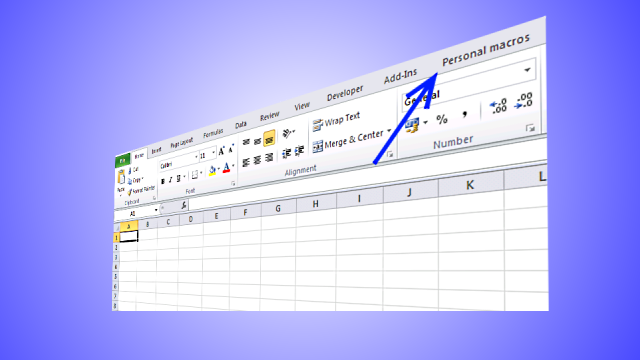
Save links to your favorite macros in a personal tab on the ribbon for easy access and to become more productive. I will also show you in this article how to create a personal *.xlsb file that opens automatically every time you start Excel.
I also recommend the Quick Access Toolbar for macros that you use even more often. They are small icons that you can add and link macros to located above the ribbon tabs.
Ribbon tabs have greatly improved user experience since the introduction in Excel 2007, they make it easier for you to find the tool you are looking for. They are categorized in tabs and you can create and customize one easily yourself.
What's on this page
- Introduction
- Create a new tab to the ribbon
- Rearrange tabs on the ribbon
- Hide tabs on the ribbon
- How to unhide tabs on the ribbon
- How to remove tabs on the ribbon
- How to reset tabs on the ribbon
- Create a button and link macro
- Create a personal *.xlsb file
- How to save VBA code to the *.xlsb file
- Recommended macros to save in your personal.xlsb file
- Show only tabs and hide the command buttons
- Autohide the ribbon
- How to enable the Draw tab on the ribbon
- How to enable the Developer tab on the ribbon
- How to add a macro to your Excel Quick Access Toolbar
- How to save custom functions and macros to an Add-In
- How to add a custom-made item to the shortcut menu - VBA
You can also customize pop-up menus that appear when you right/press with left mouse button on a cell or object.
There are a few ways to access the ribbon customization settings:
- File -> Options -> Customize ribbon
- Press with right mouse button on on the ribbon -> Customize the Ribbon...
1. Introduction
Why create a personal *.xlsb file that opens automatically every time you start Excel?
The *.xlsb file allows you to use macros, User Defined Functions (UDF) and Events everywhere. The difference is that these macros, UDFs and Events are available in every workbook you open or create, in contrast to regular *.xlsm workbooks that is only available in that specific workbook.
If you have favorite macros that would be handy to use wherever you want, this is the feature you are looking for. The *.xlsb file must be saved in a specific folder corresponding to the Excel version you use. In other words, the folder might not be the same in Excel 365 than in Excel 2007.
Why create buttons to your favorite macros on a personal tab on the ribbon?
They will be easier to access and run. For example, go to the tab and then press the button assigned to a specific macro.
What is the "Quick Access Toolbar"?
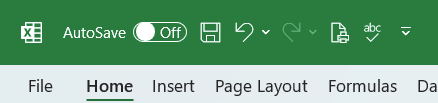
The "Quick Access Toolbar" is located above the ribbon. It contains icons that you can press with left mouse button, and run the corresponding feature. You can customize the "Quick Access Toolbar" and select the features you want available.
What is a short-cut menu?
A shortcut menu is a context menu that appears when you press with right mouse button on in Excel. It provides quick access to commonly used commands based on where you press with left mouse button on. For example:
- Cell shortcut menu: Cut, Copy, Paste, Format Cells.
- Sheet tab shortcut menu: Insert, Delete, Rename, Move or Copy.
- Chart shortcut menu: Format Chart Area, Select Data.
Why customize the shortcut/popup - menu?
You can add features that is important for you like specific macros etc.
What is the ribbon?
The ribbon is located above the cell grid. It contains tabs that you can press with left mouse button on to activate. Below each tab are buttons arranged in groups, these buttons allow you to run a specific feature or change a given property.
For example, the "Insert" tab on the ribbon contains buttons that allow you to create:
- Pivot Tables
- Excel Tables
- Charts
and much more.
What is a tab?
Tabs allow you to navigate between different categories of features on the ribbon.
What is a button?
Buttons on the worksheet allow for running a specific macro assigned to that button. The buttons can be either Form Controls or ActiveX Controls.
Buttons on the ribbon allow for running specific tools or apply specific properties to objects.
What is a *.xlsb file?
A *.xlsb (Excel Binary Workbook) file is a Microsoft Excel file format that stores data in binary form instead of the usual XML-based formats like *.xlsx or *.xlsm. It has several advantages:
- Faster performance: Opens and saves more quickly, especially with large datasets.
- Smaller file size: Uses less disk space than *.xlsx for large workbooks.
- Supports macros: Like *.xlsm, it can store VBA macros.
- Not as widely supported: Some third-party applications may not open it properly.
What is the "Developer" tab?
The Developer tab is an advanced feature in Microsoft Excel that provides tools for automation, coding, and customization. It includes:
- VBA (Visual Basic for Applications): Write, record and edit macros.
- ActiveX Controls & Form Controls: Create buttons, check boxes, and interactive elements.
- XML Tools: Work with XML maps and data.
- Add-ins Management: Enable and configure Excel Add-ins.
How to enable the "Developer tab"?
Here is how to enable the "Developer" tab if it is missing on the ribbon:
- Press with left mouse button on "File" located above the ribbon, a new pane appears.
- Press with mouse on the "Options" button to access Excel settings.
- Press with mouse on "Customize Ribbon" and then on the right side press with left mouse button on the checkbox next to the tab "Developer" to enable it.
- Press with left mouse button on "OK" button to apply changes.
The "Developer" tab is now visible on the ribbon. Here are instructions for Excel 2007, Excel 2010 and Excel 2013
What is a macro?
Macros are sequences of instructions or actions that can be recorded and replayed in Excel to automate repetitive tasks.
- Automate tasks such as formatting, calculations, data manipulation, or interacting with other workbooks.
- You can record macros using the built-in Excel Macro Recorder, which generates VBA (Visual Basic for Applications) code for the actions you perform in Excel.
- Alternatively, you can write macros manually in the VBA editor for more control and flexibility.
- Macros can be run from the Developer tab, assigned to a button, or triggered through custom VBA code.
What is VBA?
VBA (Visual Basic for Applications) is a programming language developed by Microsoft that is used for automating tasks in Microsoft Office applications such as Excel, Word, and Access. It allows users to create macros, automate repetitive tasks, and enhance Office functionality with custom scripts.
What is a custom function?
A custom function (also known as a User-Defined Function, UDF) is a function that a user creates in Excel to perform calculations that built-in functions cannot handle. In other words, it extends Excel capabilities beyond the built-in functions.
1. Create a new tab on the ribbon
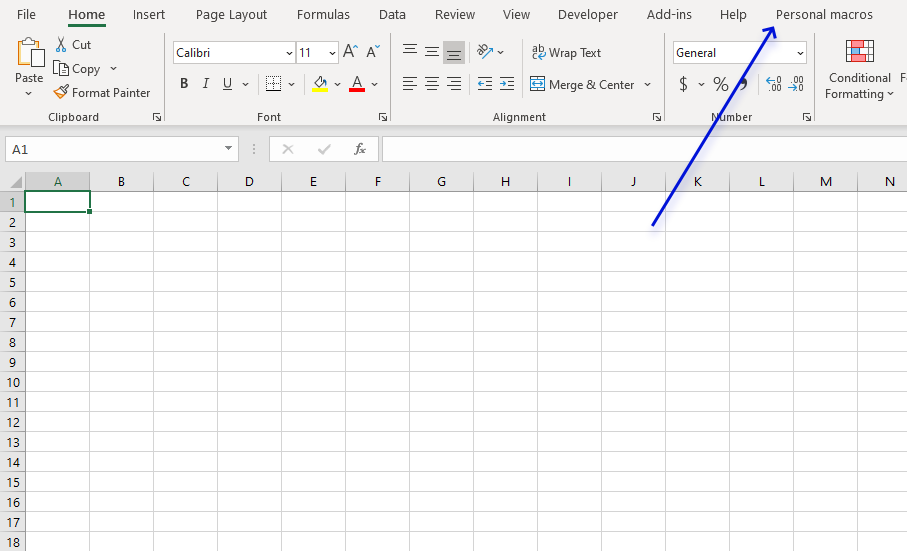
Excel allows you to customize the ribbon and link your personal macros to a button each. So you can quickly and easily access your favorite macros.
- Go to "File" on the ribbon.
- Press with left mouse button on "Options".
- Press with left mouse button on "Customize Ribbon".
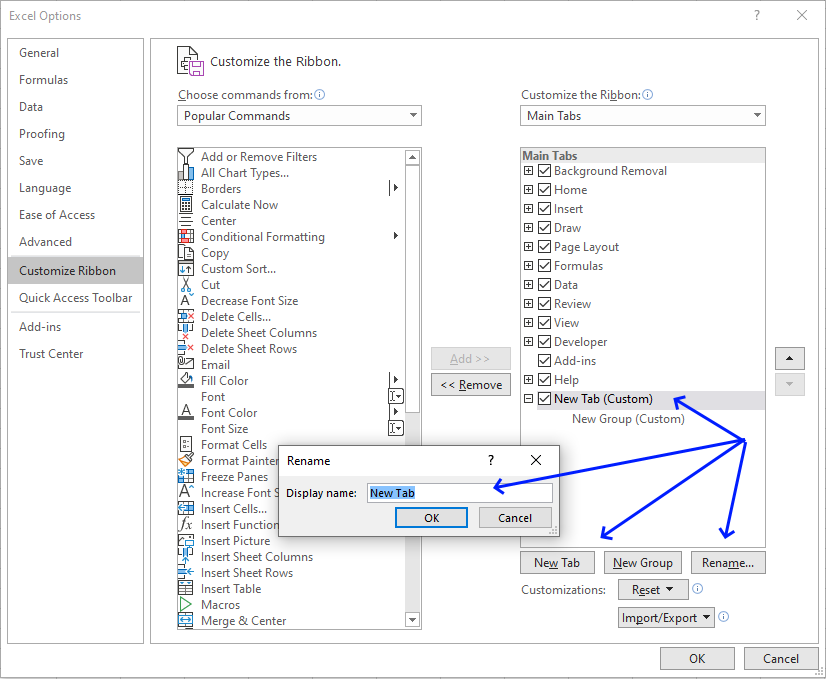
- Press with left mouse button on "New tab" button, see image above.
- Press with left mouse button on "Rename" button.
- Rename the tab, I named it "Personal macros".
- Press with left mouse button on OK button to dismiss the "Rename" dialog box.
- Press with left mouse button on OK button to dismiss the "Excel Options" dialog box.
2. How to rearrange tabs on the ribbon
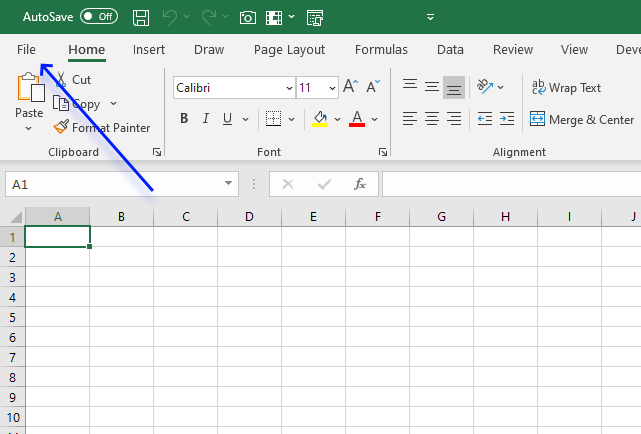
- Press with mouse on File on the ribbon located on the top left corner of your Excel window, see image above.
- Press with left mouse button on Options in the lower-left corner. A dialog box appears.
- Press with left mouse button on "Customize Ribbon".
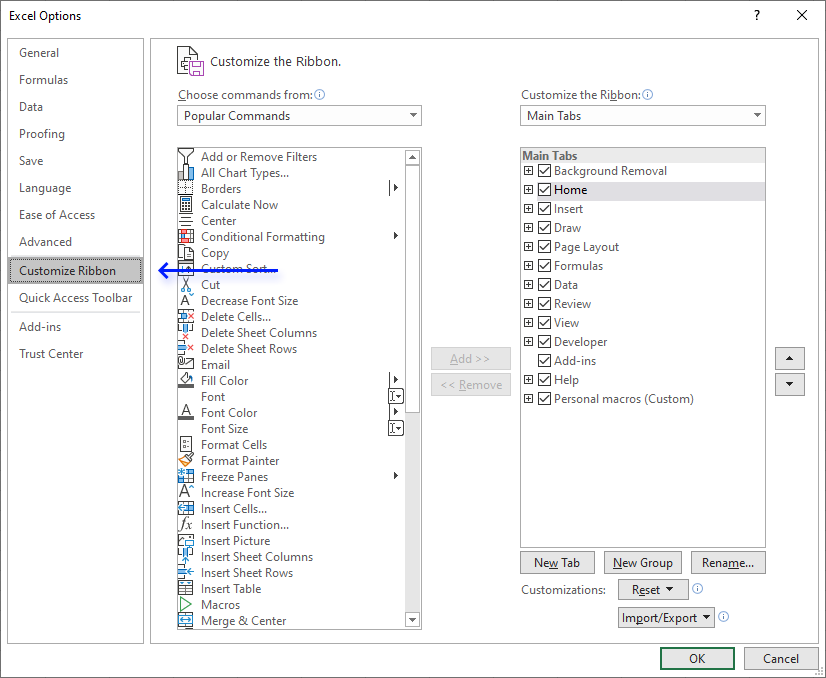
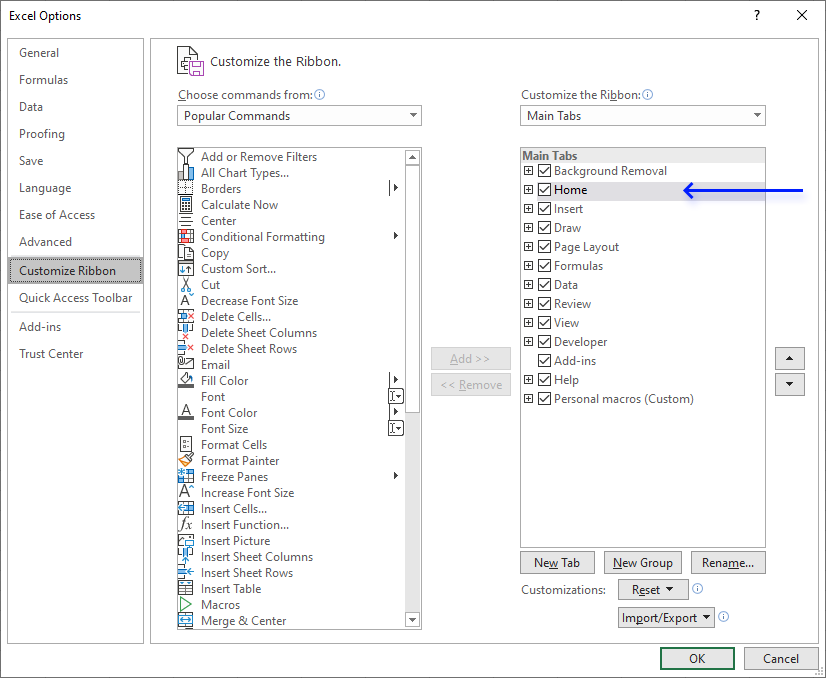
- Select one of the tabs, I selected the "Home" tab in this example.
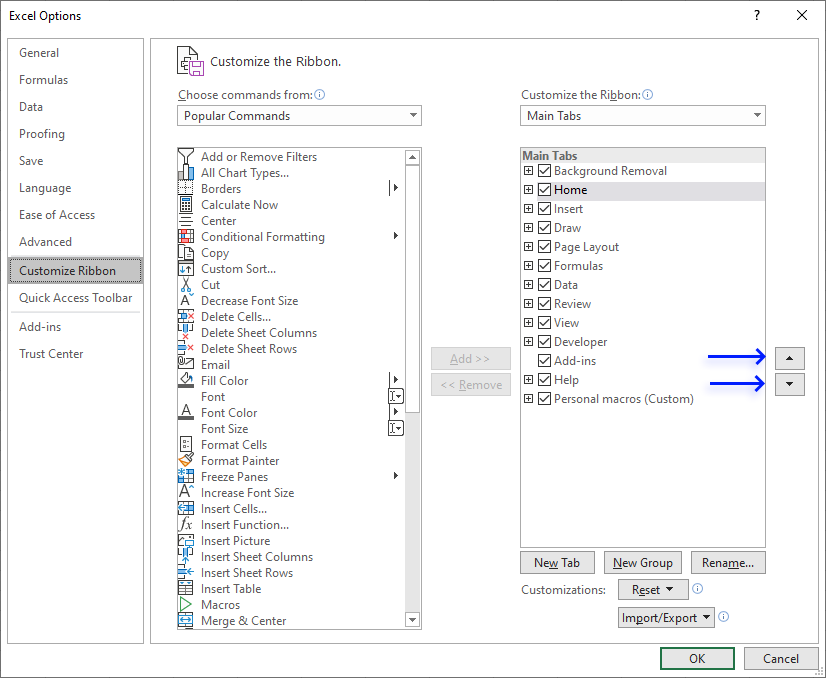
- Press with mouse on one of the arrow buttons to move the "Home" tab on the ribbon. The order is important, the top item will be the left-most item on the ribbon.
- Press with left mouse button on OK button.
3. How to hide tabs on the ribbon
- Press with mouse on File on the ribbon.
- Press with left mouse button on Options in the lower-left corner. A dialog box appears.
- Press with left mouse button on "Customize Ribbon".
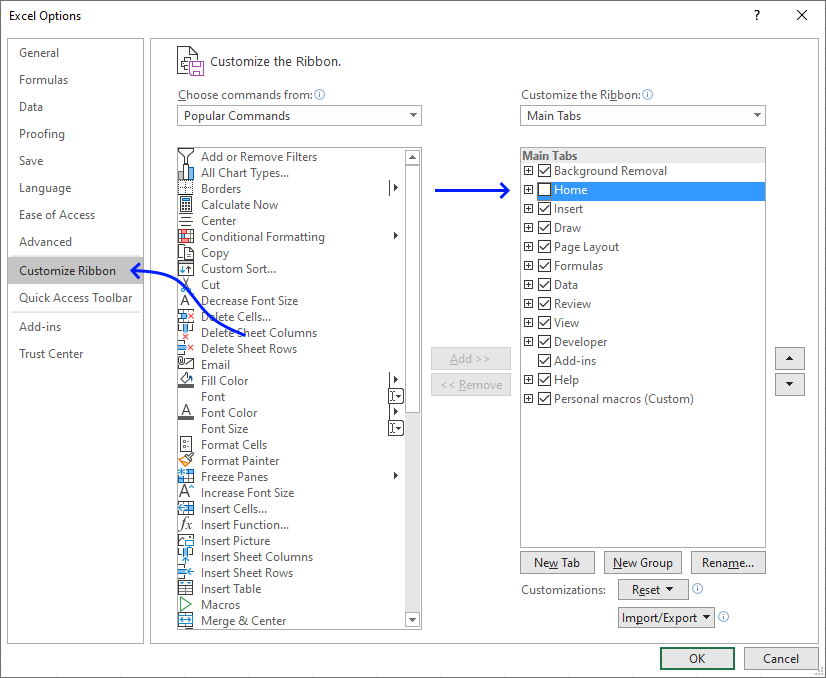
- Disable the checkbox next to a ribbon tab name you want to hide.
- Press with left mouse button on OK button.
4. How to unhide tabs on the ribbon
- Press with mouse on File on the ribbon.
- Press with left mouse button on Options in the lower-left corner. A dialog box appears.
- Press with left mouse button on "Customize Ribbon".
- Enable the checkbox next to a ribbon tab name you want to unhide.
- Press with left mouse button on OK button.
5. How to remove tabs on the ribbon
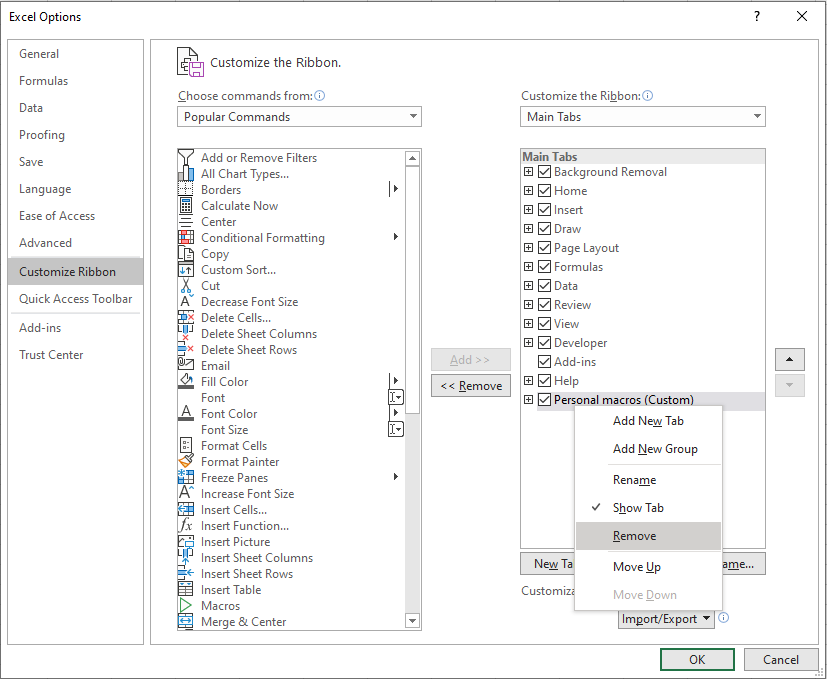
- Press with mouse on File on the ribbon.
- Press with left mouse button on Options in the lower-left corner. A dialog box appears.
- Press with left mouse button on "Customize Ribbon".
- Press with right mouse button on on the tab you want to delete.
A pop-up menu appears. - Press with left mouse button on "Remove" on the pop-up menu.
- Press with left mouse button on OK button.
6. How to reset tabs on the ribbon
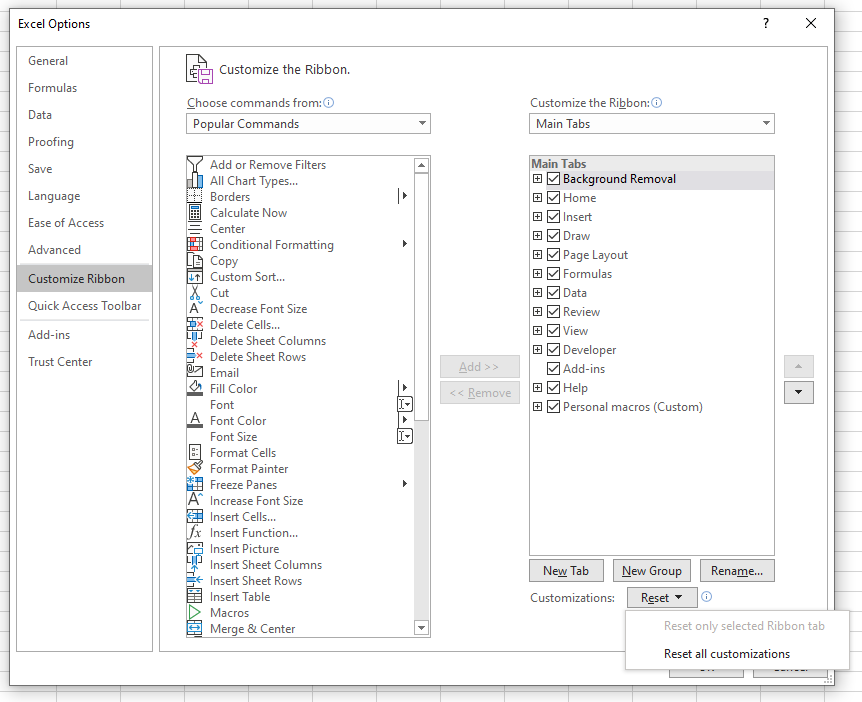
- Press with mouse on File.
- Press with left mouse button on Options in the lower-left corner. A dialog box appears.
- Press with left mouse button on "Customize Ribbon".
- Press with left mouse button on the "Reset" button.
- Press with left mouse button on "Reset all customizations".
- Press with left mouse button on OK button.
7. Create a button and link to macro
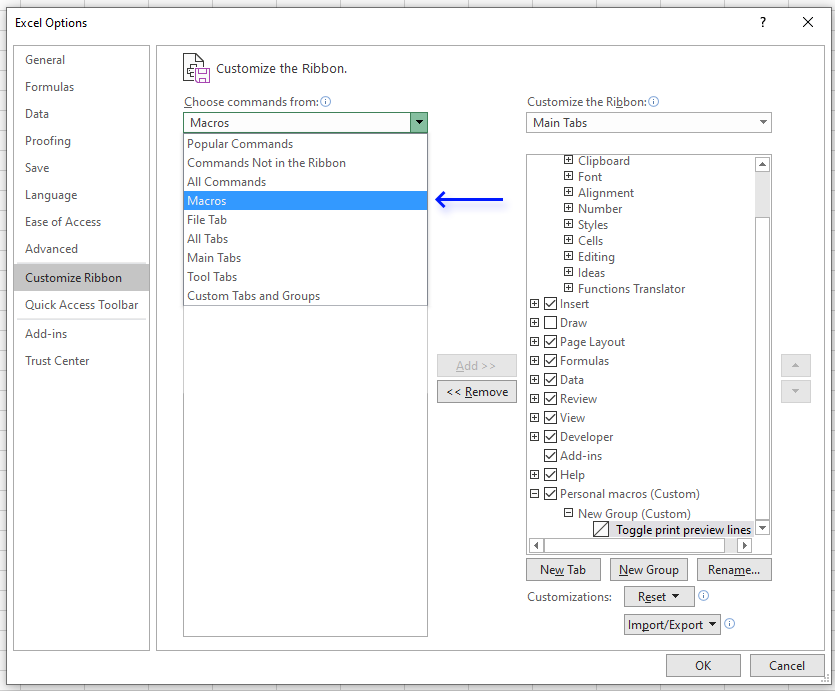
- Select macros from the drop-down list, see image above.
- There are now macros below the drop-down list, select a macro.
- Press with left mouse button on "Add" button.
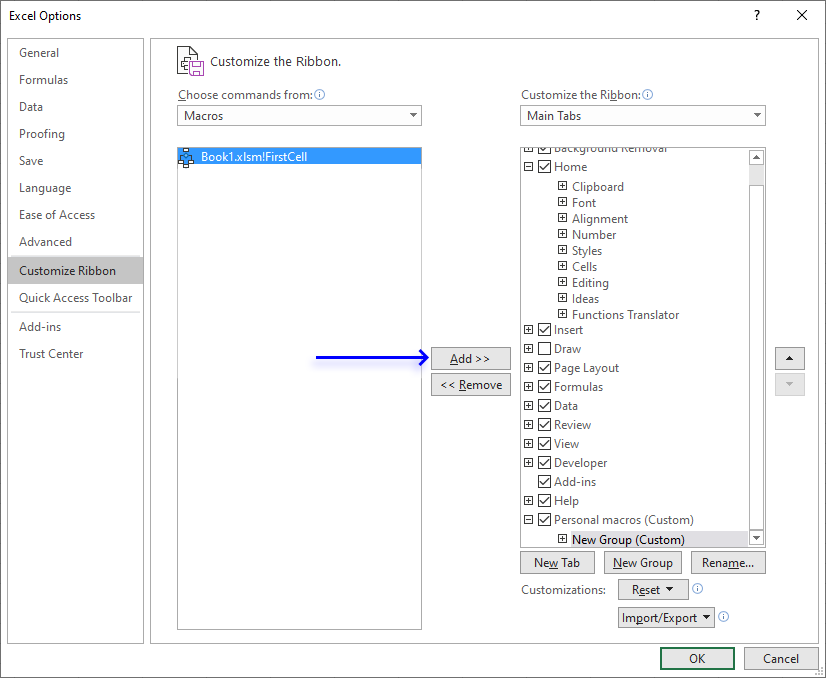
- Press with left mouse button on "Rename". A new dialog box appears.
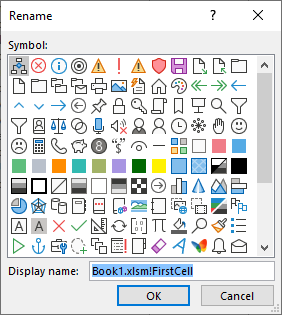
- Pick an icon and type a new name.
- Press with left mouse button on OK button.
- Press with left mouse button on OK button again.
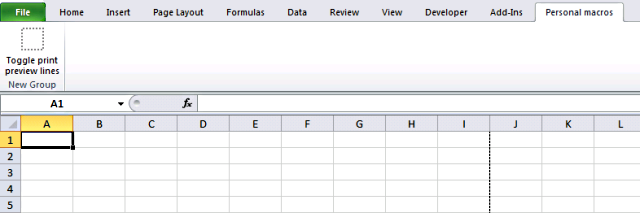
8. Create a personal *.xlsb file
- Create a new workbook (CTRL + n)
- Go to VB Editor (Alt + F11)
- Insert a module
- Copy macros to module
- Exit VB Editor and return to excel
- Save workbook as a *.xlsb file to this folder:
C:\Users\<username>\AppData\Roaming\Microsoft\Excel\XLSTART - Exit excel
- Start excel
- Your personal.xlsb file opens automatically
- Go to tab "View" on the ribbon
- Press with left mouse button on "Hide" button

- Exit excel
A new workbook is created next time you start Excel. The personal.xlsb opens but is hidden.
9. How to save VBA code to the *.xlsb file
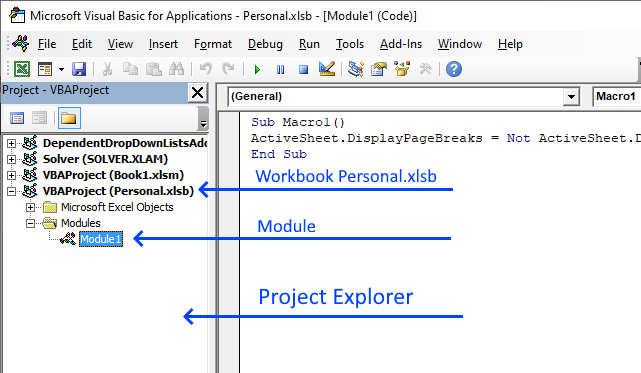
You can now save macros and User Defined Functions to the Personal.xlsb file.
- Press Alt+F11 to open the Visual Basic Editor.
- Locate the Personal.xlsb workbook in the Project Explorer.
- Press with left mouse button on + (plus sign) next to workbook name to expand contents.
- Expand contents in Modules folder.
- Double press with left mouse button on module named Module1.
- Paste code to window, see image above.
- Press with left mouse button on "Save" button on the top menu.
Recommended macros for your ribbon
Recommended articles
Have you ever wondered how these lines got there on a worksheet? They are called "print preview lines" and they […]
Recommended articles
Today I would like to share with you these small event handler procedures that make it easier for you to […]
10. Example macros to save in your personal.xlsb file
The following links take you to articles demonstrating macros that you may find useful.
- Remove print preview lines (Page Breaks)
- Create links to all sheets in a workbook
- Insert hyperlinks to all files in current folder
- Follow hyperlinks in a pivot table
- Select cell A1 on all sheets before you close a workbook
- List files in a folder and subfolders
11. How to show tabs only on the ribbon
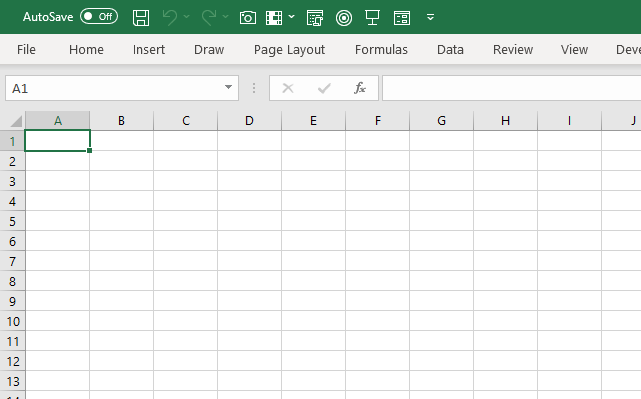
Double-press with left mouse button on with left mouse button on any tab name to toggle between showing and hiding the buttons on the ribbon.
This is great if you temporarily need more cells visible on your worksheet.
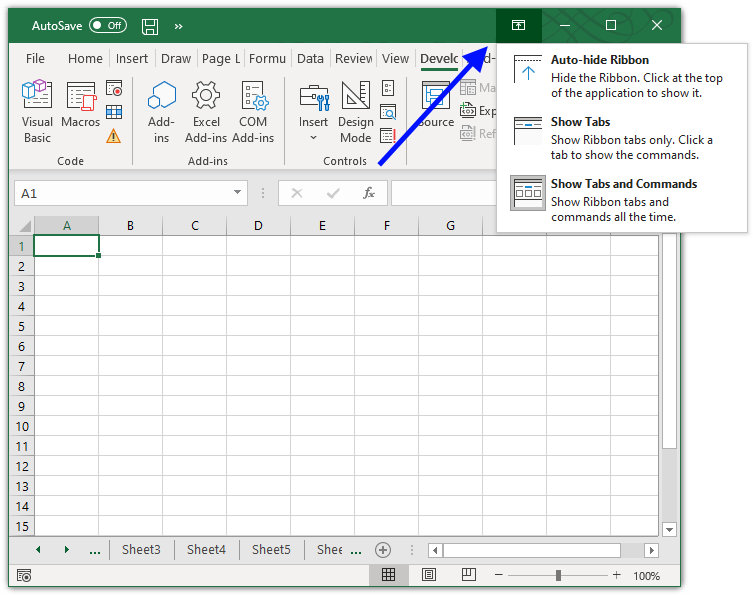
You can also press with left mouse button on the up-arrow located on the top right corner. This will show a pop-up menu with three options:
- Auto-hide Ribbon
- Show Tabs
- Show Tabs and Commands
Press with mouse on "Show Tabs", the command buttons are now hidden.
12. How to autohide the ribbon
Press with left mouse button on the up-arrow located on the top right corner. This will show a pop-up menu with three options:
- Auto-hide Ribbon
- Show Tabs
- Show Tabs and Commands
Press with mouse on "Auto-hide Ribbon", this will completely hide the ribbon and maximize the Excel window if it isn't already.
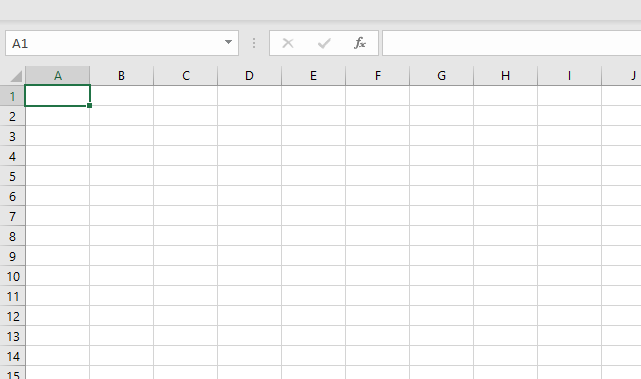
Move the mouse to the top of your screen to show the top bar, press with left mouse button on the top bar to temporarily show the ribbon again.
Press with mouse on the command button or command buttons you want to use, as soon as you press with left mouse button on below the ribbon it disappears again.
13. How to show the Draw tab on the ribbon
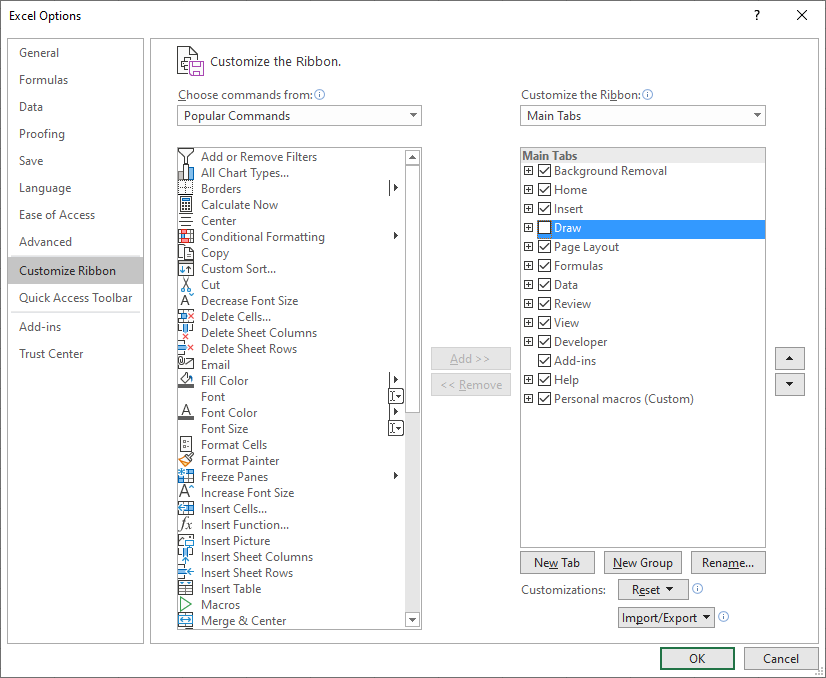
The Draw tab is available in Excel 2019 and Excel 365 subscription, however, some command buttons appear only in Excel 365.
The Draw tab contains features that allow you to use your mouse, touchscreen or a digital pen to write text, notes, comments, etc.
- Press with mouse on File.
- Press with left mouse button on Options in the lower-left corner. A dialog box appears.
- Press with left mouse button on "Customize Ribbon".
14. How to show the Developer tab on the ribbon
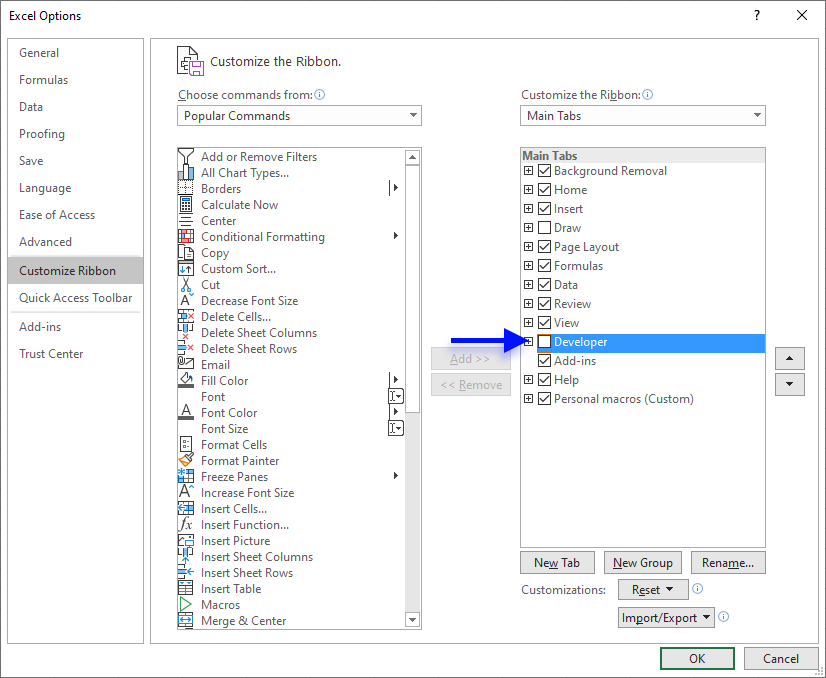
- Press with mouse on File.
- Press with left mouse button on Options in the lower-left corner. A dialog box appears.
- Press with left mouse button on "Customize Ribbon".
- Press with left mouse button on the checkbox next to "Developer" to enable it.
- Press with left mouse button on OK button.
15. How to add a macro to your Excel Quick Access Toolbar
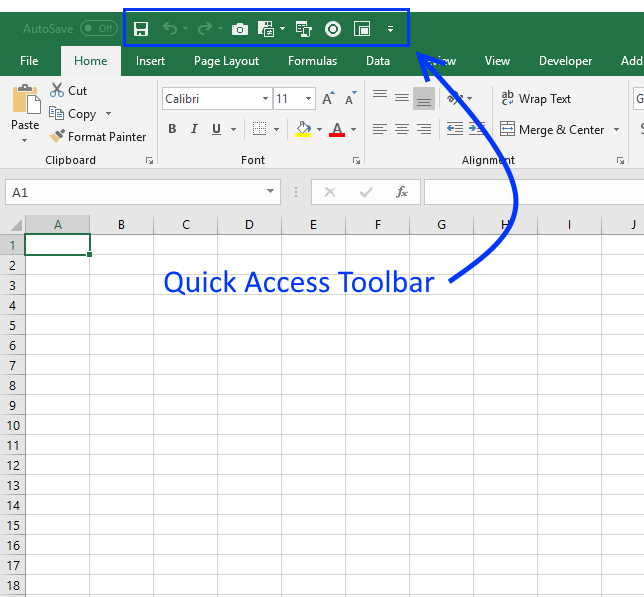
The Quick Access Toolbar is located at the very top of your Excel window, I highly recommend that you place your most used commands and macros there.
Here are the steps needed to create a macro button on the Quick Access Toolbar:
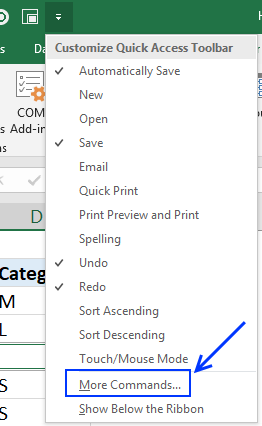
- Press with left mouse button on the rightmost button on the Quick Access Toolbar to customize the Quick Access Toolbar

- Press with left mouse button on "More Commands..." button.
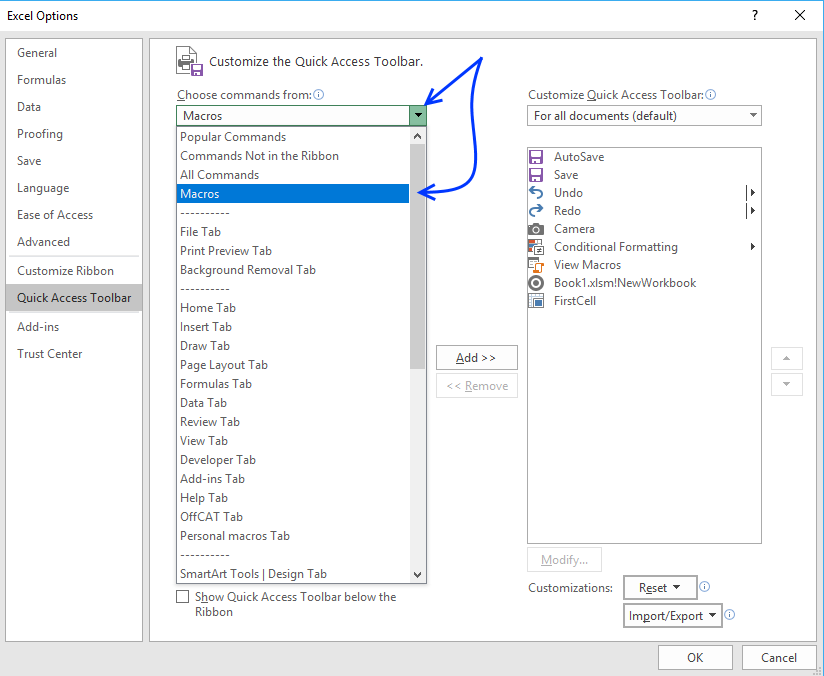
- Press with left mouse button on the left drop down button
- Select "Macros"
- Select Macro1
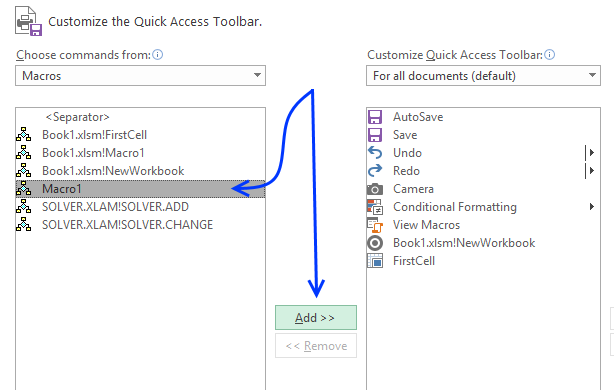
- Press with left mouse button on "Add >>" button
- Press with left mouse button on "Modify"
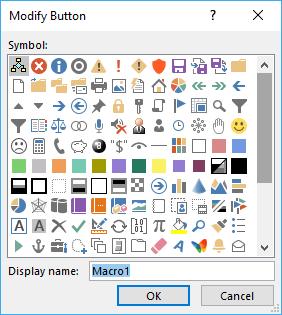
- Pick an icon for your macro.
- Press with left mouse button on OK button
- Press with left mouse button on OK button
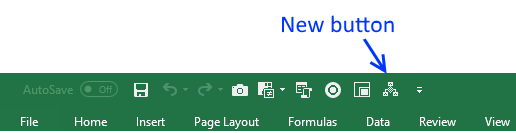
The picture below shows the new button on the Quick Access Toolbar. Press with left mouse button on it to launch macro1.
Read more
Copy your macros to a Personal Macro Workbook
Excel 2010 Customizable Ribbon
Quick Access Toolbar in Excel: how to customize, move, reset and share
16. How to save custom functions and macros to an Add-In
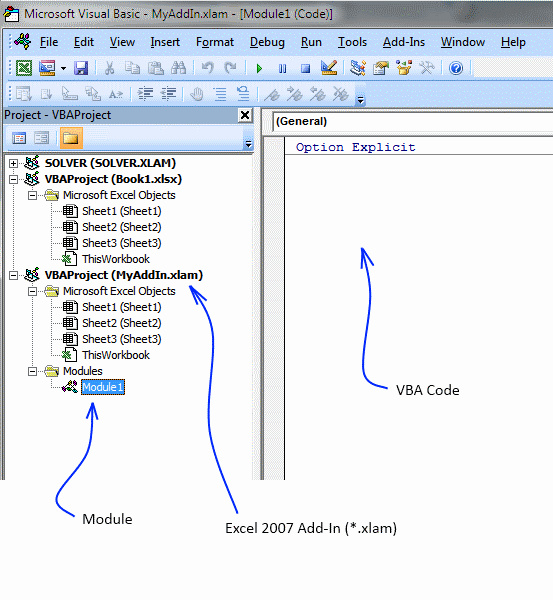
Macros and custom functions are great, they can automate many tedious tasks. To have them available whenever you need them, save user defined functions and macros to a personal add-in.
When you open a new excel spreadsheet, these functions and macros are ready to be used.
How to quickly create an empty Add-in for Excel 2007 and later versions
- Save a blank workbook as a Excel Add-In (*.xlam) in your Add-In folder.
I named it MyAddIn.xlam. - Press with left mouse button on Office button.
- Press with left mouse button on "Excel options" button.
- Press with left mouse button on "Add-Ins" tab.
- Select Excel Add-ins.

- Press with left mouse button on "Go..." button.
- Press with left mouse button on "Browse.." button.
- Select MyAddIn.xlam.
- Press with left mouse button on OK.
- Make sure MyAddIn is enabled in Add-In Manager.
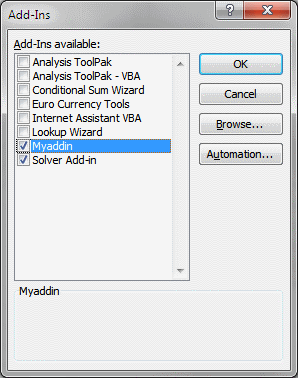
- Press with left mouse button on OK.
Recommended article
Recommended articles
Save links to your favorite macros in a personal tab on the ribbon for easy access and to become more […]
Add custom functions to your personal add-in
- Press with left mouse button on "Developer" tab on the ribbon.
- Double press with left mouse button on Myfunctions.xlam in project window.
- Press with left mouse button on "Insert" tab.
- Press with left mouse button on Module.
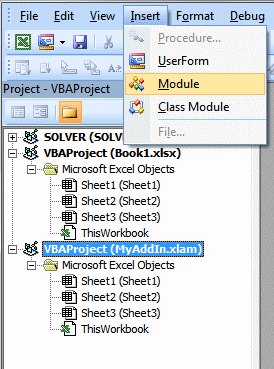
- Copy and paste custom functions and macros to code window.
How to use custom functions in an Add-In
- Select a cell.
- Type the custom function name in formula bar. Press Enter.
If you don´t know the name of your custom function, continue to step 3. - Press with left mouse button on "Insert Function" button.
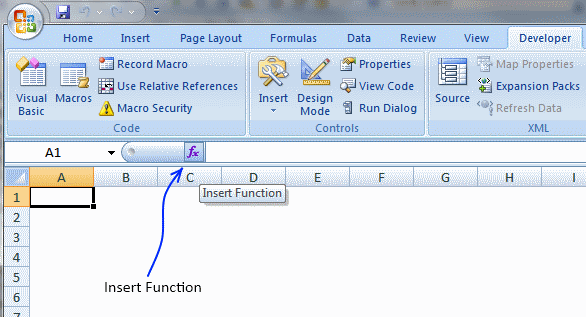
- Select category "User Defined".
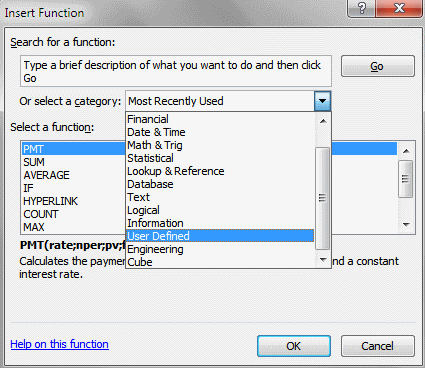
- Select your custom function.
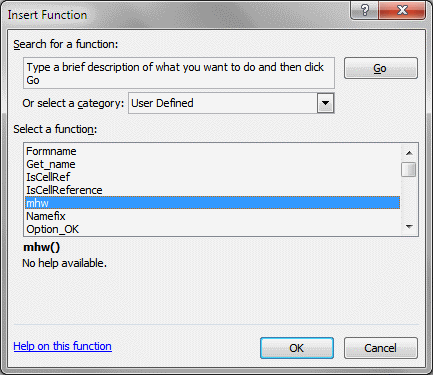
- Press with left mouse button on OK.
How to use macros in an Add-In
- Press with left mouse button on "Developer" tab.
- Press with left mouse button on Macros button.
- Type the name of your macro.
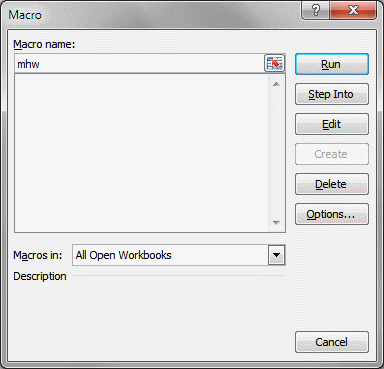
- Press with left mouse button on "Run" button
17. How to add a custom-made item to the shortcut menu - VBA
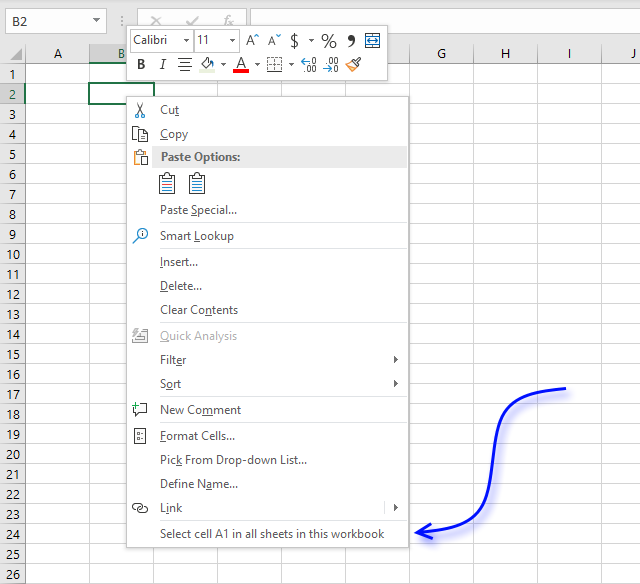
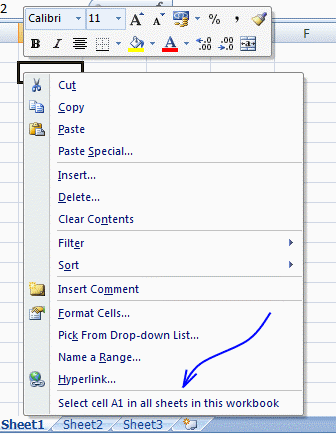
This post describes how to add a new custom-built item to the shortcut menu in Excel, when you press with right mouse button on a cell a context menu appears. Let's add a new item to the cell context shortcut menu and link it to a macro.
I demonstrated in a previous post how to automatically select cell A1 on every sheet in a workbook using vba. This is the macro we are going to use. This macro selects cell A1 in all sheets in the active workbook. Copy the following code to a regular code module, see details below.
Macro VBA code:
Sub SelectA1()
    Dim sht As Worksheet, csheet As Worksheet

    Application.ScreenUpdating = False
    Set csheet = ActiveSheet

    For Each sht In ActiveWorkbook.Worksheets
      If sht.Visible Then
        sht.Activate
        Range("A1").Select
        ActiveWindow.ScrollRow = 1
        ActiveWindow.ScrollColumn = 1
      End If
    Next sht

    csheet.Activate
    Application.ScreenUpdating = True
End Sub
This vba code adds an item on the cell shortcut menu. Copy the code into the standard code module.
Sub AddItemShortCutMenu()
Dim Shortcut As CommandBar
Dim NewItem As CommandBarButton
Set Shortcut = Application.CommandBars("Cell")
Set NewItem = Shortcut.Controls.Add(Type:=msoControlButton)
With NewItem
.OnAction = "SelectA1"
.Caption = "Select cell A1 in all sheets in this workbook"
End With
End Sub
This vba code removes the item on the cell shortcut menu. Copy the code into the standard code module.
Sub RemoveItemFromShortCutMenu()
On Error Resume Next
CommandBars("Cell").Controls("Select cell A1 in all sheets in this workbook").Delete
End Sub
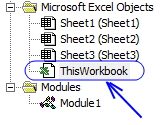
The code below adds the item on the shortcut menu whenever this workbook is opened. It also deletes the Item from the shortcut menu whenever the workbook is closed. Copy the code below and paste it into the ThisWorkbook code window. You open ThisWorkbook code window by double-press with left mouse button oning ThisWorkbook in the project explorer.
Private Sub Workbook_Open()
    Call AddItemShortCutMenu
End Sub

Private Sub Workbook_BeforeClose(Cancel As Boolean)
    Call RemoveItemFromShortCutMenu
End Sub
Create an add-in
Now if you save the workbook as an add-in and install the add-in, the added item on the shortcut menu is always available.
How to create an add-in: Save your custom functions and macros in an Add-In
How to copy vba code into a standard code module
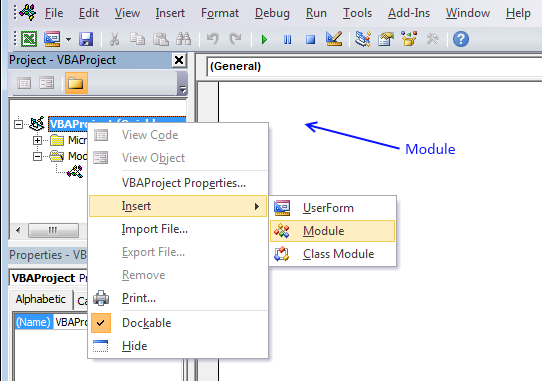
- Press Alt-F11 to open visual basic editor
- Press with left mouse button on Module on the Insert menu
- Copy and paste vba code.
- Exit visual basic editor

Recommended articles
Save links to your favorite macros in a personal tab on the ribbon for easy access and to become more […]
Recommended articles
Table of Contents How to save custom functions and macros to an Add-In How to add a custom-made item to […]
Example custom functions and macros
Which macro shortcut keys do you use? (Code for excel and outlook)
Personal.xls (Daily dose of excel)
Recommended blog posts:
Excel Macro Toolbar
Menu for favorite macros in Excel 2007-2010 (for all workbooks)
Making Your Custom Functions Available Anywhere
Macro category
Table of Contents Add values to a regular drop-down list programmatically How to insert a regular drop-down list Add values […]
Have you ever wanted Excel to react automatically when something changes in your spreadsheet? With Event Code in VBA you […]
Working with multiple Excel workbooks can be time-consuming, especially when dealing with large datasets spread across multiple files. Fortunately, VBA […]
Excel categories
8 Responses to “Customize the ribbon and how to add your macros”
Leave a Reply
How to comment
How to add a formula to your comment
<code>Insert your formula here.</code>
Convert less than and larger than signs
Use html character entities instead of less than and larger than signs.
< becomes < and > becomes >
How to add VBA code to your comment
[vb 1="vbnet" language=","]
Put your VBA code here.
[/vb]
How to add a picture to your comment:
Upload picture to postimage.org or imgur
Paste image link to your comment.

spellnumber command
Having lost my macros a number of times using Excel 2010, I have discovered that Personal.xlam is NOT saved on exit even if changes have been made! You must remember to save it manually or lose all your hard work. Does anyone know how to FORCE a save if the file is "dirty"?
[…] can find instructions to do this in many places. A quick search revealed this site which also includes pictures; at step 5 in their “Add custom functions to your personal add-in” […]
I've made very bad experience with your approach and thus ended up with a Workbook with all the macros (I call them services) which includes a test environment for a regression test etc. Whenever I've changed something in this Workbook I 'Setup/Renee' the Addin. This is not just saving it as Addin but is a much more complex process. It has to be considered that the Addin is open and referenced by other open Workbooks. And last but not least these two instances - which only differ by their extension (xlsb versus xlam) have to be considered when the Workbook is opened.
I’ve got my two macro’s placed up on my ribbon, each with a nice icon, and each calls up a user form. When it work, it works great. Then, mysteriously, it started disabling itself whenever I selected a different workbook, and then switched back. Message appears that the macro’s aren’t enabled, or some such. After lots of frustration, I randomly discover that if I called up one of the macros manually, within the Developer/Macros/ option, the two ribbon icons were now functional again. They work dependably until I leave the workbook and return again. Any idea of a permanent fix for this? Thanks so much,
Steve
Interesting theory
Doesn't work
Put the file WHERE?!
How can I save it and send to other people?
Thuan Ha,
It seems that you can't create a custom ribbon programmatically:
https://stackoverflow.com/questions/8850836/how-to-add-a-custom-ribbon-tab-using-vba
https://www.excelfox.com/forum/showthread.php/105-Add-ribbon-programmatically-to-Excel-2010-using-VBA