Add values to a regular drop-down list programmatically
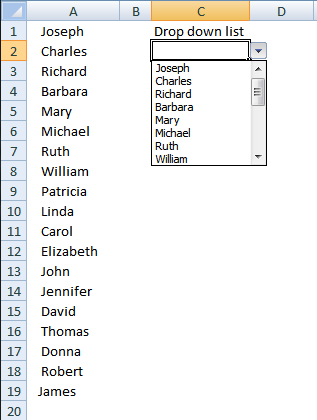
Table of Contents
Add values to a regular drop-down list programmatically
- How to insert a regular drop-down list
- Add values to drop-down list programmatically - VBA macro
- Explaining the VBA code
- Where to put a regular VBA macro?
- Event VBA code
- Explaining the event VBA code
- Where to put the event code?
- Get macro-enabled Excel file
Add or remove a value in a drop down list programmatically
1. Add values to a regular drop-down list programmatically
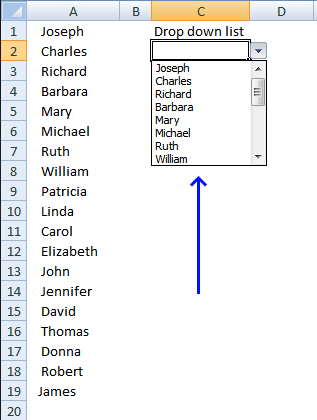
In this tutorial, I am going to show you how to add values to a drop down list programmatically in cell C2.
1.1. How to insert a regular drop-down list
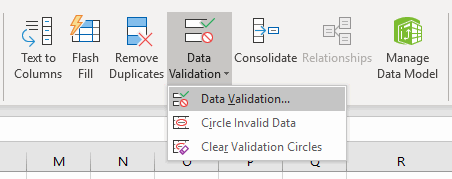
This is a regular drop-down list (not form control or active-x) easily created by press with left mouse button oning on the "Data Validation" button on tab "Data" and then on "Data Validation...".
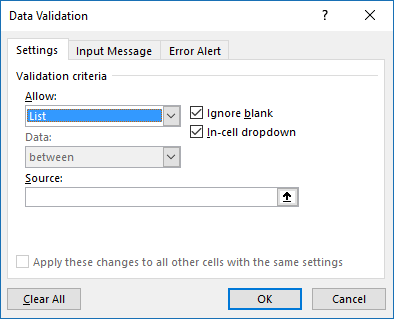
A dialog box appears, select "List" and then press with left mouse button on "OK" button. You don't need to specify a source range, the macro takes care of that.
When a value is added, changed or deleted in column A, the drop-down list is instantly refreshed based on event code and a macro.
1.2. Add values to drop-down list - VBA macro
'Name macro
Sub AddData()

'Dimension variables and declare data types
Dim Lrow As Single
Dim AStr As String
Dim Value As Variant

'Find last non-empty cell in column A and save row number to variable Lrow
Lrow = Worksheets("Sheet1").Range("A" & Rows.Count).End(xlUp).Row

'Iterate through cells in column A until last non-empty cell specified in variable Lrow
For Each Value In Range("A1:A" & Lrow)

    'Save value in each cell to string variable AStr and use a comma as a delimiting character
    AStr = AStr & "," & Value

'Continue with next value in column A
Next Value

'Remove last character in string variable AStr
AStr = Right(AStr, Len(AStr) - 1)

'Apply data validation to cell C2 in worksheet Sheet1
With Worksheets("Sheet1").Range("C2").Validation

    'Remove old drop-down list
    .Delete

    'Add a new drop down list and populate with values from string variable Astr
    .Add Type:=xlValidateList, AlertStyle:=xlValidAlertStop, Operator:= _
    xlBetween, Formula1:=AStr

    'Ignore blank values
    .IgnoreBlank = True

    'Enable drop-down
    .InCellDropdown = True

    'No input title (blank)
    .InputTitle = ""

    'No error title (blank)
    .ErrorTitle = ""

    'No input message (blank)
    .InputMessage = ""

    'No error message (blank)
    .ErrorMessage = ""

    .ShowInput = True
    .ShowError = True
End With

End Sub
1.3. Explaining the VBA code
- Find the row number of the last cell value in column A.
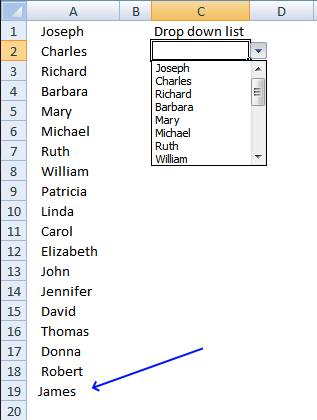
- Concatenate all values in cell range into a string.
- Add string to a drop down list in cell C2.
1.4. Where to put a regular VBA macro ?
- Copy code above.
- Press Alt+F11.
- Insert a module.
- Paste code into the code window.
- Return to Excel.
1.5. Event VBA code
Private Sub Worksheet_Change(ByVal Target As Range)

If Not Intersect(Target, Range("$A:$A")) Is Nothing Then
    Call AddData
End If

End Sub
1.6. Explaining the event VBA code
This code runs the subroutine AddData if a cell in column A is changed.
1.7. Where to put the event code?
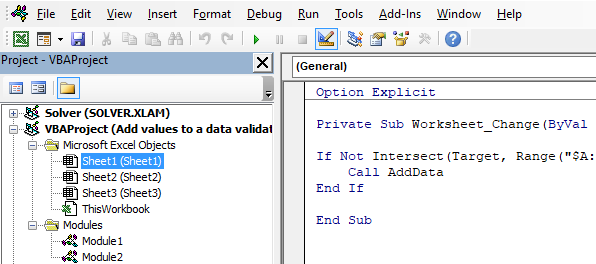
- Copy the event code above located in section 5.
- Press Alt+F11 to open the Visual Basic Editor (VBE).
- Double press with left mouse button on Sheet1 in project explorer, see the image above.
- Paste code into the code window, see the image above.
- Exit VBE and return to Excel.

2. Add or remove a value in a drop down list programmatically
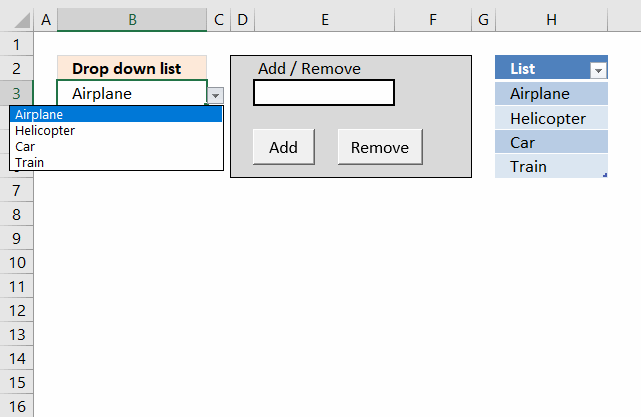
This article demonstrates how to add or remove a value in a regular drop down list based on a list located on a worksheet using VBA.
Cell B3 contains a regular drop down list which you will find on tab "Data" on the ribbon. The data source used in the drop down list is from column H. I am using an Excel defined Table that grows when new values are added.
Enter a value in cell E3 and press the "Add" button to add the value to the list in column H. You can also remove a value using the "Remove" button, note that this is case-sensitive.
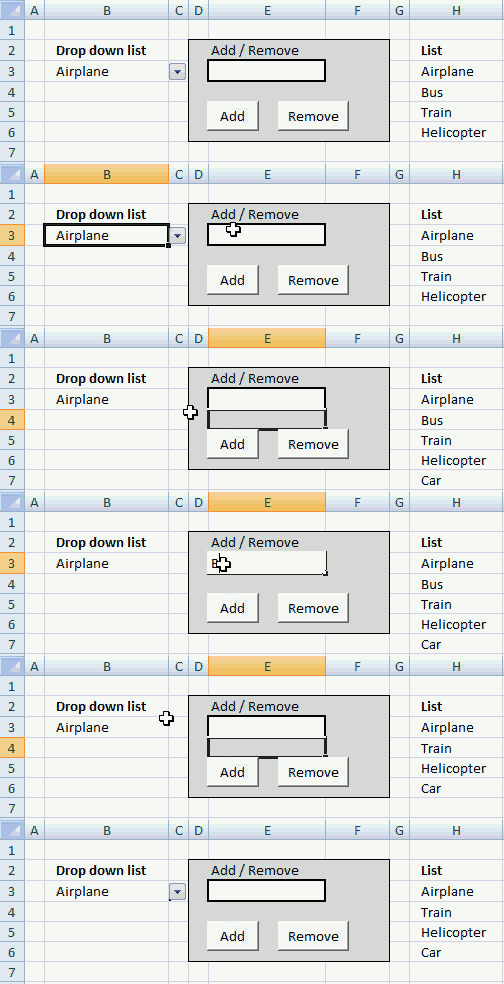
The animated gif below demonstrates how to add or remove values from the list.
What you will learn in this article
- How to insert a regular drop down list.
- How to use an Excel Table as a data source for a drop down list.
- How to convert a data set to an Excel defined Table.
- How to add buttons to a worksheet.
- How to change button text.
- How to create a macro that adds a value to a list
- Name a macro
- Find last non-empty value in list
- Copy entered value to first empty cell in list
- How to create a macro that deletes a specific value in a list
- Iterate through a given column in an Excel defined Table
- Find a value in an Excel defined Table column
- Delete a cell in a list
- How to assign a macro to a button.
- Where the macros are located.
2.1 How to build a drop down list
- Select the cell you want to use.
- Go to tab "Data" on the ribbon.
- Press with mouse on the "Data Validation" button.
- Select "List".
- Excel won't let you type a reference to an Excel Table, however, there is a workaround. See below.
2.2 How to use an Excel defined Table as a data source for a drop down list
Use the following formula in order to be able to reference an Excel Table:
2.3 How to create an Excel defined Table
- Select any cell in the data set you want to convert.
- Go to tab "Insert" on the ribbon.
- Press with left mouse button on "Table" button.
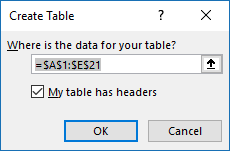
- Press with left mouse button on checkbox "My Table has headers".
- Press with left mouse button on OK button.
2.4 How to add a value to a list using VBA
'Name macro
Sub AddValue()

'Declare variable and data type
Dim i As Single

'Save row number of the first empty cell in column H to variable i
i = Worksheets("Sheet1").Range("H" & Rows.Count).End(xlUp).Row + 1

'Save value entered in cell E3 to first empty cell in column H.
Worksheets("Sheet1").Range("H" & i) = Worksheets("Sheet1").Range("E3")

'Clear cell E3
Worksheets("Sheet1").Range("E3") = ""

End Sub
2.5 How to delete a specific value in a list using VBA
'Name macro
Sub RemoveValue()

'Dimension variables and declare data types
Dim i As Single
Dim Cell As Range

'Save row number of last non-empty cell in column H to variable i
i = Worksheets("Sheet1").Range("H" & Rows.Count).End(xlUp).Row

'Assign the first non-empty cell to object Cell
Set Cell = Worksheets("Sheet1").Range("H" & i)

'Repeat everything between Do and Loop until row of object Cell is equal to 2
Do Until Cell.Row = 2

    'Check if object cell is equal to value in cell E3 and is not empty
    If Worksheets("Sheet1").Range("E3") = Cell And Cell <> "" Then

        'Delete cell
        Cell.Delete Shift:=xlUp

        'Clear cell E3
        Worksheets("Sheet1").Range("E3") = ""

        'Stop macro
        Exit Sub
    End If

    'Save object reference 1 row below current object to variable Cell
    Set Cell = Cell.Offset(-1, 0)
Loop

'Show a message box telling the user that the value cant be found in the list
MsgBox "Can´t find value: " & Worksheets("Sheet1").Range("E3")

End Sub
2.6 Where to put the VBA code?
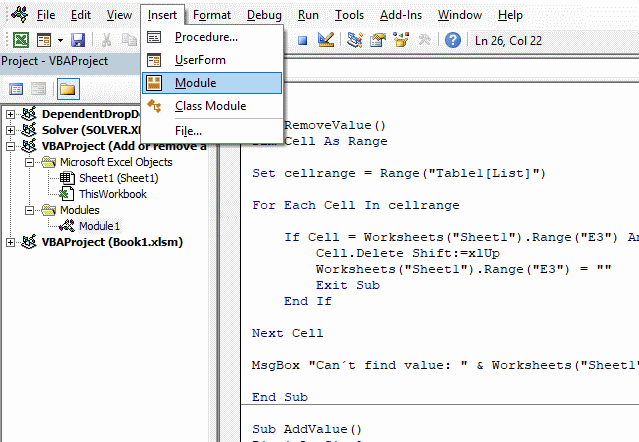
- Press Alt + F11
- Press with left mouse button on "Insert" on the top menu.
- Press with left mouse button on "Module" to add a code module to your workbook.
- Paste macro to code module.
2.7 Insert button and assign a macro
- Go to tab "Developer" on the ribbon.
- Press with left mouse button on "Insert" button.
- Select "Button" (Form Control).
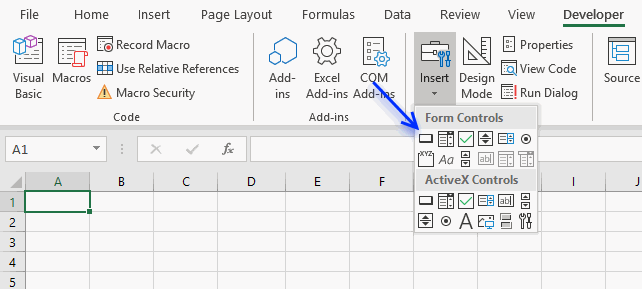
- Press and hold with left mouse button on worksheet.
- Drag and release the mouse button to create the button.
- A dialog box appears, select the macro you want to assign to the button.
- Press with left mouse button on OK button.
2.8 Change button text
- Press with right mouse button on on a button.
- A context menu appears, press with left mouse button on "Assign Macro...".
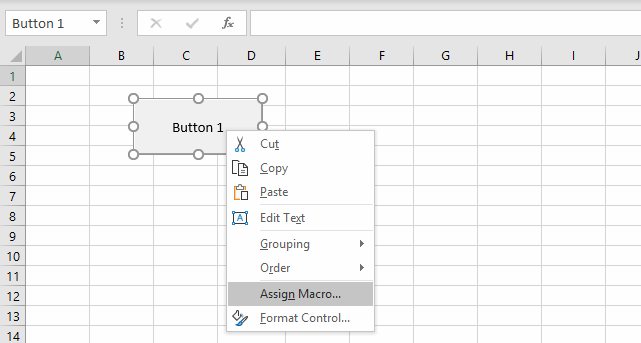
- A dialog box shows up, select the macro you want to assign.
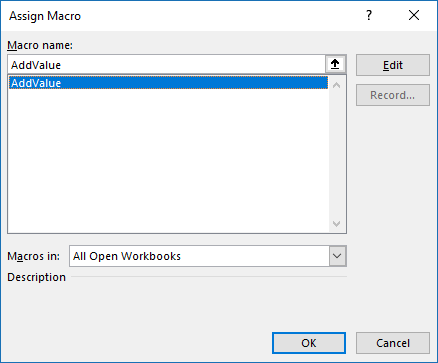
- Press with left mouse button on OK button.
The macro starts every time the user press with left mouse button ons on the button. Create a new button and assign the second macro.
Move the buttons below cell E3.
3. Apply drop-down lists dynamically
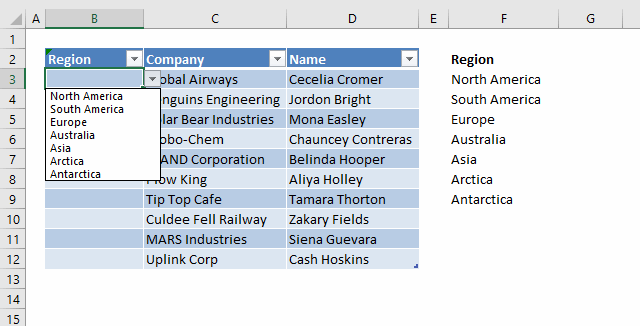
This article demonstrates how to automatically create drop-down lists if adjacent data grows, there are two methods explained here. The first method uses an Excel defined Table.
The benefit of using a drop-down list in an Excel defined Table is that the whole table column contains drop-down lists automatically, it will also expand automatically if more values are added to the Table meaning you don't need to copy and paste drop-down lists.
You only need to copy a drop-down list and paste once to a cell in the Table column and Excel will instantly fill the remaining column cells with the same drop-down list.
The second method is an event procedure that makes sure there are drop-down lists in column A if there are adjacent values in column B and C.
Table of Contents
- Applying Drop Down lists dynamically using an Excel Defined table
- Applying Drop Down lists dynamically (VBA)
Add Drop Down lists automatically
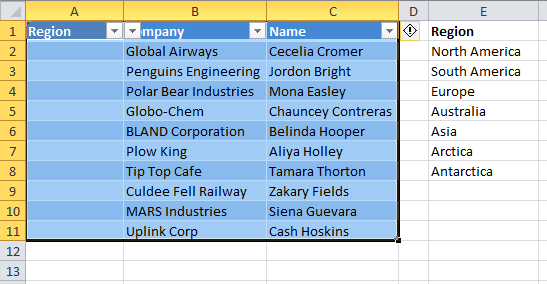
Create a table
- Select cell range A1:C11
- Go to tab "Insert"
- Press with left mouse button on "Table" button
- Select "My table has headers"
- Press with left mouse button on OK!
Name Excel defined Table
- Select any cell in the Table you just created.
- Go to tab "Desing" on the ribbon.
- Change the Table name to Table1.
- Press Enter.
Repeat the steps above with cell range E1:E8, name the Excel defined Table: Table2
Apply data validations lists to the Table
- Select cell A2
- Go to tab "Data"
- Press with left mouse button on "Data Validation" button
- Allow:List
- Source:INDIRECT("Table2[Region]")
- Press with left mouse button on Ok!
The entire first column now contains a drop-down list in each cell. If the table expands, the new cell has a drop-down list!
This article demonstrates how to use excel defined tables in a drop-down list:
Recommended articles
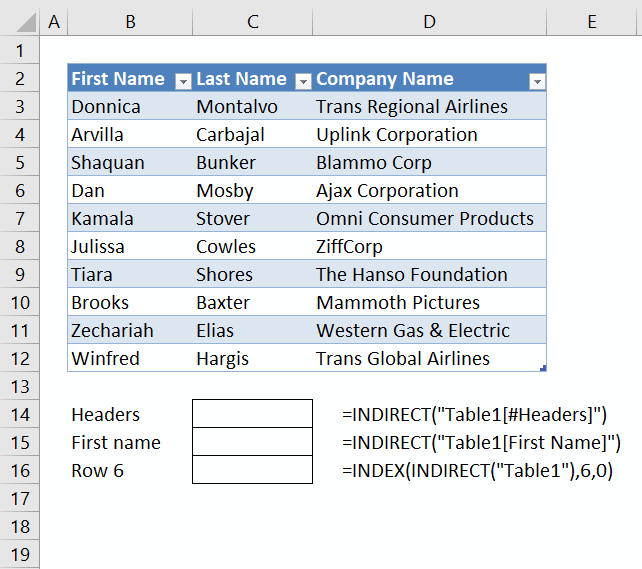
This article demonstrates different ways to reference an Excel defined Table in a drop-down list and Conditional Formatting formulas. The […]
Applying data validation lists dynamically (VBA)
The data validation lists contain values from a named range. The named range (E2:E8) expands when you add new values to the list.
The animated gif shows you that. The animated gif below also shows you when adding a new company name in cell B11, a drop-down list (Data validation list) is instantly applied to cell range A2:A11.
The VBA code in this sheet and a named formula make it all happen!
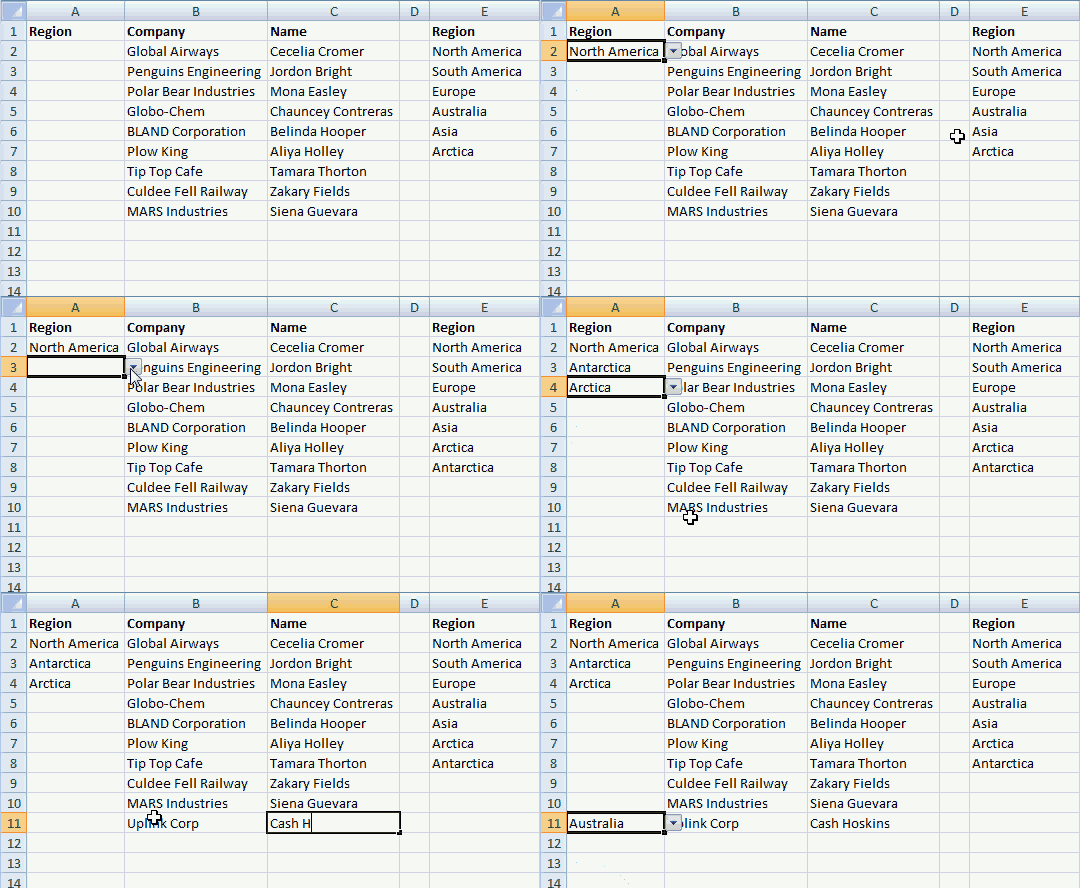
Let me explain how I created this sheet, instead of using an Excel defined Table I created a named range that expands. I have created comments to the VBA code I created, you can find it further down in this article.
Dynamic named range
- Go to "Formulas" tab
- Press with left mouse button on "Name Manager" button
- Press with left mouse button on "New.."
- Type Region
- Type in source field:
=OFFSET('Data Validation Lists'!$E$2, 0, 0, COUNTA('Data Validation Lists'!$E:$E)-1)
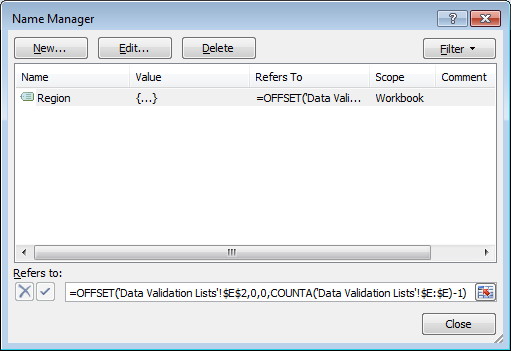
- Press with left mouse button on Close
Add VBA code to sheet
- Press with right mouse button on on the sheet name.
- Press with left mouse button on "View Code".
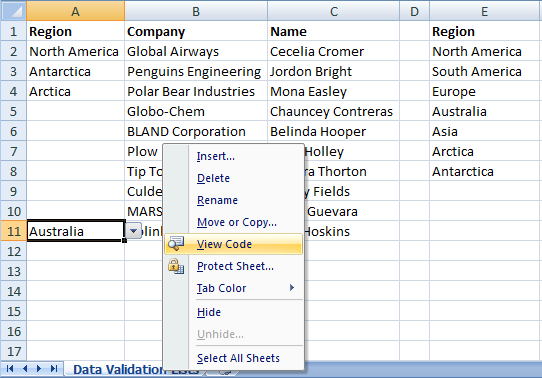
- Paste VBA code to sheet module.
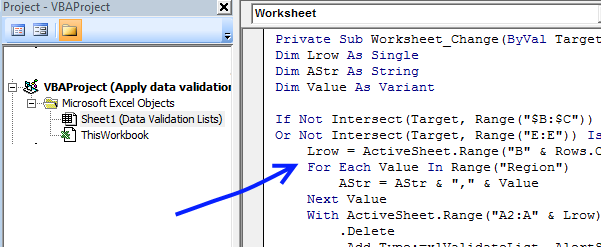
VBA code
'Event code that runs if a cell value changes.
'The Target argument contains the cell address that changed.
Private Sub Worksheet_Change(ByVal Target As Range)

'Dimension variables and declare data types
Dim Lrow As Single
Dim AStr As String
Dim Value As Variant

'Check if Target cell is located in column B or C or if a cell value changed in column E.
If Not Intersect(Target, Range("$B:$C")) Is Nothing _
Or Not Intersect(Target, Range("E:E")) Is Nothing Then

    'Save last non-empty cell row in column B to variable Lrow
    Lrow = ActiveSheet.Range("B" & Rows.Count).End(xlUp).Row

    'Add values in named range Region to string variable AStr
    For Each Value In Range("Region")
        AStr = AStr & "," & Value
    Next Value

    'Populate a cell range in column A with drop-down lists, based on the number of rows in variable Lrow
    'The drop-down lists contain values from string variable AStr
    With ActiveSheet.Range("A2:A" & Lrow).Validation
        .Delete
        .Add Type:=xlValidateList, AlertStyle:=xlValidAlertStop, Operator:= _
        xlBetween, Formula1:=AStr
        .IgnoreBlank = True
        .InCellDropdown = True
        .InputTitle = ""
        .ErrorTitle = ""
        .InputMessage = ""
        .ErrorMessage = ""
        .ShowInput = True
        .ShowError = True
    End With
End If
End Sub
Macro category
Table of Contents How to create an interactive Excel chart How to filter chart data How to build an interactive […]
Table of Contents Excel monthly calendar - VBA Calendar Drop down lists Headers Calculating dates (formula) Conditional formatting Today Dates […]
Table of Contents Split data across multiple sheets - VBA Add values to worksheets based on a condition - VBA […]
Excel categories
7 Responses to “Add values to a regular drop-down list programmatically”
Leave a Reply
How to comment
How to add a formula to your comment
<code>Insert your formula here.</code>
Convert less than and larger than signs
Use html character entities instead of less than and larger than signs.
< becomes < and > becomes >
How to add VBA code to your comment
[vb 1="vbnet" language=","]
Put your VBA code here.
[/vb]
How to add a picture to your comment:
Upload picture to postimage.org or imgur
Paste image link to your comment.

We have problem with drop list if you remove the first name of the list may be we can change to:
=OFFSET(Sheet1!$H$2:INDEX(Sheet1!$H$3:$H$990,COUNTA(Sheet1!$H$3:$H$990)-1),1,)
Jacky Harle,
=OFFSET(Sheet1!$H$3, 0, 0, COUNTA(Sheet1!$H$3:$H$1000))
[…] write this one? Any help would be appreciated. An example of what I am trying to do can be found on Add or remove a value in a drop down list | Get Digital Help - Microsoft Excel resource . The difference is that I am trying to use a UserForm instead of another cell. […]
I got error message "Can't execute code in break mode" when press with left mouse button on Add or remove button.
and view code in module1
below code will be highlighted in red
sorry, i am new to computer language and find your site is great for new-learning so I follow your tutorial. but vba is quite difficult to me. as for your formula is help me a lot. Many thanks Oscar.
Jeff Wan,
and view code in module1 below code will be highlighted in red
Wordpress sometimes convert & (ampersand character) to
.
I have updated this post, it now shows the correct characters.
I got error message "Can't execute code in break mode" when press with left mouse button on Add or remove button.
To be able to press a button (run a macro) after a vba error in the vb editor you need to press the reset button, the button is below the menu.
this solution "Add values to a regular drop-down list programmatically [VBA]" is not functioning in Excel 365, when the string variable is longer then 255 char's???
There is a limit to 255 characters but if a cell range is used then the limit is 32,767 items.
Sub AddData()
Dim Lrow As Single
Dim AStr As String
Dim Value As Variant

Lrow = Worksheets("Sheet1").Range("A" & Rows.Count).End(xlUp).Row

With Worksheets("Sheet1").Range("C2").Validation
    .Delete
    .Add Type:=xlValidateList, AlertStyle:=xlValidAlertStop, Operator:= _
    xlBetween, Formula1:="=A1:A" & Lrow
    .IgnoreBlank = True
    .InCellDropdown = True
    .InputTitle = ""
    .ErrorTitle = ""
    .InputMessage = ""
    .ErrorMessage = ""
    .ShowInput = True
    .ShowError = True
End With

End Sub