Save invoice data – VBA
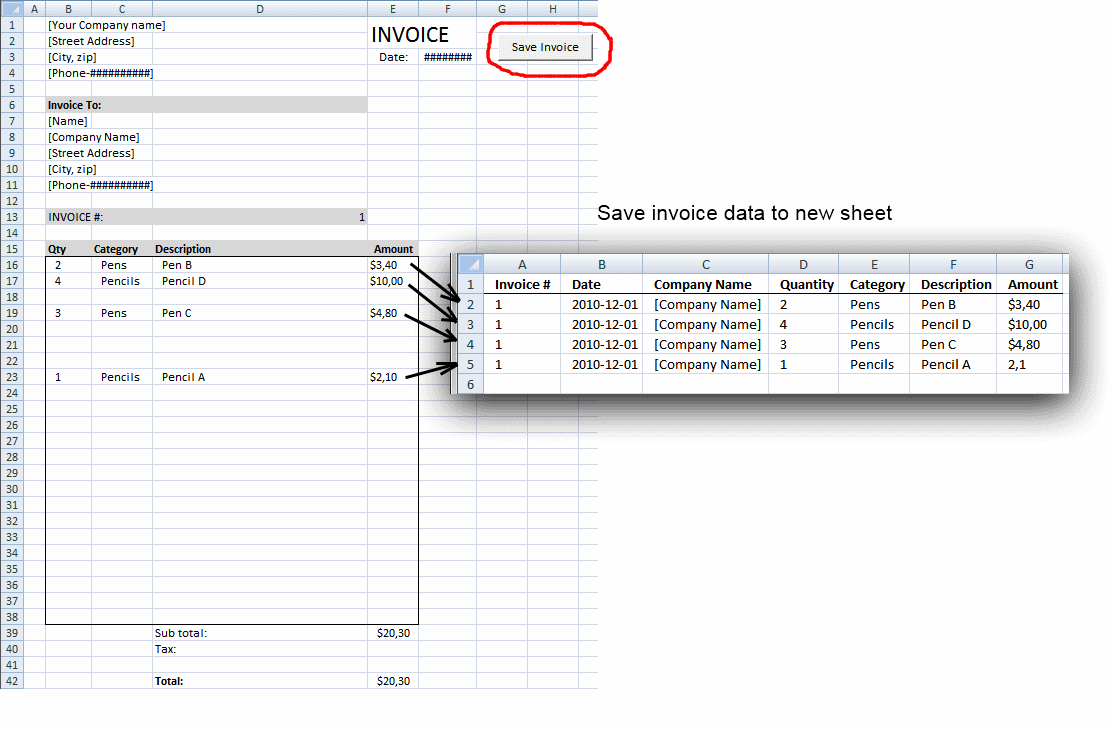
Table of contents
1. Save invoice data - VBA
This article demonstrates a macro that copies values between sheets. I am using the invoice template workbook.
This macro copies rows containing values. Blank rows are not copied. Values are copied from sheet "Invoice" to sheet "Invoice data".
How to create button "Save Invoice"
You can find the button in the picture above, there is a red circle around it.
- Press with left mouse button on "Developer" tab on the ribbon
- Press with left mouse button on "Insert Controls" button
- Press with left mouse button on "Button (Form Control)"
- Create a button on sheet
- Type a macro name "Button2_Press with left mouse button on()"
- Press with left mouse button on OK
Vba code
Sub Button2_Press with left mouse button on()
  Dim rng As Range
  Dim i As Long
  Dim a As Long
  Dim rng_dest As Range
  Application.ScreenUpdating = False
  i = 1
  Set rng_dest = Sheets("Invoice data").Range("D:G")
  ' Find first empty row in columns D:G on sheet Invoice data
  Do Until WorksheetFunction.CountA(rng_dest.Rows(i)) = 0
    i = i + 1
  Loop
  'Copy range B16:I38 on sheet Invoice to Variant array
  Set rng = Sheets("Invoice").Range("B16:E38")
  ' Copy rows containing values to sheet Invoice data
  For a = 1 To rng.Rows.Count
    If WorksheetFunction.CountA(rng.Rows(a)) <> 0 Then
      rng_dest.Rows(i).Value = rng.Rows(a).Value
      'Copy Invoice number
      Sheets("Invoice data").Range("A" & i).Value = Sheets("Invoice").Range("D13").Value
      'Copy Date
      Sheets("Invoice data").Range("B" & i).Value = Sheets("Invoice").Range("F3").Value
      'Copy Company name
      Sheets("Invoice data").Range("C" & i).Value = Sheets("Invoice").Range("B8").Value
      i = i + 1
    End If
  Next a
  Application.ScreenUpdating = True
End Sub
How to add the macro to your workbook
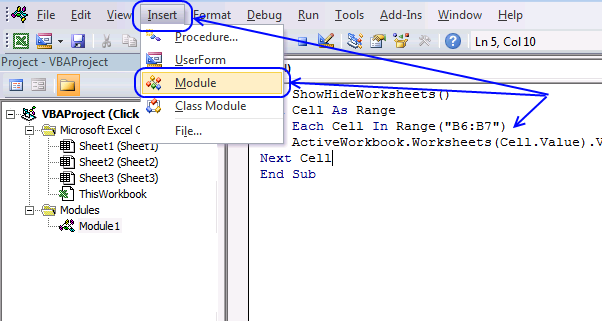
- Press Alt-F11 to open visual basic editor
- Press with left mouse button on Module on the Insert menu
- Copy above vba code and paste it to the module. (The code shown in the pic above is another macro not used in this article.)
- Exit visual basic editor

2. Invoice template with dependent drop down lists
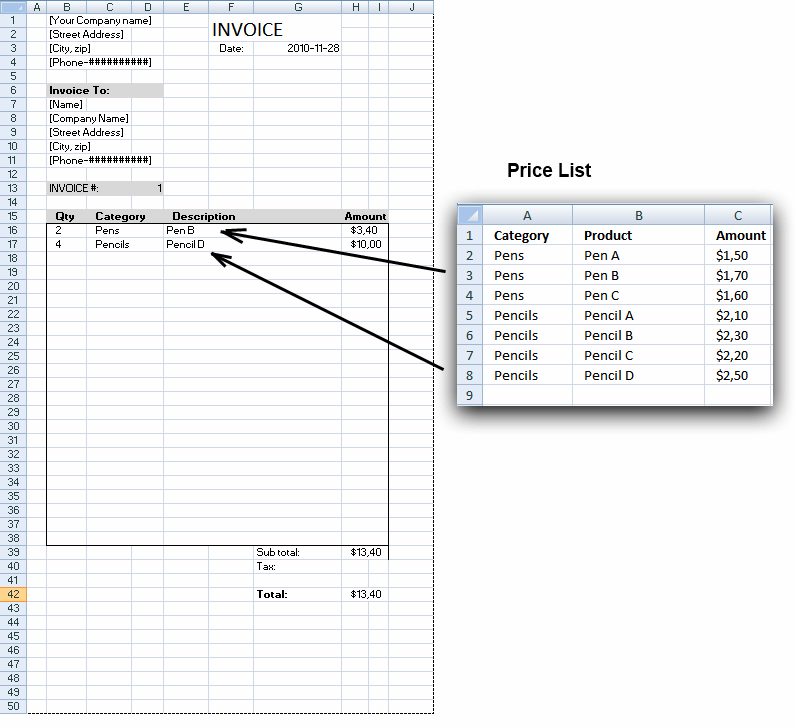
This article demonstrates a basic invoice template I created. It lets you use dropdown lists to quickly select products on a price list. You can easily add/remove data on "price list" sheet.
Features
- Formula calculates totals
- Find products easily with dependent drop down lists
- Drop down lists contain unique items based on selected category, no duplicates
- Ranges expand when new data is added to the price list
2.1 How to use invoice template
- Specify quantity in column B (B16:B38)
- Select a category in column C, these are cells containing unique distinct category values from sheet "price_list".
- Select an Item in column E, these are cells containing dependent drop down lists populated with values from sheet "price_list" based on category in column C.
- The amount in column H is calculated automatically based on the selected value in column C and the specified quantity in column B.
- Select a product and the formula calculates the total price.
2.2 How to copy dependent drop down lists
- Select a cell containing drop-down list
- Copy cell
- Press with right mouse button on on new cell
- Press with left mouse button on "Paste Special..."
- Press with left mouse button on "Validation"
- Press with left mouse button on OK!
3. Select and view invoice - VBA
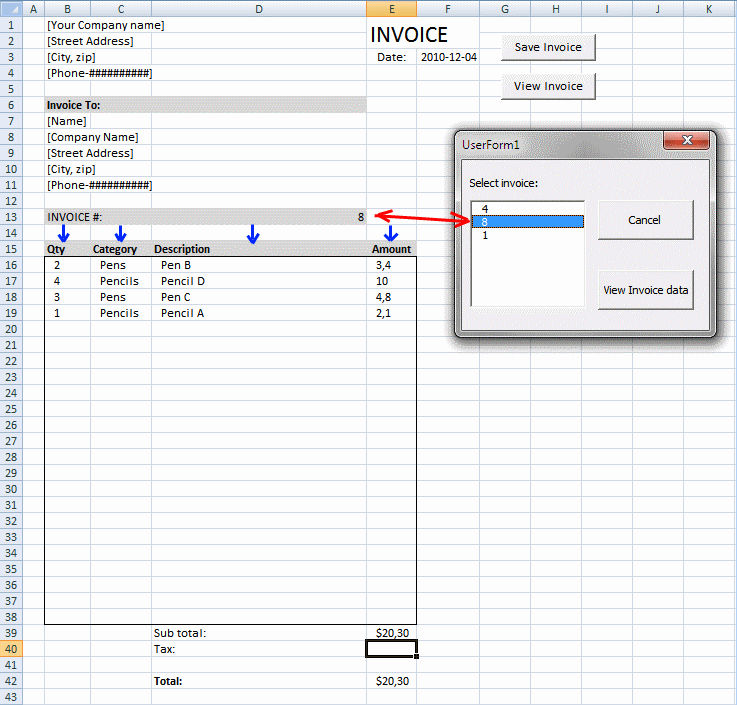
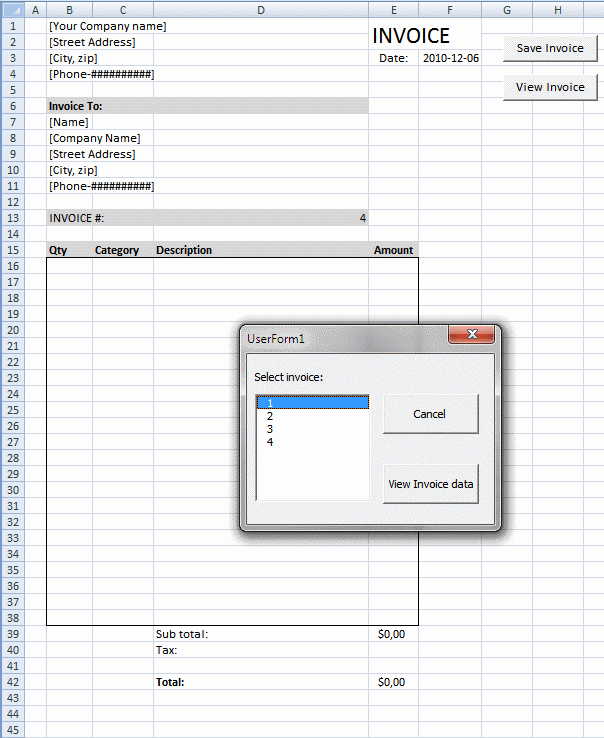
This post demonstrates how to view saved invoices based on the invoice number using a userform. The userform appears when the user press with left mouse button ons on button "View Invoice", see image above.
The userform contains:
- Listbox populated with unique distinct invoice numbers.
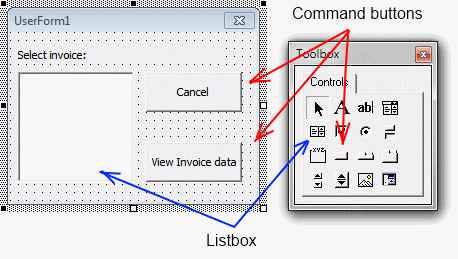
- A "Cancel" button that unloads the userform.
- A button "View Invoice data" that will start the macro. The macro will extract the invoice data from another sheet based on the selected invoice number in the listbox.
3.1 Cancel Command button
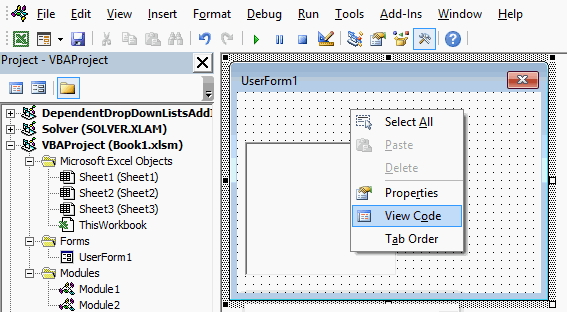
- Press Alt-F11 to open the visual basic editor.
- Press with right mouse button on on Userform1.
- Press with left mouse button on "View Code" and the code module will appear.
- Copy and paste "Sub Button1_Press with left mouse button on" and "CommandButton2_Press with left mouse button on" code below to code module.
'The following macro will remove the userform if visible to the user
Private Sub CommandButton1_Press with left mouse button on()
  Unload UserForm1
End Sub
3.2 "View Invoice data" Command button
Copy and paste "Sub Button2_Press with left mouse button on" code below to code module
Private Sub CommandButton2_Press with left mouse button on()
'Declare variables
Dim RowStart As Long
Dim RowEnd As Long
'Find invoice range
RowStart = Sheets("Invoice data").Columns("A").Find(ListBox1.Value, _
SearchOrder:=xlRows, LookAt:=xlWhole, SearchDirection:=xlNext, _
LookIn:=xlValues).Row
RowEnd = Sheets("Invoice data").Columns("A").Find(ListBox1.Value, _
SearchOrder:=xlRows, LookAt:=xlWhole, SearchDirection:=xlPrevious, _
LookIn:=xlValues).Row + 1
'Clear range
Sheets("Invoice").Range("B16:E38").ClearContents

'Copy values from sheet Invoice data
Sheets("Invoice").Range("B16").Resize(RowEnd - RowStart, 4).Value = _
Sheets("Invoice data").Range("D" & RowStart & ":G" & RowEnd).Value
Sheets("Invoice").Range("F3").Value = Sheets("Invoice data").Range("B" _
& RowStart).ValueSheets("Invoice").Range("D13").Value = _
Sheets("Invoice data").Range("A" & RowStart)
Sheets("Invoice").Range("B8").Value = Sheets("Invoice data").Range("C" _
& RowStart)
'Hide the userform
Unload UserForm1
End Sub
4. Populate listbox with unique distinct values - VBA
This post demonstrates how to:
- Insert a button to your worksheet
- Assign a macro to the button
- Create a basic user form containing a listbox
- Populate the listbox with unique distinct values using a macro.
4.1 Create button (Form Control)
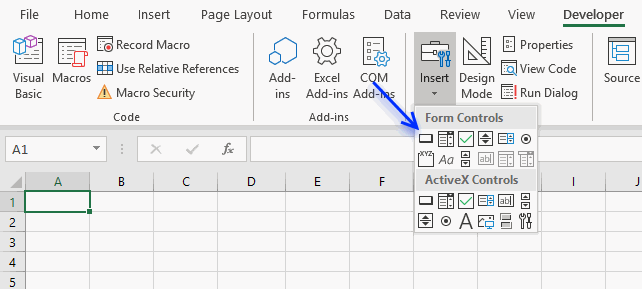
- Select sheet "Invoice".
- Press with left mouse button on "Developer tab" on the ribbon.
- Press with left mouse button on "Insert" button.
- Press with left mouse button on Button (Form Control).
- Create button "View Invoice" on sheet "Invoice".
4.2 Create macro
The macro displayed in the image above is not used in this article.
- Press Alt-F11 to open visual basic editor.
- Press with left mouse button on Module on the Insert menu.
- Copy and paste "Sub Button1_Press with left mouse button on" code below to code module.
Sub Button1_Press with left mouse button on()
  UserForm1.Show
End Sub
4.3 Assign macro to button
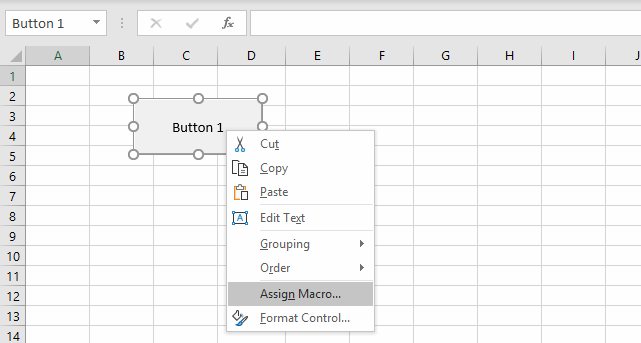
- Press with right mouse button on previously created button.
- Press with left mouse button on "Assign Macro...".
- Select Button1_Press with left mouse button on() macro.
- Press with left mouse button on OK.
4.4 Create userform
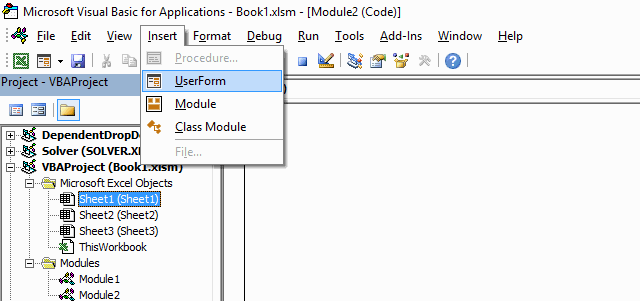
- Press Alt-F11 to open visual basic editor
- Press with left mouse button on "Insert" tab.
- Press with left mouse button on Userform
4.5 Create Listbox
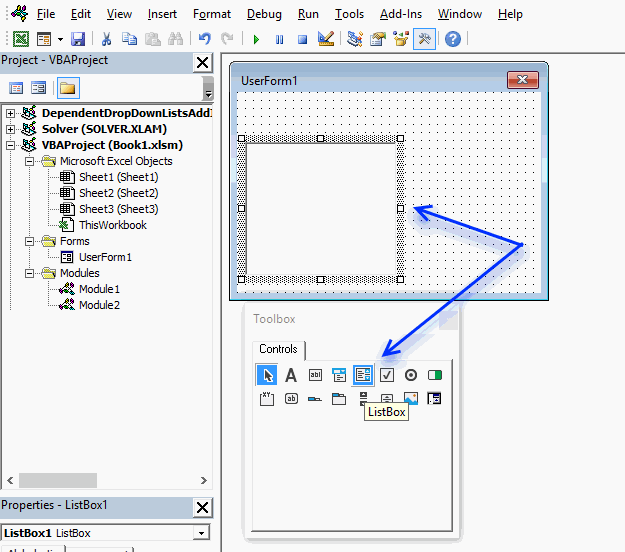
- Press with left mouse button on "Listbox" button on Toolbox
- Press and hold with left mouse button on the userform, then drag with mouse to create the listbox.
4.6 Create text
- Press with left mouse button on Label
- Create text "Select invoice:" above listbox
4.7 Create CommandButtons
- Press with left mouse button on "Commandbutton"
- Create Command buttons
- Edit text in command buttons
4.8 Userform vba
- Press with right mouse button on "Userform1" in project window
- Press with left mouse button on "View code"
- Copy and paste code below into code window
- Exit visual basic editor
'The following macro populates a listbox with unique distinct numbers from sheet "Invoice data"
Private Sub UserForm_Initialize()
'Dimensioning variables
Dim Test As New Collection
Dim rng As Variant
Dim Value As Variant

'Identify range in column A that contains source data of invoice numbers
rng = Sheets("Invoice data").Range("A2:A" & _
Sheets("Invoice data").Columns("A").Find("*", _
SearchOrder:=xlRows, SearchDirection:=xlPrevious, _
LookIn:=xlValues).Row)


'If error occurs continue with next value without halting the macro
On Error Resume Next
'Iterate through cell values one by one
For Each Value In rng
  'If the length of the value is larger than 0 then add value to collection Test
  'The collection returns an error if the value already is in the collection
  If Len(Value) > 0 Then Test.Add Value, CStr(Value)
    'Add value to listbox
    ListBox1.AddItem Value
  'If an error has occurred then remove the value from the listbox
  If Err Then ListBox1.RemoveItem Value
'Continue with next value in rng
Next Value
'If error occurs stop macro
On Error GoTo 0
'The ListIndex property sets the currently selected item using an index number from 0 to n.
ListBox1.ListIndex = 0
End Sub
5. Edit invoice data - VBA
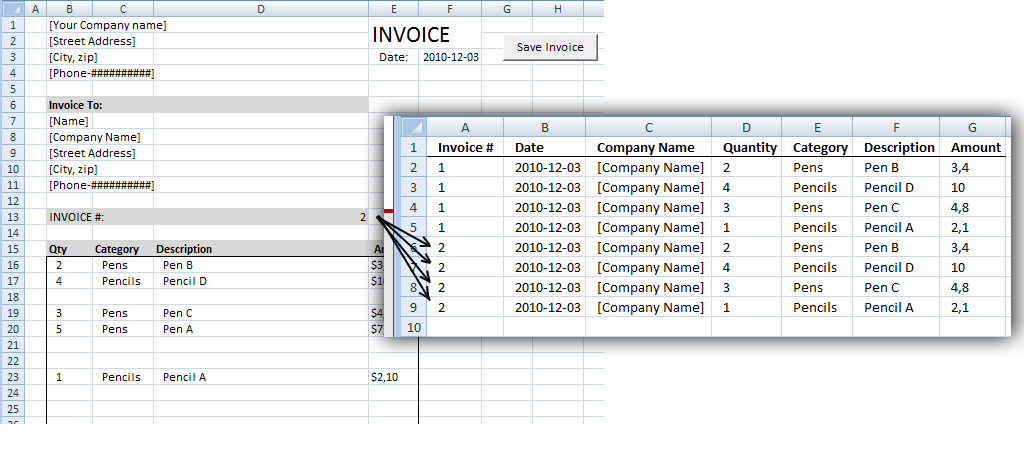
This section describes how to overwrite existing values with new values.
If invoice number already exists, a message box asks if you want to overwrite old values with new values.
VBA code:
Sub Button2_Press with left mouse button on()
  Dim rng As Range
  Dim i As Long
  Dim a As Long
  Dim rng_dest As Range
  Application.ScreenUpdating = False
  'Check if invoice # is found on sheet "Invoice data"
  i = 1
  Do Until Sheets("Invoice data").Range("A" & i).Value = ""
    If Sheets("Invoice data").Range("A" & i).Value = Sheets("Invoice").Range("D13").Value Then
      'Ask overwrite invoice #?
      If MsgBox("Overwrite invoice data?", vbYesNo) = vbNo Then
        Exit Sub
      Else
        Exit Do
      End If
    End If
    i = i + 1
  Loop
  i = 1
  Set rng_dest = Sheets("Invoice data").Range("D:G")
  'Delete rows if invoice # is found
  Do Until Sheets("Invoice data").Range("A" & i).Value = ""
    If Sheets("Invoice data").Range("A" & i).Value = Sheets("Invoice").Range("D13").Value Then
      Sheets("Invoice data").Range("A" & i).EntireRow.Delete
      i = 1
    End If
    i = i + 1
  Loop
  ' Find first empty row in columns D:G on sheet Invoice data
  Do Until WorksheetFunction.CountA(rng_dest.Rows(i)) = 0
    i = i + 1
  Loop
  'Copy range B16:I38 on sheet Invoice
  Set rng = Sheets("Invoice").Range("B16:E38")
  ' Copy rows containing values to sheet Invoice data
 For a = 1 To rng.Rows.Count
    If WorksheetFunction.CountA(rng.Rows(a)) <> 0 Then
      rng_dest.Rows(i).Value = rng.Rows(a).Value
      'Copy Invoice number
      Sheets("Invoice data").Range("A" & i).Value = Sheets("Invoice").Range("D13").Value
      'Copy Date
      Sheets("Invoice data").Range("B" & i).Value = Sheets("Invoice").Range("F3").Value
      'Copy Company name
      Sheets("Invoice data").Range("C" & i).Value = Sheets("Invoice").Range("B8").Value
      i = i + 1
    End If
  Next a
  Application.ScreenUpdating = True
End Sub
5.1 How to add the macro to your workbook
- Press Alt-F11 to open visual basic editor
- Press with left mouse button on Module on the Insert menu
- Copy and paste above vba code
- Exit visual basic editor
The macro displayed in the picture above is not used in this article.
Invoice category
Macro category
Table of Contents How to create an interactive Excel chart How to filter chart data How to build an interactive […]
Table of Contents Excel monthly calendar - VBA Calendar Drop down lists Headers Calculating dates (formula) Conditional formatting Today Dates […]
Table of Contents Split data across multiple sheets - VBA Add values to worksheets based on a condition - VBA […]
Excel categories
58 Responses to “Save invoice data – VBA”
Leave a Reply
How to comment
How to add a formula to your comment
<code>Insert your formula here.</code>
Convert less than and larger than signs
Use html character entities instead of less than and larger than signs.
< becomes < and > becomes >
How to add VBA code to your comment
[vb 1="vbnet" language=","]
Put your VBA code here.
[/vb]
How to add a picture to your comment:
Upload picture to postimage.org or imgur
Paste image link to your comment.

I thought you and your readers might find this alternate code for your "Save Invoice" button's event code interesting as it uses no looping whatsoever.
Sub Button2_Click()
Dim Destination As Worksheet
Dim EmptyRow As Long, NewDataCount As Long
Set Destination = Worksheets("Invoice data")
' Find first empty row in Columns A on sheet Invoice data
EmptyRow = Destination.Columns("A").Find("*", _
SearchOrder:=xlRows, SearchDirection:=xlPrevious, _
LookIn:=xlValues).Row + 1
' Copy rows containing values to sheet Invoice data
With Destination.Range("D" & EmptyRow).Resize(23, 4)
.Value = Range("B16:E38").Value
.SpecialCells(xlCellTypeBlanks).Rows.Delete
NewDataCount = .SpecialCells(xlCellTypeConstants).Rows.Count
End With
' Copy Invoice Number, Date and Company Name
Destination.Cells(EmptyRow, "A").Resize(NewDataCount, 3) = _
Array(Range("D13"), Range("F3"), Range("B8"))
End Sub
Note that I also removed the Application.ScreenUpdating statements as the code will be exectuted from a worksheet whose values will not change (the changes will happen on the unseen "Invoice data" worksheet and, as such, I figured there should be no need to turn screen updating off). I did not do any timing experiments, but I believe you will find this code executes quite quickly.
Sir, i apply your vb code as mentioned above in excel 2003
and macro procedure too, but when I press with left mouse button on button save invoice
the error occur as End if without block if plz solve the problems
thanks
shafiq
shafiq,
There seems to be something wrong with your IF statement:
https://www.ozgrid.com/forum/showthread.php?t=39366
Very interesting!
I had trouble understanding Resize property but I think I got it now.
Resize makes the whole thing dynamic, dependning on the number of rows containing values.
Also .SpecialCells(xlCellTypeBlanks).Rows.Delete deletes all blank rows in the "Destination" range.
https://msdn.microsoft.com/en-us/library/aa176182(office.11).aspx
Many thanks!!
hi,
Thnks for all this details
hi,
Emp No
Emp Name
Month
Salary
This data i want to update through form in
Emp Data File
The formate of Emp Data File is
Emp No Emp Name Jan-11 Feb-11 Mar-11 April-11 May-11
Emp002 Sam 20000 20000 20000 20000 20000
this way it should be update
PLS HELP ME TO COPY DATA FROM TWO CELLS IN ONE CELL USING ABOVE CODE
Sam,
You have mail!
hi Oscar Thanks for reply
how i can send my mail id to you pls give me your mail id i will mail it to u all details & thanks for sales invoice code it really help full to me with that code i prepared losts of other formate
Sam,
use this contact form
Oscar, that's good usage of a collection to trap duplicates. How would you apply a sort using this same method?
Also, I use a Range("a1:a" & cells(rows.count,1).end(xlup).row) to be a more easier code to determine the last row.
chrisham,
How would you apply a sort using this same method?
I found this: Using a Visual Basic Macro to Sort Arrays in Microsoft Excel
Copy SelectionSort function into a standard module.
Userform1 vba code:
Private Sub UserForm_Initialize()

  'Populate listbox with unique invoice numbers from sheet "Invoice data"

  Dim Test As New Collection
  Dim rng As Variant, temp() As Variant
  Dim Value As Variant, i As Single


  'Identify range
  rng = Sheets("Invoice data").Range("A2:A" & _
  Sheets("Invoice data").Columns("A").Find("*", _
  SearchOrder:=xlRows, SearchDirection:=xlPrevious, _
  LookIn:=xlValues).Row)

'  Sort values
'  rng = SelectionSort rng1

  'Filter unique values
  On Error Resume Next
  For Each Value In rng
    If Len(Value) > 0 Then
        Test.Add Value, CStr(Value)
    End If
  Next Value
  On Error GoTo 0

  ReDim temp(1 To Test.Count)
  For i = 1 To Test.Count
    temp(i) = Test(i)
  Next i

  SelectionSort temp

  For Each Value In temp
    ListBox1.AddItem Value
  Next Value

  ListBox1.ListIndex = 0

  Set Test = Nothing

End Sub
Get the Excel file
Populate-invoice-listbox1_chrisham.xls
Thanks Oscar, I am keeping that Function SelectionSort(TempArray As Variant) in my personal library..... that's going to come handy quite few # of times in the future....appreciate your tutorials... Your resources always helps horn my Excel skills... Keep up the good work!
hi oscar, i read your comment , its really so helpful,
i need one more help, i made a invoice on excel, i want to save invoice number , its subject, date , client name etc, automatic on another worksheet template for maintaining the invoice recod
waiting for your reply,
Malik,
Can you explain in greater detail?
I made an example as follows :
View from
https://hotfile.com/dl/137942378/a0ee094/Excel-Invoice.rar.html
New invoice template ,
When it starts automatically creates a backup File to my documents.
Saves changes to File was closed.
Invoice can be saved to the requested page..
Products and prices can be entered via a form.
Total rail formulas can not be deleted.
Invoice number is automatically generated text file. It creates a new text file when deleted by mistake.
You can view from https://netmerkez.wordpress.com/excel/excel-invoice-template-2-saves-the-invoice/
regards.
Hi,
Thanks for this, it was really helpful and I learnt a bunch.
Just one thing though: when i copy vlookup formula to find the Amount on the invoice sheet, then the corresponding rows are not considered blank anymore and are copied on to the Invoice data Sheet.
Is there a way around that?
Many thanks in advance
Kao
kao,
Yes, see attached file:
Save-invoice-data2.xls
Great stuff Oscar. You just saved me a few hours of dicking around!
Why in this example data on B20 is not copied?
Just asking, like this vba will send a sample, highlighting data that needs to be extracted, very similar but not as much detail. (In Spanish).
Thank you. Very Helpful.
Fili,
I understand, the picture is wrong. Cell B20 is also copied. Try the attached file!
Oscar, after my comment I did tried it, absolutely correct, it does copy all the information.
I was looking for something like this, this is very helpful for what I am doing, so Thank you very much.
Have and Excelent Day.
Hi.
Great tutorial!! Just what i needed! With some basic programming skills, it was possible to understand most of the code (without that much experience with vba). But there was one small thing i wanted to change, but i didn't find a way to fix this.
The prices on my products change for every job i do, so i can't use a list of prices. I therefore have to copy the price from the invoice to the invoice data sheet. Could anyone help me to do this.
Best
PA
Pål Asle Pettersen,
The macro copies the values from invoice sheet to invoice data sheet.
1. Delete the old vlookup formulas in column E (invoice sheet).
2. Type your new prices in column E (invoice sheet).
3. Press "Save invoice" button and your prices are copied to the "invoive data" sheet.
Thanks for the answer. It made me realize that my bug was somewhere else (since i already tried what you suggested). My problem was that i tried to copy a range that consisted of 5 rows to 2 rows (i merged 4 rows you see). Now the problem is solved! Thanks again for great tutorial.
Hi Oscar, found a bug, if there is only 1 row of data, then the filter will shows error. =)
Hello Oscar,
I am working in a export import company in the documentaion department. In my nature of work i need to make INVOICE, PL ,FEW STD
FORMS daily . I have a very basic knowledge in excel usage .
I am looking for a solution where , i want to fill in the required details ( changing data) in page 1 and automatically all my sheets are updated with the correct data.
What would be the correct function of the EXCEL that will be ideal for my requirement .
It would be great if you could provide more details on the function
Please drop me an email if any more details are required
looking forward for your reply
Thank you
AG
Hi
Thank you so much for this programme - it was just what was needed. I have been trying to use it for my admin dept to create, print or email invoices. I changed the names of the invoice part - so instead of category, description, etc (what I will call here the invoice header names), I have payment description, Other details...
However, when I execute the macro, the data appears on the invoice data sheet, but repeats for each saved invoice, the invoice header names and then on the row below puts in the data. I don't want the invoice header names repeated just the values each time the invoice is opened and a new invoice is created. Hope that's clear and you can help. Thanks
Hi
Thanks for the programme. Just what I needed. One problem though I hope you can help with. I adapted the invoice with slightly different header names i.e., instead of "categories", "description" etc, I changed these to "Payment Type", "other details" etc. On executing the macro, most of the information appears (I changed in the vba script, the destination cell reference for invoice number and company - this works fine (and changed the header names on the data sheet accordingly. But when the invoice has data entered on to it, all the header names get repeated and then on the next row are the values. How can I stop the header names being repeated? thanks
Hi
Thanks for your VBA , how i can save Data to new workbook and in a specific Sheet named
Hi,
thanks for VBA, how i can make a preview of invoice after i save it and issue anther one , is there a vba for that
thanks
Hi guys just want to ask for your help in my excel file. i need to fill the empty cell of my data but the codes that I got is filling the last empty cells of the sheet but what I need is to fill the first empty cell( not the first cell with data) but the first empty cell. hope you can helpme guys . thanks in advance.
Hi Oscar,
I used your VBA code but on my Invoice Data sheet it copies the invoice number, Date and Company name down the entire range from the Invoice. I think this is because I have formula in the range. Is there a way to have Invoice number, Date and Company name only copy down if there is a visible value in the cell?
Hi guys, I really dd try and read all the comments to find my answer... Since it was not obvious to me, I thought I would just ask.
In the code it refers to 'Copy Invoice number and 'Copy Company name etc... how do I change the cell reference points for these commands?
Thanks in advance
Ignore that, I figured it out... this leads me to another question thought lol
How do I get it to ignore blank lines? in the "invoice Data" sheet?
oh and how to have a running total at the bottom?
Hi Oscar
This VBA code helps me a lot.
I am facing an issue. if there is a blank rows in the invoice in Invoice Details system automatically copy the blank rows with customer number and invoice.
How can i restrict the same.
Thanks
Hi
Oscar Thanks for a great macro.
I want to view the same details in others sheet.
Can you please help me for the code.
Hi. I have used the VBA code and it works wonderfully. However when I do to my Inventory Data page I get the invoice number, date and company name for 15 lines, even thought I only have 3 items being purchased. All the other columns are blank (as there are no other items on the invoice.
Any thought on what I have done incorrectly?
Jen
Hi,
I got some problem which Jen encountered and also depicated the choosed item for my copy the from drop down list when my invoice in fact have different items.
Excel VBA Share and how to Multi user using code.............
at a time how to use more than one Users Kindly send me Excel VBA code Please............
hello there,
I used your code in my own invoice template and it saves the data into another sheet but it repeats several times instead of just once. I guess some issue with the loop if I am not mistaken. I could you use some help
Regards
ashraf,
Can you explain in greater detail?
i have used your code in my invoice template but it is also saving the blank cells containing the formula, however formula used in invoice sheet dose not appear in cell as i have make them hidden using if condition but code still able to read the formula cell as value cell and giving long blank rows in invoice data sheet. please help
Hi,
In my template I have 7 columns merged from 22(C21:W32) .
By using your code data is saved on 22 columns with 15 blank columns(E:Y)
Is there a way to skip blanks and save on 7 columns(E:K)
Thanks in advance
Hi Oscar
How r u!!!
I need clarification on the below Formula.
How to use the IF and Len formula in single Cell with more in VBA
Range("J2").Select
' ActiveCell.FormulaR1C1 = "=IF(LEN(RC[-6]=10,RC[-6]&"" "",IF(LEN(RC[-6]=9,RC[-6]&"" "",IF(LEN(RC[-6]=8,RC[-6]&"" "",IF(LEN(RC[-6]=7,RC[-6]&"" "",IF(LEN(RC[-6]=6,RC[-6]&"" "",IF(LEN(RC[-6]=5,RC[-6]&"" "",IF(LEN(RC)=4,RC[-6]&"" "",IF(LEN(RC)=3,RC[-6]&"" "",RC[-6]"
Hi Oscar,
Can you help me with the below case.
I need code for coding for outlook 2013.
1)If there is an excel attachment then the value will in the subject of the email
2) if there amount in the body of the email then the value will be in the subject
3) if we received the PDF or word as attachment also the value need to paste in the subject
Could please help me with issue because daily I received 100 of email and I need to find out the amount and paste the amount in the subject
Sir thanks a lot ,please help me with this one Black cell with formula is also transfer to invoicedata.
https://postimg.cc/image/o7lg2pmc7/
sIR,
fIND THE CODE AND IMAGE.
THE NAME AND DATE VALUES ARE REPEATING EVEN THE iNVOICE SHEET HAVE ONLY 3 ROW ENTRIES PLEASE CORRECT ME THE CODE.
do THE NEEDFUL.
i AM THE BEGINNER.
tHNAKS IN ADVANCE
sir SAVE iNOVICE vb CODE
Sub Button2_Click()
Dim rng As Range
Dim temp As Variant
Dim i As Long
Dim a As Long
Dim rng_dest As Range
Application.ScreenUpdating = False
i = 1
Set rng_dest = Sheets("SALES").Range("D:M")
' Find first empty row in columns D:M on sheet SALES
Do Until WorksheetFunction.CountA(rng_dest.Rows(i)) = 0
i = i + 1
Loop
'Copy range B16:P38 on sheet INVOICE to Variant array
Set rng = Sheets("INVOICE").Range("B15:K29")
' Copy rows containing values to sheet SALES
For a = 1 To rng.Rows.count
If WorksheetFunction.CountA(rng.Rows(a)) 0 Then
rng_dest.Rows(i).Value = rng.Rows(a).Value
'Copy Invoice number
Sheets("SALES").Range("A" & i).Value = Sheets("INVOICE").Range("H6").Value
'Copy Date
Sheets("SALES").Range("B" & i).Value = Sheets("INVOICE").Range("J6").Value
'Copy Company name
Sheets("SALES").Range("C" & i).Value = Sheets("INVOICE").Range("D8").Value
i = i + 1
End If
Next a
Application.ScreenUpdating = True
End Sub
Hi,
Is it possible to save Data to new workbook
Hi,
I have used the code but the Amount Column is not coming up
Hey Oscar,
I used your nice code but I have the same issue as some other people who commented ont this vba subject. I used a formula to calculate the subtotales and now the vba does not vieuw these cells as empty. Do you already have a solution for this problem?
Looking forward to it!
Regards Remi
the code doesn't work if there is a formula in one of the columns, in my case, column E has a formula that calculates the total. and if i take the formula out, the code runs fine.
Dear Sir, actually i want to maintain inventory stock by (receiving material as per date wise and company wise , material wise purchase entry),(create invoice with automated invoice numbering and date wise),(printing of invoice),(company wise,date wise,invoice number wise purchase and transaction statement throughout a financial year) and after that (stock of materials with value as per company wise)after the end of year with editing facilities in every where by using VBA Code.
Thanking You
Yours faithfully
akshar
Hi!
Short question, how do you change the value in column D in sheet"calculation" ?
Its change everytime when you select a cell in sheet Invoice in Column D.
Thanks !!