Add checkboxes and copy values – VBA
Check boxes in Excel are a great way to make your spreadsheets more interactive. They can be used for task lists, data selection, or tracking progress. While you can insert check boxes manually, using VBA (Visual Basic for Applications) code makes the process faster and more efficient.
In this article, we’ll explore three useful VBA examples that will help you work with check boxes in Excel:
- Insert check boxes automatically using VBA.
- Remove check boxes programmatically.
- Copy text from the adjacent cell when a check box is checked.
- Create a multi-level to-do list for better task management.
By the end, you’ll see how check boxes and VBA can make your Excel experience smoother and more powerful. Let’s get started!
Table of Contents
1. Introduction
What is a check box?
A check box in Excel is a small interactive box that allows users to select or deselect an option by press with left mouse button oning on it. It is a type of form control used to create
- interactive spreadsheets
- to-do lists
- task trackers
- data selection tools.
When checked, it typically returns a boolean value TRUE/FALSE or 1/0 which can be linked to a cell for further calculations or automation. Check boxes can be inserted manually through the Developer tab or programmatically using VBA (Visual Basic for Applications).
Excel 365 also has check boxes available on the "Insert" tab on the ribbon. They are even more basic than the Form Control check boxes you can access on the "Developer" tab on the ribbon. The Excel 365 checkbox is shown in a cell and the cell contents show TRUE or FALSE based on enabled or disabled. The VBA code demonstrated below does not create Excel 365 check boxes.
What is a macro?
Macros are sequences of instructions or actions that can be recorded and replayed in Excel to automate repetitive tasks.
- Automate tasks such as formatting, calculations, data manipulation, or interacting with other workbooks.
- You can record macros using the built-in Excel Macro Recorder, which generates VBA (Visual Basic for Applications) code for the actions you perform in Excel.
- Alternatively, you can write macros manually in the VBA editor for more control and flexibility.
- Macros can be run from the Developer tab, assigned to a button, or triggered through custom VBA code.
What is VBA?
VBA (Visual Basic for Applications) is a programming language developed by Microsoft that is used for automating tasks in Microsoft Office applications such as Excel, Word, and Access. It allows users to create macros, automate repetitive tasks, and enhance Office functionality with custom scripts.
How to enable developer tab?
Here is how to enable the "Developer" tab if it is missing on the ribbon:
- Press with left mouse button on "File" located above the ribbon, a new pane appears.
- Press with mouse on the "Options" button to access Excel settings.
- Press with mouse on "Customize Ribbon" and then on the right side press with left mouse button on the checkbox next to the tab "Developer" to enable it.
- Press with left mouse button on "OK" button to apply changes.
The "Developer" tab is now visible on the ribbon. Here are instructions for Excel 2007, Excel 2010 and Excel 2013
2. Add check-boxes to a Worksheet
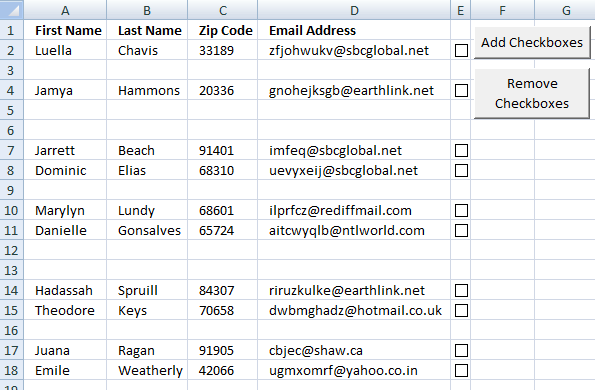
In this section, I will demonstrate a macro that creates checkboxes in nonempty rows, see checkboxes in column E in image above.
The button "Add Checkboxes" next to column E is assigned to macro Addcheckboxes(), press with left mouse button on the button and the macro will be rund.
The same thing goes with the button "Remove Checkboxes" next to column E is assigned to macro RemoveCheckboxes(), press with left mouse button on the button and that macro will be rund.
VBA code - Add checkboxes
'Name macro
Sub Addcheckboxes()

'Declare variables and data types
Dim cell, LRow As Single
Dim chkbx As CheckBox
Dim CLeft, CTop, CHeight, CWidth As Double

'Don't refresh or update screen while processing macro, this will make the macro quicker.
Application.ScreenUpdating = False

'Find last non empty cell in column A
LRow = ActiveSheet.Range("A" & Rows.Count).End(xlUp).Row

'Iterate through 2 to last non empty cell
For cell = 2 To LRow

    'Check if cell in column A is not equal to nothing
    If Cells(cell, "A").Value <> "" Then

        'Save cell dimensions and coordinates of corresponding cell in column E to variables
        CLeft = Cells(cell, "E").Left
        CTop = Cells(cell, "E").Top
        CHeight = Cells(cell, "E").Height
        CWidth = Cells(cell, "E").Width

        'Create checkbox based on dimension and coordinates data from variables
        ActiveSheet.CheckBoxes.Add(CLeft, CTop, CWidth, CHeight).Select
        With Selection
            .Caption = ""
            .Value = xlOff
            .Display3DShading = False
        End With
    End If
Next cell

'Turn on screen refresh
Application.ScreenUpdating = True

End Sub
VBA code - Remove checkboxes
'Name macro
Sub RemoveCheckboxes()

'Declare variables and data types
Dim chkbx As CheckBox

'Iterate through all check boxes on active sheet
For Each chkbx In ActiveSheet.CheckBoxes

    'Remove checkbox
    chkbx.Delete

'Continue with next checkbox
Next

End Sub
Where to copy VBA code?
- Copy above code.
- Press Alt+F11 to open the Visual Basic Editor.
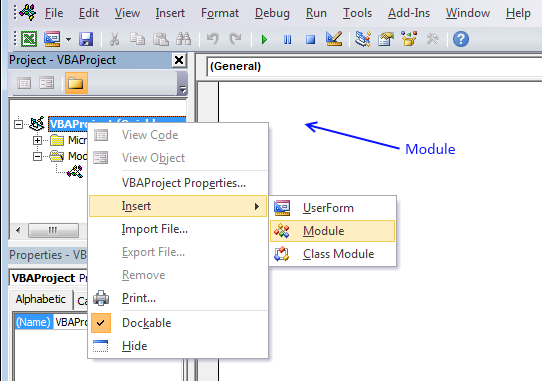
- Press with right mouse button on on your workbook in the Project Explorer, see image above.
- Press with left mouse button on "Insert".
- Press with left mouse button on "Module".
- Paste VBA code to the module.
- Exit VBE and return to Excel.
I have assigned the macros to two buttons: "Add Checkboxes" and "Remove Checkboxes", the top image shows these buttons.
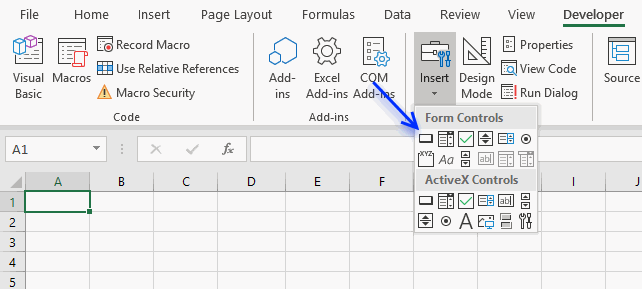
- Go to Developer tab.
- Press with left mouse button on "Insert" button.
- Press with left mouse button on "Button" button ;-)
- Press with left mouse button on and drag on the worksheet and then release mouse button to create the button.
- Select a macro.
- Press with left mouse button on OK!
In the next post I will describe how to copy selected rows to another sheet.

3. Copy selected rows based on check boxes
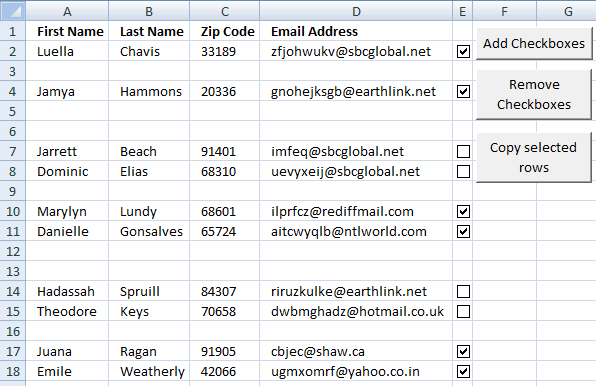
This section demonstrates a macro that copies selected rows based on enabled check boxes. The image above shows data on Sheet1 and checkboxes, some of them are enabled and those will be copied to Sheet2 if you press with left mouse button on button "Copy selected rows".
3.1. Worksheet data
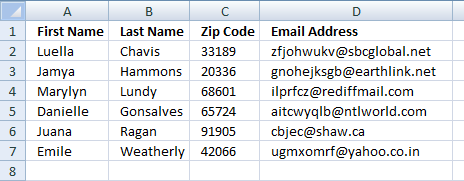
The image above shows Sheet2 and records copied from Sheet1.
3.2. VBA code
'Name of macro
Sub CopyRows()

'Go through each check box in active sheet
For Each chkbx In ActiveSheet.CheckBoxes

    'If check box is enabled
    If chkbx.Value = 1 Then

        'Go through each row on worksheet
        For r = 1 To Rows.Count

            'Check if checkbox is on the same row
            If Cells(r, 1).Top = chkbx.Top Then

                'Simplify syntax
                With Worksheets("Sheet2")

                    'Identify the cell right below the last non empty cell
                    LRow = .Range("A" & Rows.Count).End(xlUp).Row + 1

                    'Copy record from Sheet1 and paste to first empty row on Sheet2
                    .Range("A" & LRow & ":D" & LRow) = _
                    Worksheets("Sheet1").Range("A" & r & ":D" & r).Value
                End With

                'Exit For Loop
                Exit For
            End If
        Next r
    End If
Next

End Sub
3.3. Where to copy vba code?
- Copy above code.
- Press Alt+F11 in excel.
- Insert a module.
- Paste code into the code window.
- Return to Excel.
3.4. How to run the macro using a button
I have assigned the macro to a button: Copy selected rows
- Go to Developer tab
- Press with left mouse button on "Insert Controls" button
- Press with left mouse button on "Button" button
- Create the button
- Select CopyRows macro
- Press with left mouse button on OK!
4. Multi-level To-Do list template
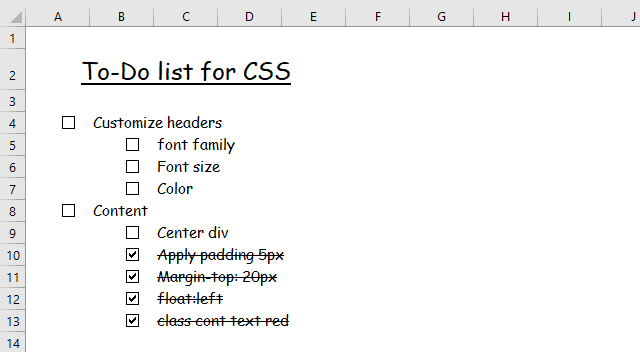
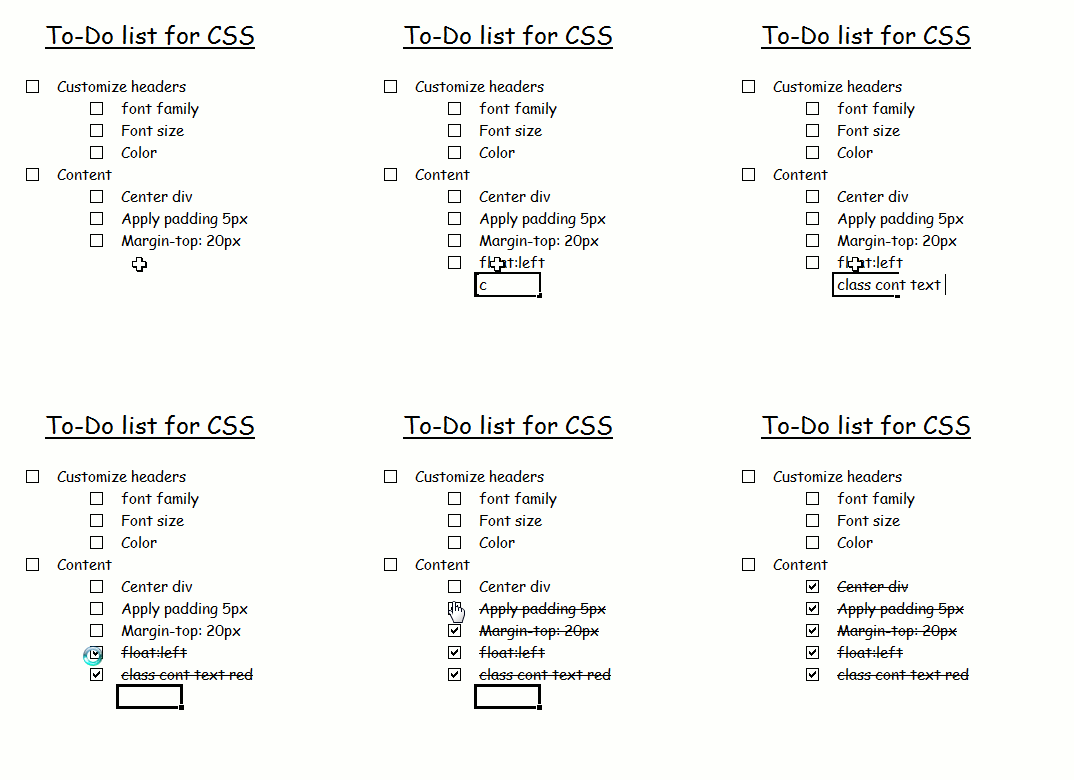
I will now share a To-do list excel template with you. You can add text to the sheet and an Excel macro creates corresponding check boxes instantly. Press with left mouse button on a checkbox and the related text is marked as finished. Also, the corresponding checkbox is automatically removed if you delete text.
What's on this section
Multi-level To-Do list
-
- How to add check boxes
- How to remove check boxes?
- How to run a macro?
- Event code
- Where to put the Event code?
- VBA Macros
- Where to put the macros?
- Get Excel *.xlsm file
The animated image below demonstrates how to create new items and mark items finished.
4.1 How to add checkboxes?
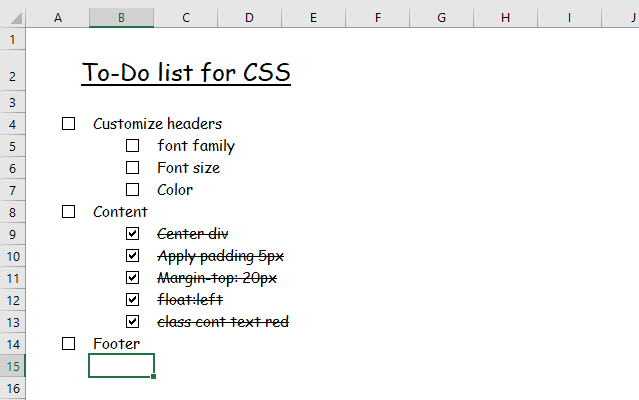
Type in any cell and a checkbox is instantly and automatically created on the adjacent cell to the left. Checkboxes are not created if multiple cells are simultaneously entered at the same time.
How can I enter multiple cells simultaneously?
- Select a cell range. Type the text. Press CTRL + Enter. All selected cells are now populated.
- Copy a cell. Paste to a cell range. All cells in the cell range now contain the contents of the copied cell.
An event macro is what it takes to make this possible. They are stored in a worksheet module contrary to a regular macro that is stored ina regular module.
4.2 How to remove check boxes?
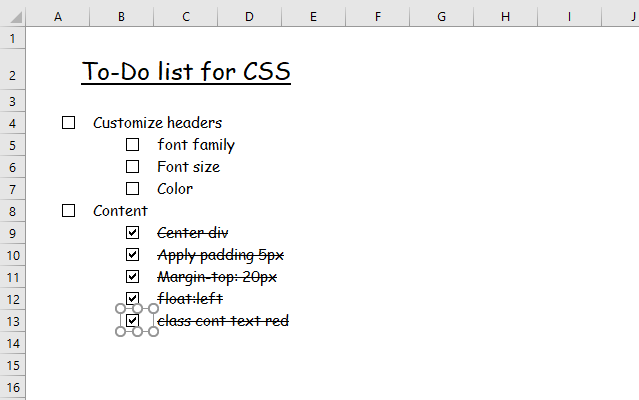
Simply select a cell containing text and press the "Delete" key. The corresponding checkbox is deleted by a macro.
You can also manually delete checkboxes, here is how. Press and hold CTRL-key. Press with left mouse button on with the left mouse button on the checkbox you want to delete. Press the "Delete" key.
The macro below that lets you delete all checkboxes on a worksheet.
Sub RemoveCheckboxes()
ActiveSheet.CheckBoxes.Delete
End Sub
4.3 How to run a macro?
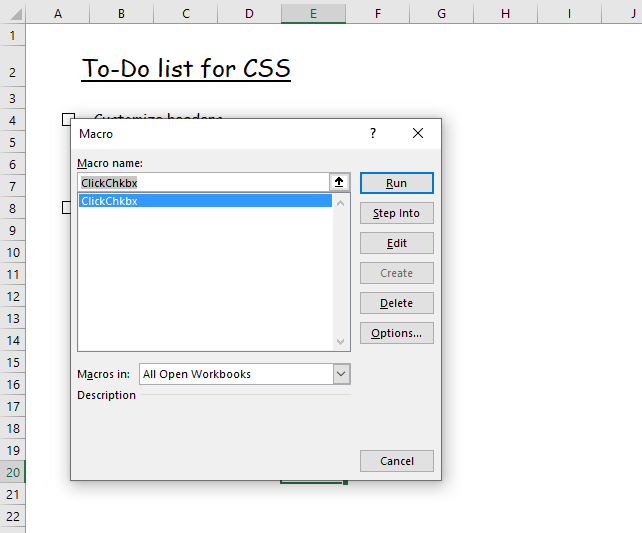
Run macro RemoveCheckboxes if you want to delete all checkboxes on a worksheet.
- Press shortcut keys Alt + F8 to open the Macro dialog box.
- Press with mouse on the macro name to select it.
- Press with left mouse button on the "Run" button.
The list in the "Macro" dialog box shows all available macros, if RemoveCheckboxes is not there you need to first save it to a module. Instructions below.
4.4 Event code
'Event code that runs when a cell has a new value
Private Sub Worksheet_Change(ByVal Target As Range)

'Disable screen refresh
Application.ScreenUpdating = False

'Dimension variable and declare data types
Dim cell As Range

'Check if changed cell's row is 2
If Target.Row = 2 Then Exit Sub

'Check if more than one cell has been changed
If Target.Cells.Count > 1 Then

    'Iterate through each changed cell
    For Each cell In Target

        'Run macro named AddRemoveChkbx with parameter cell
        Call AddRemoveChkbx(cell)

    'Continue with next cell
    Next cell

'Go from here if only one cell has been changed
Else

    'Save target cell to object named cell
    Set cell = Target

    'Run macro AddRemoveChkbx with parameter cell
    Call AddRemoveChkbx(cell)
End If

'Enable screen refresh
Application.ScreenUpdating = True
End Sub
4.5 Where to put the Event code?
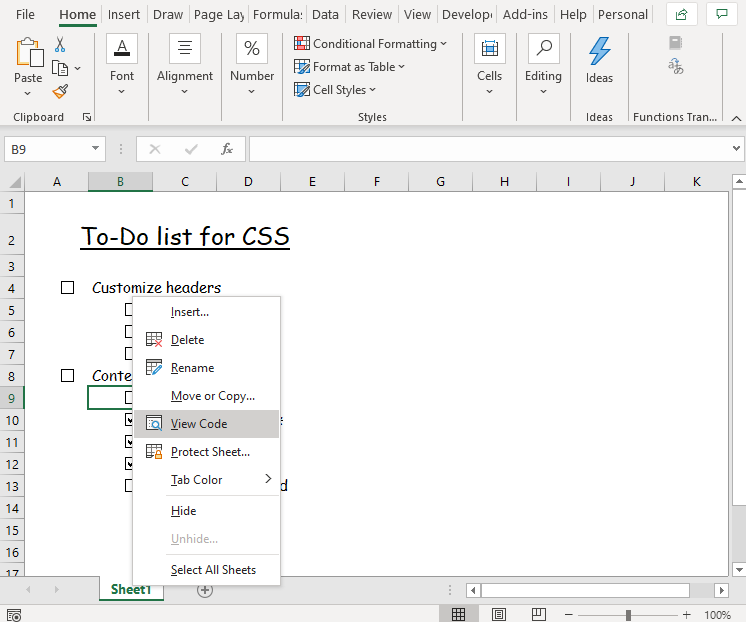
Event code is stored in the worksheet or workbook module, in this case, the worksheet module.
- To access the worksheet module press with right mouse button on on a worksheet tab.
- A pop-up menu appears, press with left mouse button on "View Code". See the image above.
- The Visual Basic Editor opens and the worksheet module is displayed.
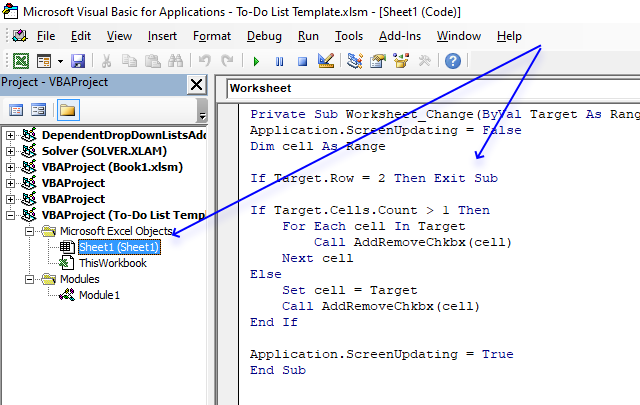
- Paste the code to the worksheet module.
4.6 VBA Macros
'Name macro
Sub Press with left mouse button onChkbx()

'Iterate from 1 to the number of rows in your worksheet
For r = 1 To Rows.Count

    'The With ... End With statement allows you to write shorter code by referring to an object only once instead of using it with each property.
    With ActiveSheet.Shapes.Range(Array(Application.Caller))

        'Check if cell's top value is equal to the press with left mouse button oned check box, based on variable r
        If Cells(r, 1).Top = .Top Then

            'Iterate from 1 to the number of columns in your worksheet
            For c = 1 To Columns.Count

                'Check if cell's left value is equal to checkbox's left value + 24
                If Cells(r, c).Left = .Left + 24 Then

                    'The With ... End With statement allows you to write shorter code by referring to an object only once instead of using it with each property.
                    With Cells(r, c).Font

                        'Apply strikethrough to text based on variables r and c
                        .Strikethrough = Not .Strikethrough
                    End With

                    'Stop For ... Next statement
                    Exit For
                End If
            Next c

            'Stop For ... Next statement
            Exit For
        End If
    End With
Next r

End Sub
'Name macro, dimension parameteres and declare data types
Sub AddRemoveChkbx(cell As Range)

'Dimension variables and declare data types
Dim CLeft As Double, CTop As Double, CHeight As Double, CWidth As Double
Dim chkbx As CheckBox

'Check if cell value is not equal to nothing
If cell.Value <> "" Then

    'The With ... End With statement allows you to write shorter code by referring to an object only once instead of using it with each property.
    With cell.Offset(0, -1)

        'Add half of width of a cell to the left property value and save to variable CLeft
        CLeft = Cells(.Row, .Column).Left + Cells(.Row, .Column).Width / 2

        'Save top property value to variable CTop
        CTop = Cells(.Row, .Column).Top

        'Save Height property value to variable CHeight
        CHeight = Cells(.Row, .Column).Height

        'Save width property value divided by 2 to variable CWidth
        CWidth = Cells(.Row, .Column).Width / 2
    End With

    'Create checkbox based on variables CLeft, CTop, CWidth, CHeight
    ActiveSheet.CheckBoxes.Add(CLeft, CTop, CWidth, CHeight).Select

    'The With ... End With statement allows you to write shorter code by referring to an object only once instead of using it with each property.
    With Selection

        'Assign macro Press with left mouse button onChkbx to checkbox
        .OnAction = "Press with left mouse button onChkbx"

        'No caption
        .Caption = ""

        'Unchecked checkbox
        .Value = xlOff

        'No 3D shading
        .Display3DShading = False
    End With

    'Select cell below
    cell.Offset(1, 0).Select

'If cell has value continue here
Else

    'Iterate through all checkboxes on active worksheet
    For Each chkbx In ActiveSheet.CheckBoxes

        'Check If cell's top value matches checkboc top value
        If cell.Top = chkbx.Top Then

            'Remove checkbox from worksheet
            chkbx.Delete

            'Remove strikethrough from cell
            cell.Font.Strikethrough = False
        End If
    Next

    'Select cell below
    cell.Offset(1, 0).Select
End If
End Sub
4.7 Where to put the macros?
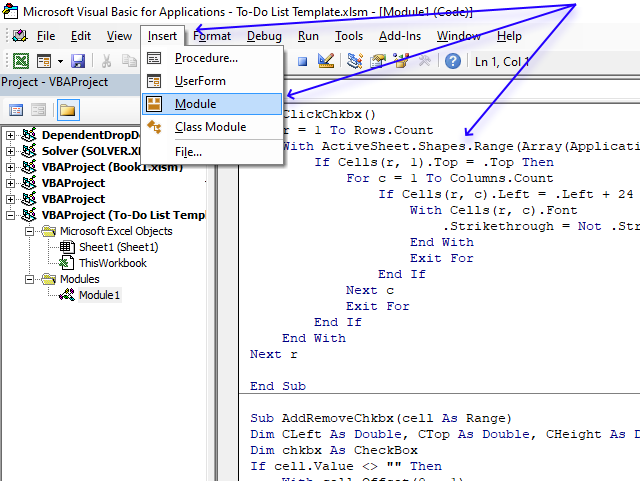
- Press shortcut keys Alt+ F11 to open the Visual Basic Editor.
- Press with left mouse button on "Insert" on the top menu, see image above.
- Press with left mouse button on "Module" to create a new module in your workbook.
- Copy above VBA code.
- Paste VBA code to code window, see blue arrow in the image above.
Bonus tip - Quickly insert checkboxes
You can quickly insert many checkboxes without inserting them one by one.
- Go to Developer tab on the ribbon
- Press with left mouse button on "Insert" button on the ribbon
- Place a checkbox on a cell
- Select the cell
- Press and hold on black dot on lower right corner
- Drag down
- Release button
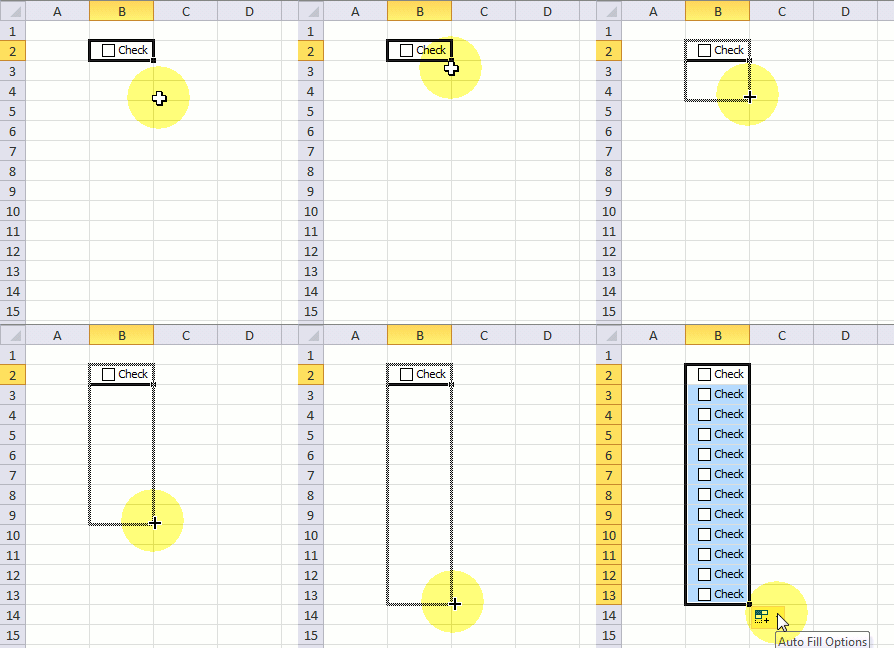
You don't need to do this with the attached file, the VBA code inserts a checkbox automatically as soon as you type in a cell.
Recommende reading
The Best To Do List Templates in Excel
Excel To Do List Template – 4 Examples
Check boxes category
More than 1300 Excel formulasExcel categories
55 Responses to “Add checkboxes and copy values – VBA”
Leave a Reply
How to comment
How to add a formula to your comment
<code>Insert your formula here.</code>
Convert less than and larger than signs
Use html character entities instead of less than and larger than signs.
< becomes < and > becomes >
How to add VBA code to your comment
[vb 1="vbnet" language=","]
Put your VBA code here.
[/vb]
How to add a picture to your comment:
Upload picture to postimage.org or imgur
Paste image link to your comment.

You can reduce your RemoveCheckboxes macro to a one-liner...
Sub RemoveCheckboxes()
ActiveSheet.CheckBoxes.Delete
End Sub
Rick Rothstein (MVP - Excel),
Thanks!!
In your CopyRows macro, since the CheckBox is actually a Shape underneath it all, we can eliminate your inner loop by making use of its TopLeftCell property to determine the row its on.
Sub CopyRows() Dim LRow As Long, ChkBx As CheckBox, WS2 As Worksheet Set WS2 = Worksheets("Sheet2") LRow = WS2.Range("A" & Rows.Count).End(xlUp).Row For Each ChkBx In ActiveSheet.CheckBoxes If ChkBx.Value = 1 Then LRow = LRow + 1 WS2.Cells(LRow, "A").Resize(, 4) = Range("A" & _ ChkBx.TopLeftCell.Row).Resize(, 4).Value End If Next End SubHi Rick & Oscar
I am a bit late to the show,
However I have used this code that Rick has altered slightly of Oscars however would you be able to assist on where in the code i can determine the exact cell on sheet 2 that the paste occurs.
I have managed to change the paste column from A to C but i cant seem to find a way to have the pasting start at cell C12 rather than C2.
Any help would be great.
Thank you
Rick Rothstein (MVP - Excel),
Thank you for your valuable comments!
Hi,
I have a similar problem - I would like to use checkboxes in "sheet1" and populate the rows of data into "sheet 2" and Sheet 3"
But can this be done without the use of a macro??
Maybe using auto sum or something??
Please help,
Regards,
Hello,
I have a similar issue. I am trying to replicate your example but for some reason it does not work form. It looks as though the macro runs, but does not pick up the check box. Also, the main difference is that my header begins on row 8, but my check boxes remain in column E.
Would you be able to please advise?
Thanks in advance!!
Carlos,
I assume you have read this post?
Excel vba: Add checkboxes to a sheet (1/2) The code for adding the checkboxes are in that post.
Also, the main difference is that my header begins on row 8
Change this line
to
and all lines containing "E" to your column.
Hi Oscar,
Many thanks for the response. I am still a bit confused on your instructions. Can you validate the changes I have made below:
Sub CopyRows()
For Each chkbx In ActiveSheet.CheckBoxes
    If chkbx.Value = 1 Then
        For r = 8 To Rows.Count
            If Cells(r, 1).Top = chkbx.Top Then
                With Worksheets("Products Summary") '"Products Summary" is the name of tab where I want the copied cells to be place
                    LRow = .Range("A" & Rows.Count).End(xlUp).Row + 1
                    .Range("A" & LRow & ":D" & LRow) = _
                    Worksheets("Product Data").Range("A" & r & ":D" & r).Value ' "Product Data" is the tab where my data is located
                End With
                Exit For
            End If
        Next r
    End If
Next
End Sub
Many thanks again!
Also, a correction to my previous comment. My header begins on both tabs on row 7. First check box in the "Product Data" tab is on row 10. Not sure if this makes a difference.
Thanks again!
Carlos,
Yes, it seems fine. If it doesn´t work upload the file.
Dear Oscar,
When we apply the script shown above, is possible specify, for the copied rows, those columns that we really want?
( Imagine that I have 10 columns with information, but I just want to copy the information available in 5 of them. )
Best Regards and thanks for all your availability to make clear this kind of matters !
Hi Oscar,
I´ve searched for awhile, but didn´t found a solution :-(
Your vba code works fine - nice work!
It´s possible to transfer besides the values, the format (Width, High, Border, Color,..), too?
thanks for your support.
regards from Germany
Hello Mike,
try this:
Sub CopyRows()
Application.ScreenUpdating = False
For Each chkbx In ActiveSheet.CheckBoxes
    If chkbx.Value = 1 Then
        For r = 1 To Rows.Count
            If Cells(r, 1).Top = chkbx.Top Then
                With Worksheets("Sheet2")
                    Worksheets("Sheet1").Range("A" & r & ":D" & r).Copy
                    LRow = .Range("A" & Rows.Count).End(xlUp).Row + 1
                    .Range("A" & LRow & ":D" & LRow).PasteSpecial Paste:=xlPasteAllUsingSourceTheme, Operation:=xlNone, _
                    SkipBlanks:=False, Transpose:=False
                    .Range("A" & LRow & ":D" & LRow).PasteSpecial Paste:=xlPasteColumnWidths, Operation:=xlNone, _
                    SkipBlanks:=False, Transpose:=False
                End With
                Application.CutCopyMode = False
                Exit For
            End If
        Next r
    End If
Next
Application.ScreenUpdating = True
End Sub
Get the Excel *.xlsm file
Copy-selected-rows-checkboxesv2.xlsm
Hi Oscar. This is interesting. I have opened the To-Do List Template.xlsm and after extraction is giving all xml files. can you please let me know how to add this to excel and how to use this.
Kiran,
Your computer opens the attached file with win zip when it should be excel. Don´t ask me why.
Read here:
https://www.makeuseof.com/answers/internet-explorer-save-docx-xlsx-zip-files/
Very nice work
Thank you for your teaching me
Is there anything on the multi-level to do index file with tracking option of start date, target date, across various function (say of Sales, Finance, Purchase, Production, etc.), a remark column, highlighting option (in case of deviation), person handling, projectwise, categorywise, in accordance with importance.
Please help.
Bharat,
Can you exlpain in greater detail? Perhaps upload an excel file?
Hi,
Just want to ask, for this macro when it copies it seems to copy the rows more than once. Any insights how to ammend this?
Bests
Melvin
Hi,
I just wanted to know how i can stop the duplication in the copy and paste section
thanks
HI I am looking for this Fucntion for my attendance thanks
Hi Oscar thanks for posting the Addcheckboxes code, it's just what I have been looking for!
I need to modify it to search through a named range ( as opposed to the last row with data. I am not proficient in VBA at all , so when I tried to alter the code it was rejected.
thanks
i,
Just want to ask, for this macro when it copies it seems to copy the rows more than once. Any insights how to automatically delete the duplicate rows from the sheet the rows are copied to?
Will ActiveSheet("sheet2").clear if put at the start of the CopyRows sub?
Oscar,
I am running the code from Rick and everything seems to be working fine. The thing I need though is for the copy button to copy everything from A to I. Right now I am only copying A to D.
Thanks for your help in advance.
Jim,
Try this
Sub CopyRows() Dim LRow As Long, ChkBx As CheckBox, WS2 As Worksheet Set WS2 = Worksheets("Sheet2") LRow = WS2.Range("A" & Rows.Count).End(xlUp).Row For Each ChkBx In ActiveSheet.CheckBoxes If ChkBx.Value = 1 Then LRow = LRow + 1 WS2.Cells(LRow, "A").Resize(, 9) = Range("A" & _ ChkBx.TopLeftCell.Row).Resize(, 9).Value End If Next End SubIf you are interested in learning Multiple Level Sorting Using VBA
https://www.exceltip.com/tips/multiple-level-sorting-using-vbain-microsoft-excel-2010.html
Oscar,
I am using your code and altered it with multiple Check boxes(multiple columns of Check boxes).Every thing working fine.
As I am having for example 3 checkboxes in a single row, it copies 3 times a single row , I want separate destinations for copied data for every check box.( as it starts pasting from A column, I want it to start from A, and for 2nd check box it should start with any other column that I want and so on..)
Can you plz help
Hi Spider,
I think i am trying to do the same as you have mentioned in your previous post. I have multiple rows of data with three columns with check boxes. Each check box ticked should send the row to a different sheet. Did you manage to get a solution from anywhere?
Hi bit late to the show but I am using this code however would someone be able to assist on how I would be able to alter the code to be able to choose where the cells I paste the information to on sheet2 For example I want to paste the information starting at cell C12 i have managed to get it to paste starting at column C but cant get it to paste to C12 it still starts the pasting at C2.
Any help,
Thanks!
hi oscar,
i am struggling with one problem in excel can u help me out ?
my excel sheet contains
column A column B column c column d
344.01 spe mer 1
344 TEF mer 2
56.09 reg ser 3
56 let ter 1
67.09 dot mer 2
890 mtu ter 3
and so on like this.....
Now my objective is to get the count where column b can be (spe or tef) and column C can be mer and column d can (be 1 or 2)
i need a formula in macros
This is really great! Thank you! Can you tell me what code I would need to add in order to remove the original copied data? In other words, now that it has been copied from Sheet 1 to Sheet 2, how can I have it removed from Sheet 1 as part of the same process?
Thank you sir for your very useful and informative post. i want change the color row data after copying to indicate that was copied. please help
Faisal Mirza,
This code colors copied rows light blue:
Sub CopyRows() For Each chkbx In ActiveSheet.CheckBoxes If chkbx.Value = 1 Then For r = 1 To Rows.Count If Cells(r, 1).Top = chkbx.Top Then With Worksheets("Sheet2") LRow = .Range("A" & Rows.Count).End(xlUp).Row + 1 .Range("A" & LRow & ":D" & LRow) = _ Worksheets("Sheet1").Range("A" & r & ":D" & r).Value Worksheets("Sheet1").Range("A" & r & ":D" & r).Interior.ColorIndex = 37 End With Exit For End If Next r End If Next End SubHi Sir,
First of all I'd like to thank you for your code which gave me hope that my requirement is possible in excel.
I modified it as per my requirement and I must say its working 70%.
My requirement is by pressing with left mouse button on a checkbox in a particular row should select that row.So I modified your code as below.
Sub SelectRows()
Dim cell, LRow As Single
Dim chkbx As CheckBox

Application.ScreenUpdating = False
LRow = ActiveSheet.Range("A" & Rows.Count).End(xlUp).Row

For Each chkbx In ActiveSheet.CheckBoxes
    If chkbx.Value = 1 Then
        For r = 1 To Rows.Count
            If Cells(r, 1).Top = chkbx.Top Then
            ActiveSheet.Range("A" & r & ":D" & r).Select
                'With Worksheets("Sheet2")
                    'LRow = .Range("A" & Rows.Count).End(xlUp).Row + 1
                    '.Range("A" & LRow & ":D" & LRow) = _
                    'ActiveSheet.Range("A" & r & ":D" & r).Value
                'End With
                Exit For
            End If
        Next r
    End If
Next
End Sub
now if I press with left mouse button on the checkbox it selects that row. I want to select multiple checkbox at a time and multiple row should be selected (as we manually select by pressing CTRL Key and Mouseover cells). Is it possible?
Please help me. I trying my best to find the solution but seems that's not enough.
Dear Mr. Oscar
Well done! Your post has reduced my all odds. need your further help. i want copy rows data from different sheets to single (MAIN) sheet.
JPG LINK BELOW MENTION
https://postimg.org/image/y8nq7wubp/
Sub CopyRows() For Each chkbx In ActiveSheet.CheckBoxes If chkbx.Value = 1 Then For r = 1 To Rows.Count If Cells(r, 1).Top = chkbx.Top Then With Worksheets("Main") LRow = .Range("C" & Rows.Count).End(xlUp).Row + 1 .Range("C" & LRow & ":J" & LRow) = _ Worksheets("1st-Party").Range("C" & r & ":J" & r).Value Worksheets("2nd-Party").Range("C" & r & ":J" & r).Interior.ColorIndex = 37 End With Exit For End If Next r End If Next End SubFaisal Mirza
Sub CopyRows() sht = Array("1st-Party", "2nd-Party", "3rd-Party") For i=LBound(sht) to Ubound(sht) For Each chkbx In Worksheets(sht(i)).CheckBoxes If chkbx.Value = 1 Then For r = 1 To Rows.Count If Cells(r, 1).Top = chkbx.Top Then With Worksheets("Main") LRow = .Range("C" & Rows.Count).End(xlUp).Row + 1 .Range("C" & LRow & ":J" & LRow) = _ Worksheets(sht(i)).Range("C" & r & ":J" & r).Value Worksheets(sht(i)).Range("C" & r & ":J" & r).Interior.ColorIndex = 37 End With Exit For End If Next r End If Next Next i End SubDear Oscar,
how would you code it if you wanted to generate a CSV and not a new sheet.
regards
HI Oscar,
I have tried to copy data from selected checkbox with the help of code which you mention above but it didnt work. Can you guid me what to do to get only selected check box data in new work sheet.
Thank you
kjp
Make sure you change Sheet1 and Sheet2 so it matches your worksheet names.
Oscar
Need your help
I need to start past in c12 in sheet2
Hi Oscar. Congrats for ur blog. Very helpful. I'm trying to use the code above to my project but I need some modifications. I want to use the checkboxes to select rows in 3 different sheets and then paste the selections to another workbook in 3 dif. sheets. Could that be possible? Thanks in advance.
Hello Oscar!
This is Sheela from Germany.
Could you please tell me what should I add to move (Cut) the selected rows from Sheeet 1 and Sheet 2.
I mean the data from Original Destination (Sheet 1)should be erased.
Thanks in Advance.
how to copy images also and paste
suppose I have two columns A and B. How to make checkbox be added automatically to column A once I type anything in column B?
Hi Oscar, I was looking something similar, instated copying into an sheet I like to copy the row in to a email body is this possible?
Thank you I was looking for this but I am having an issue with the
LRow = ActiveSheet.Range("A" & Rows.Count).End(x1Up).RowGiving me a Run-time error '1004':
Application-define or object-defined error
Nole Sheets,
Does this work?
LRow = ActiveSheet.Range("A" & Rows.Count).End(xlUp).RowHello,
I've learned quite a bit since reviewing your blog and want to thank you for such great tutorials.
I've run into something I can't quite figure out. If possible, could you assist? Here's what I want to do:
Sheet1: Contains a menu for the user.
Sheet2: Contains an extract of data that contains multiple business unit names in column A.
I want to populate a checkbox list of all the business unit names in Sheet1 with checkboxes to then allow the user to check only the business units they would like to include in the output on Sheet3.
I have code developed that assigns a random number for each row of data on Sheet3, which is then sorted to only the top 25 random numbers (a sample selection). That part of my code works fine, but am trying to learn how to take a list of business units from Column A of Sheet2 and then populate a checkbox list in Sheet1 for the user to then only select the business units they want.
I hope this makes sense, and I appreciate any help you can offer on how to go about doing this.
Kindest Regards,
Jeff
Hello Oscar,
Very usefull code.
When applyng a filter on the source data, the copied lines are different from the selected ones.
Any Idea to fix this ?
By advance,
Sire
This works great!! Is there a way to do this with a Button instead? I can not locate that option anywhere online.
ThankYou for your time.
Thanks for this very useful example! My VBA creates a table with N rows, where N is determined by the value in a named range (RowCount). I'd like to use your framework for populating one of the named columns in my table with checkboxes, but I'm not sure how to reference a table column using VBA. I'd appreciate any suggestions and thanks again for this helpful resource.
Hi,
I kinda new to vba code and I like it.
I am trying to create a function that would create a checkbox into the cell that I am in.
Any clues?
Thx
Thanks for this. I've been looking fpr something like it for a while. The only issue I have is that if the check boxes are "ticked" and then more data is added below the last line, when you run the code again it resets all the previous check boxes back to "off". Is there anyway to not change the checkboxes above the last one created?
hi Oscar,
I have managed to change the paste column from A to D but i cant seem to find a way to have the pasting start at cell D11 rather than D2.